How to Handle Password-Protected Files
Last updated: October 6, 2026
In this article: What to do when a document fails to process because it's password-protected.
If you upload a file that is password-protected, Phaselaw will detect this automatically and show a Password Required status on the file. There are two ways to input the password.

How to input the password
You can find and unlock a password-protected file in two ways:
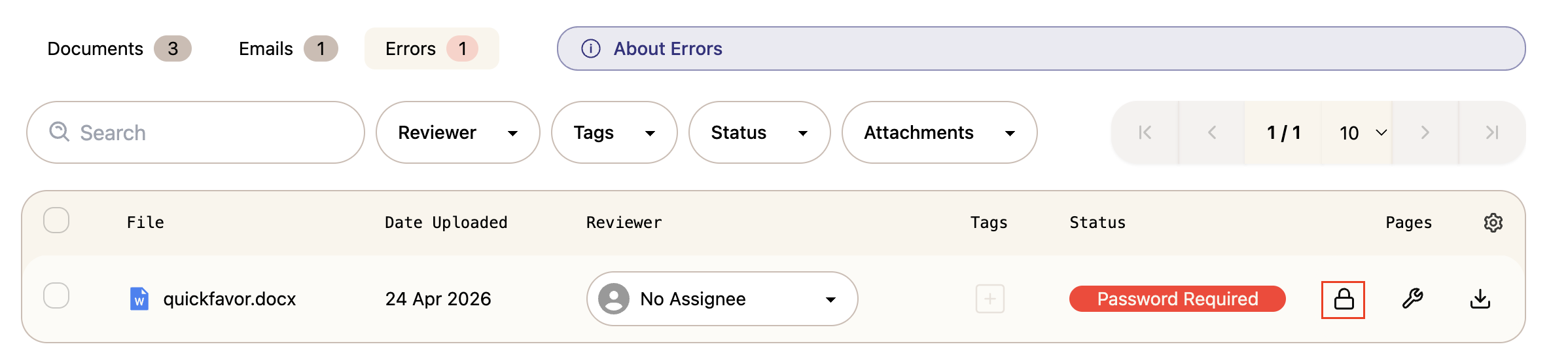
From the document list — click on the file to open it in the document viewer. You'll see a message saying the file is password-protected with a red Input password link. Click it to open the password popup.

From the Errors tab — navigate to the Errors tab at the top of your case. Locate the file and click Input password next to it.
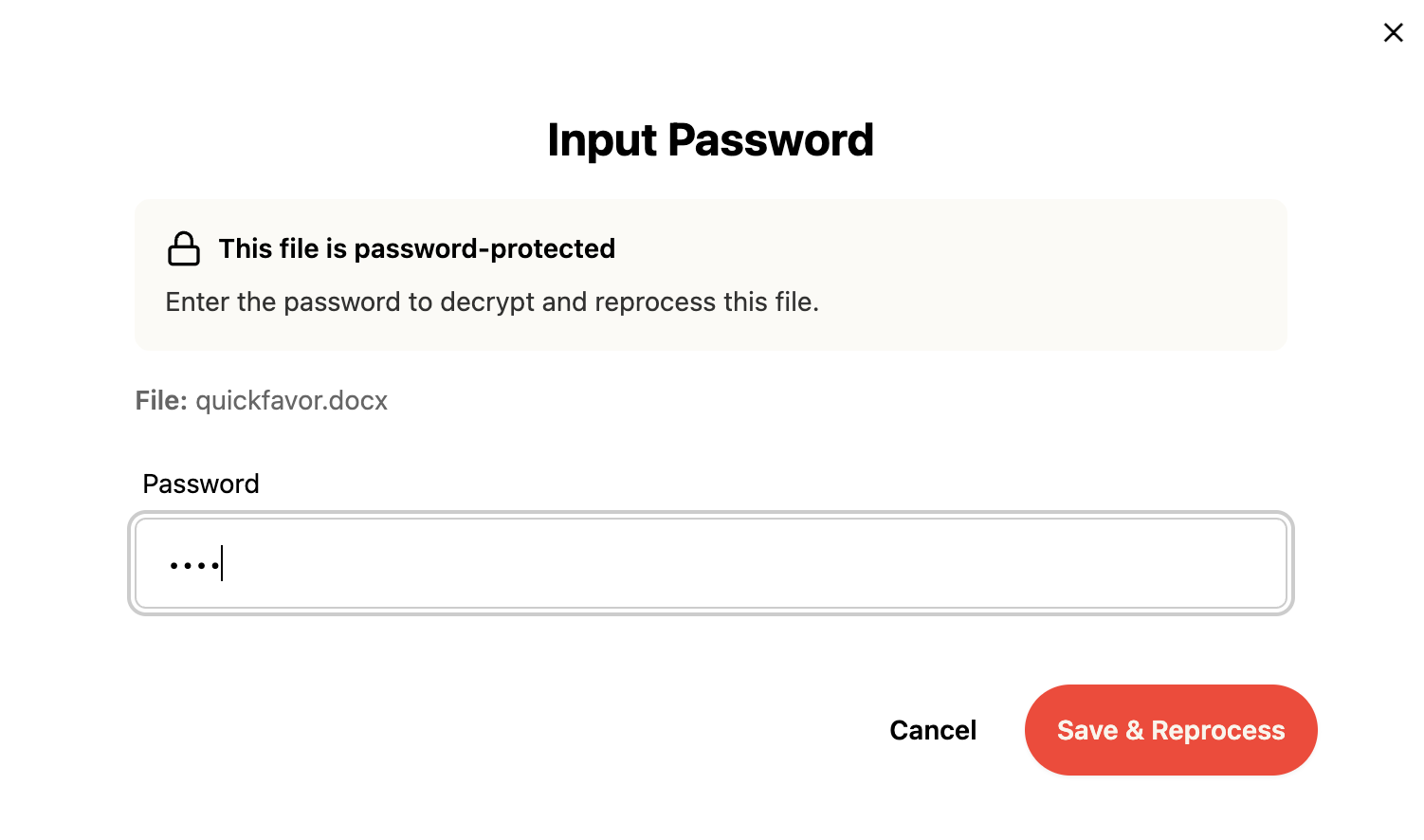
In the Input Password popup, enter the password and click Save & Reprocess. Once the correct password is entered, Phaselaw will reprocess the file and it will clear from the Errors tab automatically.
If you don't know the password, you'll need to obtain it from the sender or source before the file can be processed.
Multiple password-protected files
If you have a large number of password-protected files, Phaselaw doesn't currently support entering a password once and applying it across all files. If you're in this situation:
Upload all the files — they'll show as Password Required
Input the password on one file to confirm it works
Reach out via the live chat and the support team can apply the password across all files in the case
Downloading a list of files that need a password
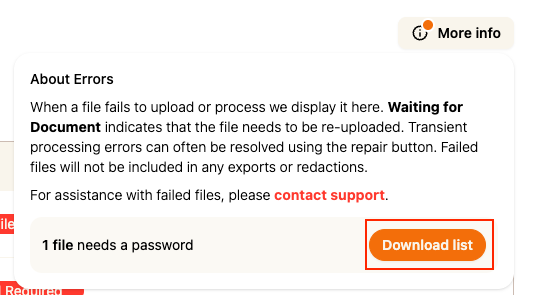
Under the Errors Tab, select More Info

Click Download List to download a full list of every password protected file