Using Bulk Redaction Terms
Last updated: August 18, 2026
In this article: How to add a list of terms you want flagged for redaction across all files in a case — either one at a time or by uploading a list.
Bulk Redaction Terms lets you define specific terms that should be redacted wherever they appear across your case. This is useful when you have a known list of terms — such as a list of employee names — and want every occurrence redacted without having to add them one by one. To access it, click the Case Redactions icon in the top toolbar, then navigate to Bulk Redaction Terms
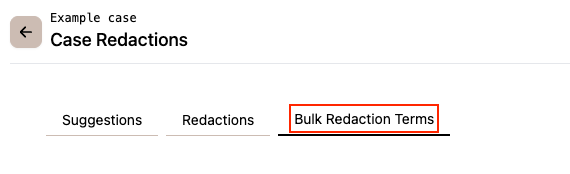
Adding a single term
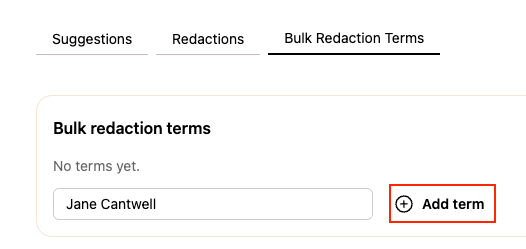
Type the term in the Add a term field
Click + Add term
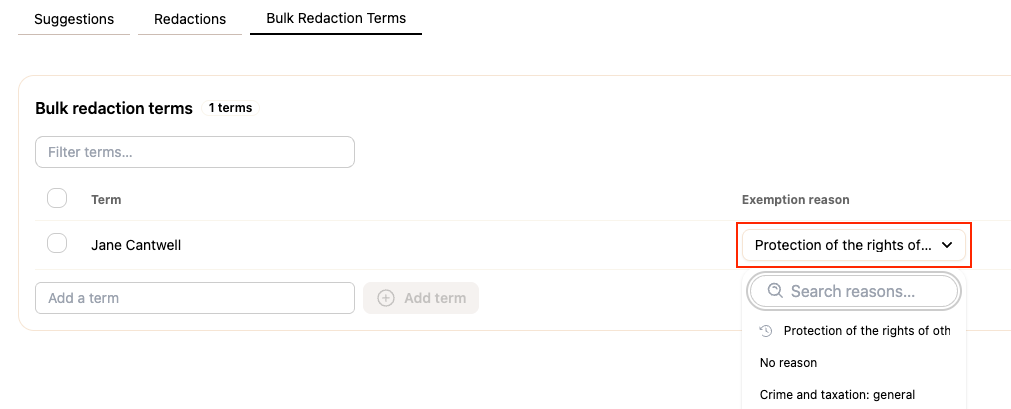
Set an Exemption reason from the dropdown next to the term
Uploading a list of terms
If you have a large number of terms, you can upload them as a .csv or plain text file instead of adding them manually.
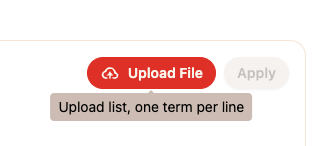
Prepare a plain text or CSV file with one term per row- no column headers needed
Upload the file using the Upload File button
Once uploaded, set an Exemption reason for each term:
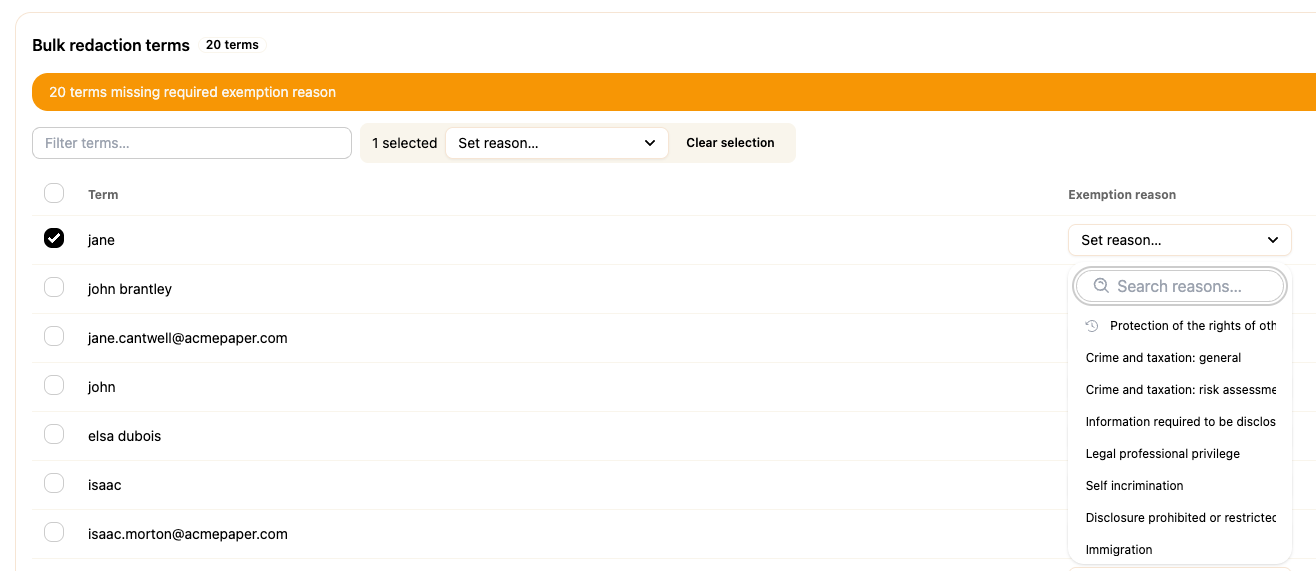
Alternatively, select all terms and apply an exemption reason for all terms:
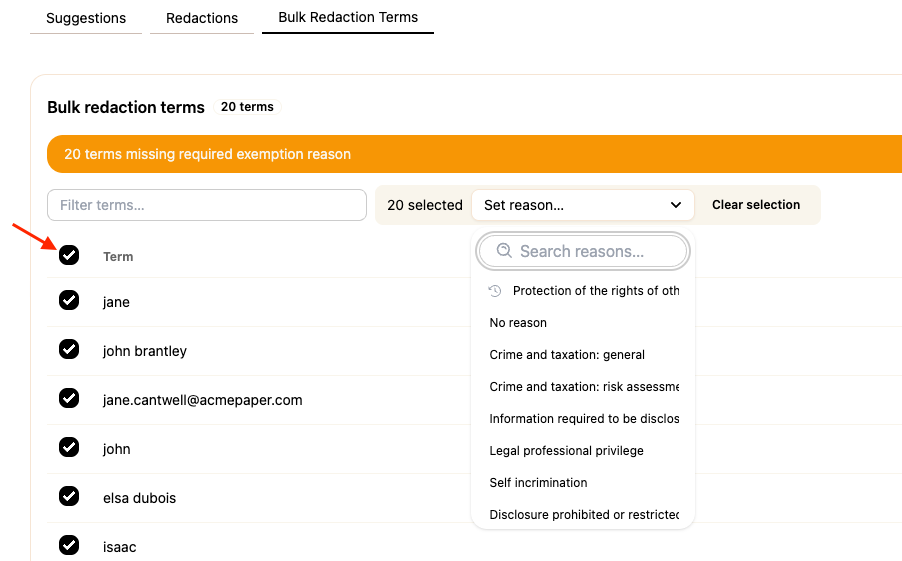
Once all terms have an exemption reason, click Apply to apply redactions across the case

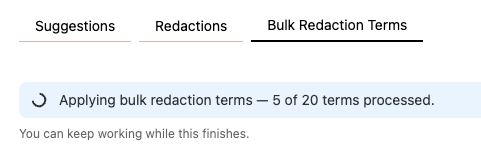
Once you click Apply, you'll see a popup confirming the process has started. You can continue working in the case while this runs in the background.
Once processing is complete, each term will be redacted wherever it appears across your case
If you need to undo a bulk redaction term, you can use the Case Redactions view to undo specific redactions. → Viewing and Undoing Redactions