How to Redact Documents in Phaselaw
Last updated: September 22, 2026
In this article: How to use Phaselaw's redaction tools to remove sensitive content from your documents — including suggested, manual, area, and whole page redactions.
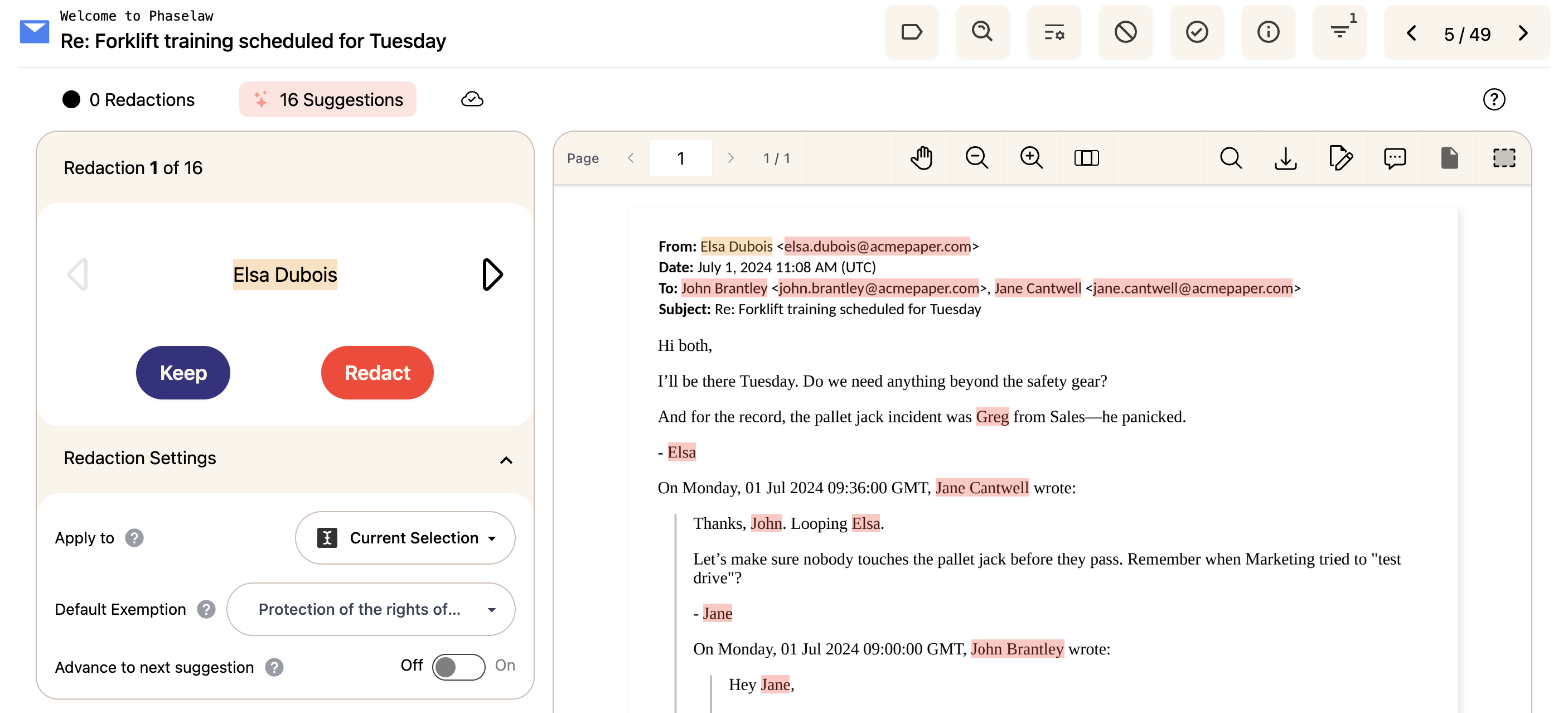
When you open a document for review, the screen is split into two areas: the document on the right and the action centre on the left. The action centre is where your suggested redactions and redaction settings live.
The action centre
Before making any redactions, it's worth understanding what each part of the action centre does.
Suggestions counter
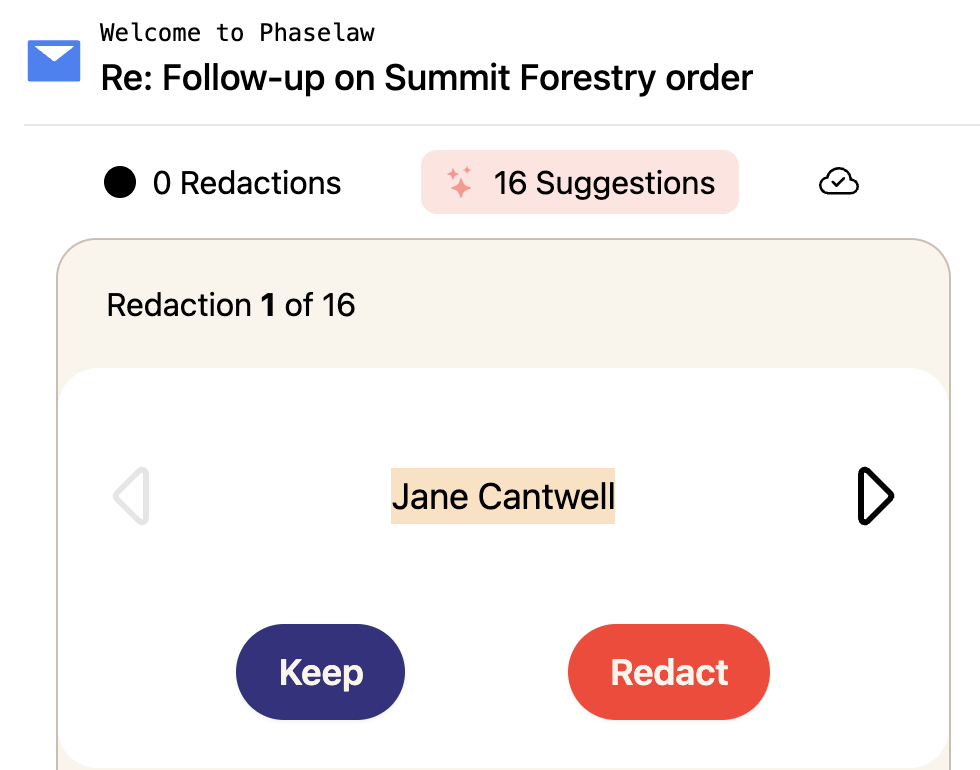
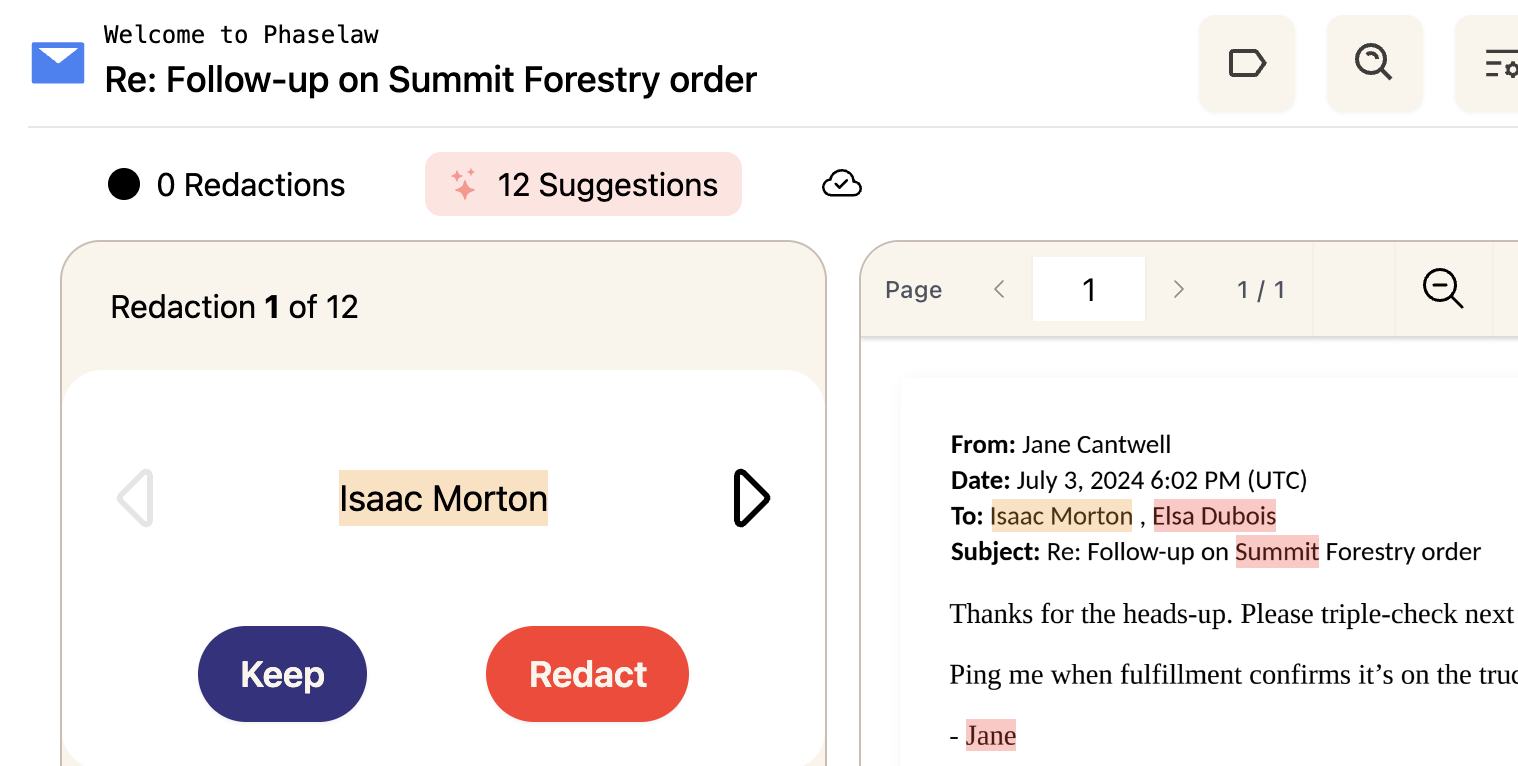
At the top of the action centre you'll see a counter showing your current suggestion — for example, Redaction 1 of 16. Use the arrows to move forwards and backwards through each suggestion. The Keep and Redact buttons let you action each one.
Redaction Settings
The Redaction Settings section controls how your redactions are applied.
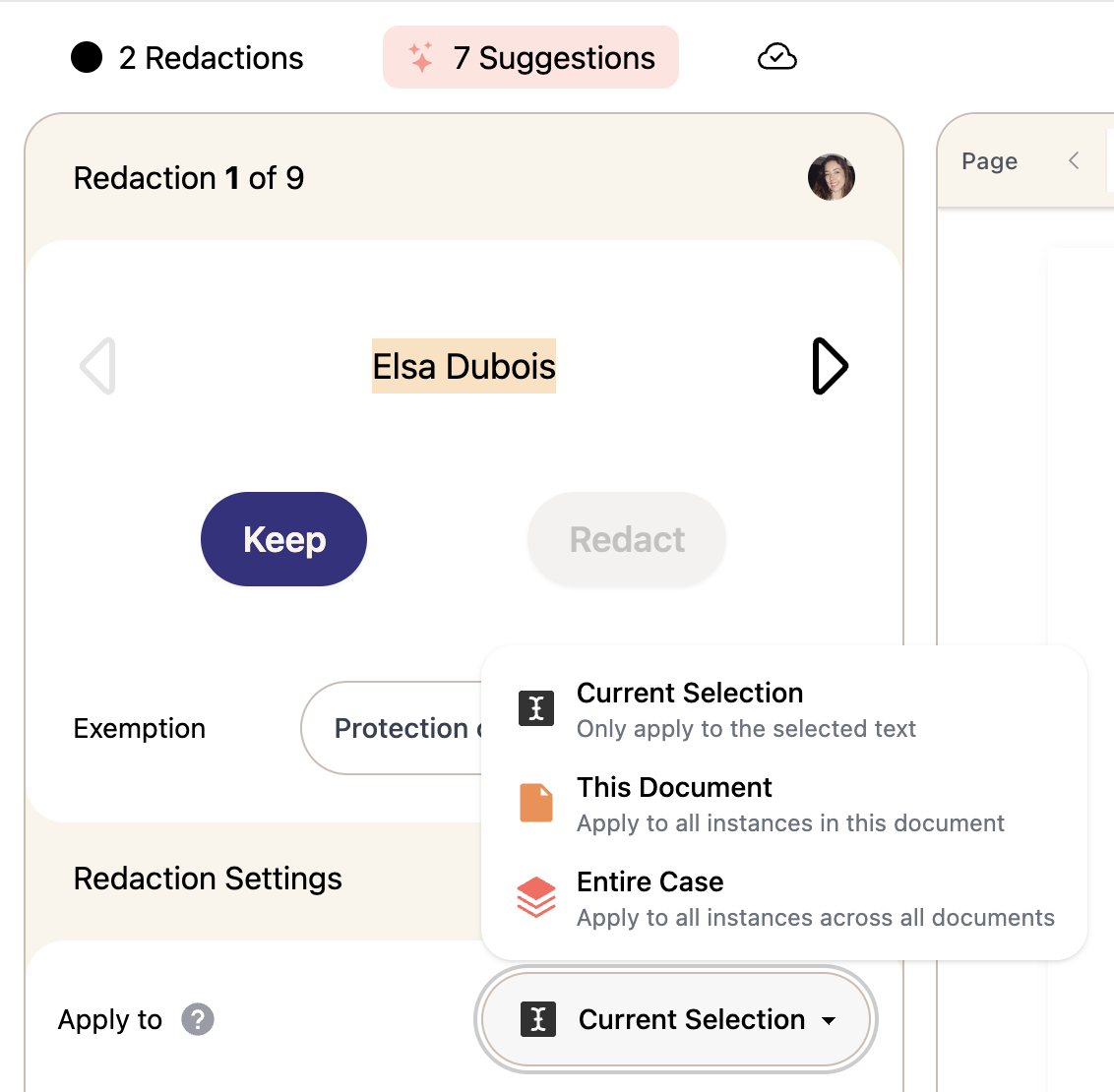
Apply to — sets the scope of each redaction. See Choosing your redaction scope below for a full explanation of each option.
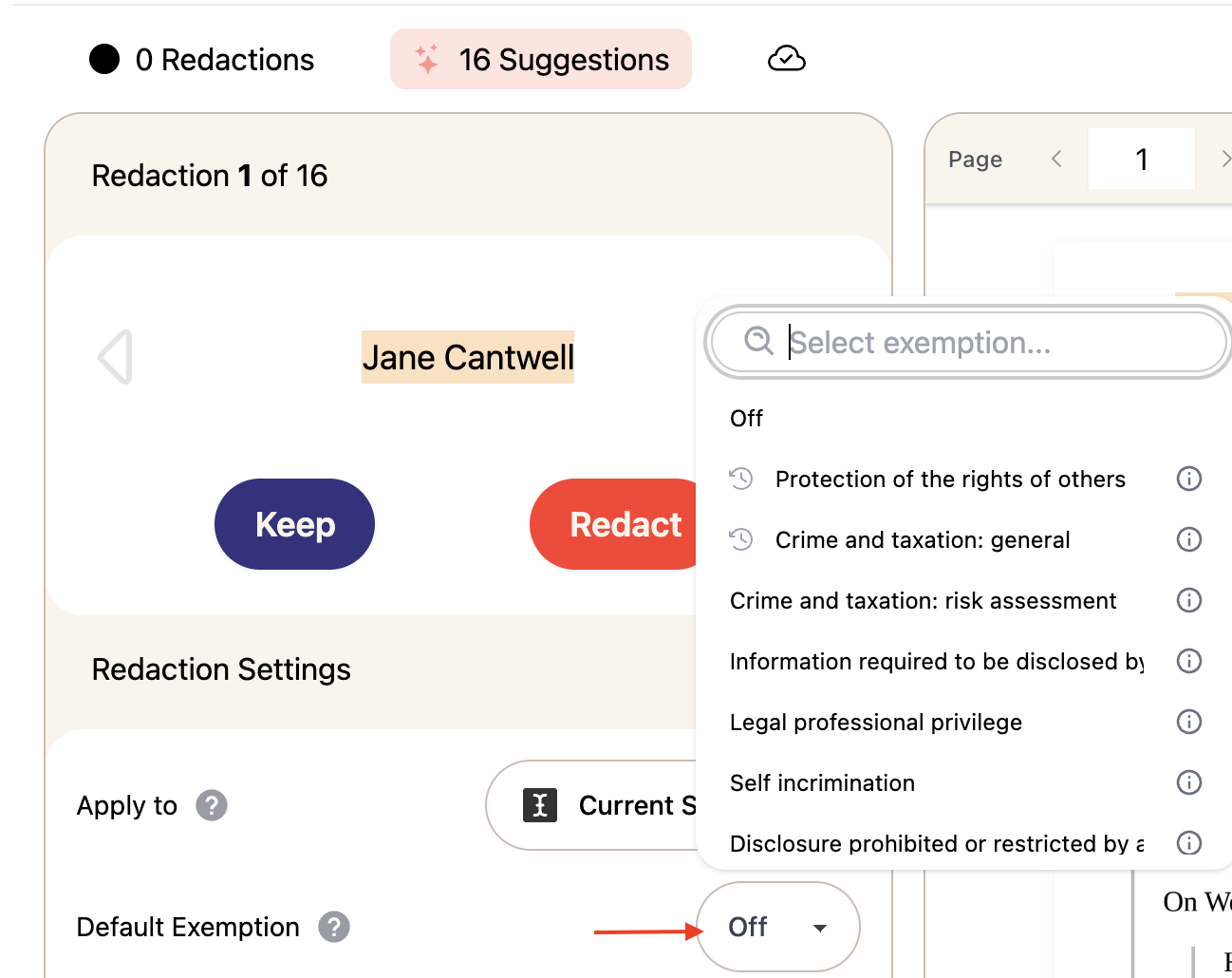
Default Exemption — sets a default exemption reason that is automatically applied to every redaction, so you don't have to select one each time. If this is switched off, you'll be prompted to choose an exemption reason every time you apply a redaction.
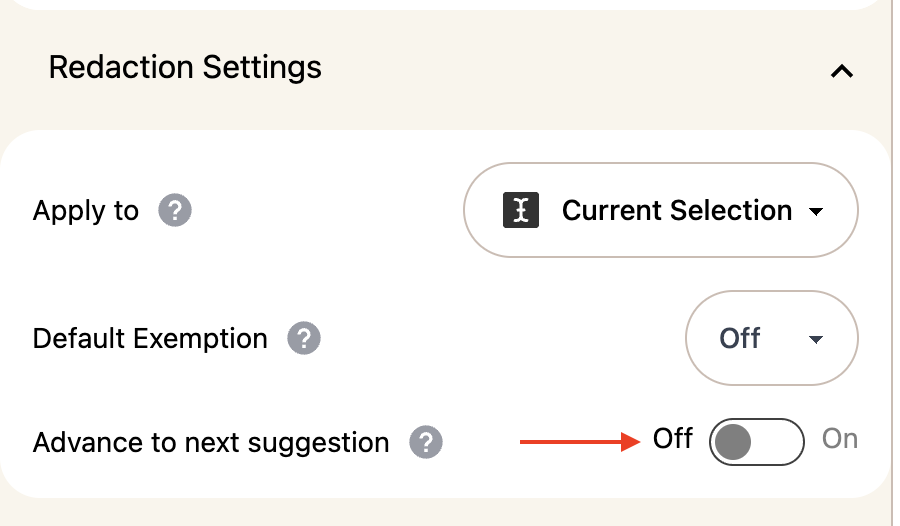
Advance to next suggestion — when switched on, Phaselaw will automatically skip over text that has already been redacted or kept when moving through suggestions, so you're only shown items that still need a decision.
Choosing your redaction scope
For every redaction you apply, you can choose how widely it's applied using Redaction Settings>Apply to in the action centre:
Current Selection — applies only to the specific text or area you've selected
This Document — applies to every instance of that term within the current document
Entire Case — applies to every instance of that term across all documents in the case
Entire Case redactions will not apply to files that have been finalized. Finalizing a file locks its redactions and takes it out of edit mode, so any Entire Case redaction you create afterwards will not apply. To make sure a term is redacted across the whole case, apply the Entire Case redaction before finalizing any documents.
Case-wide redactions are powerful but worth using carefully. If you're not sure whether a term should be redacted across the whole case, use This Document first while you're getting familiar with the case.
Making Redactions
Phaselaw offers four types of redaction — use whichever suits the content you need to remove.
Suggested redactions
Phaselaw automatically suggests redactions based on the content of your documents. You can accept, dismiss, or adjust each suggestion in the action centre.
Use the arrows to move through each suggestion and click Redact to apply it, or Keep to dismiss it.
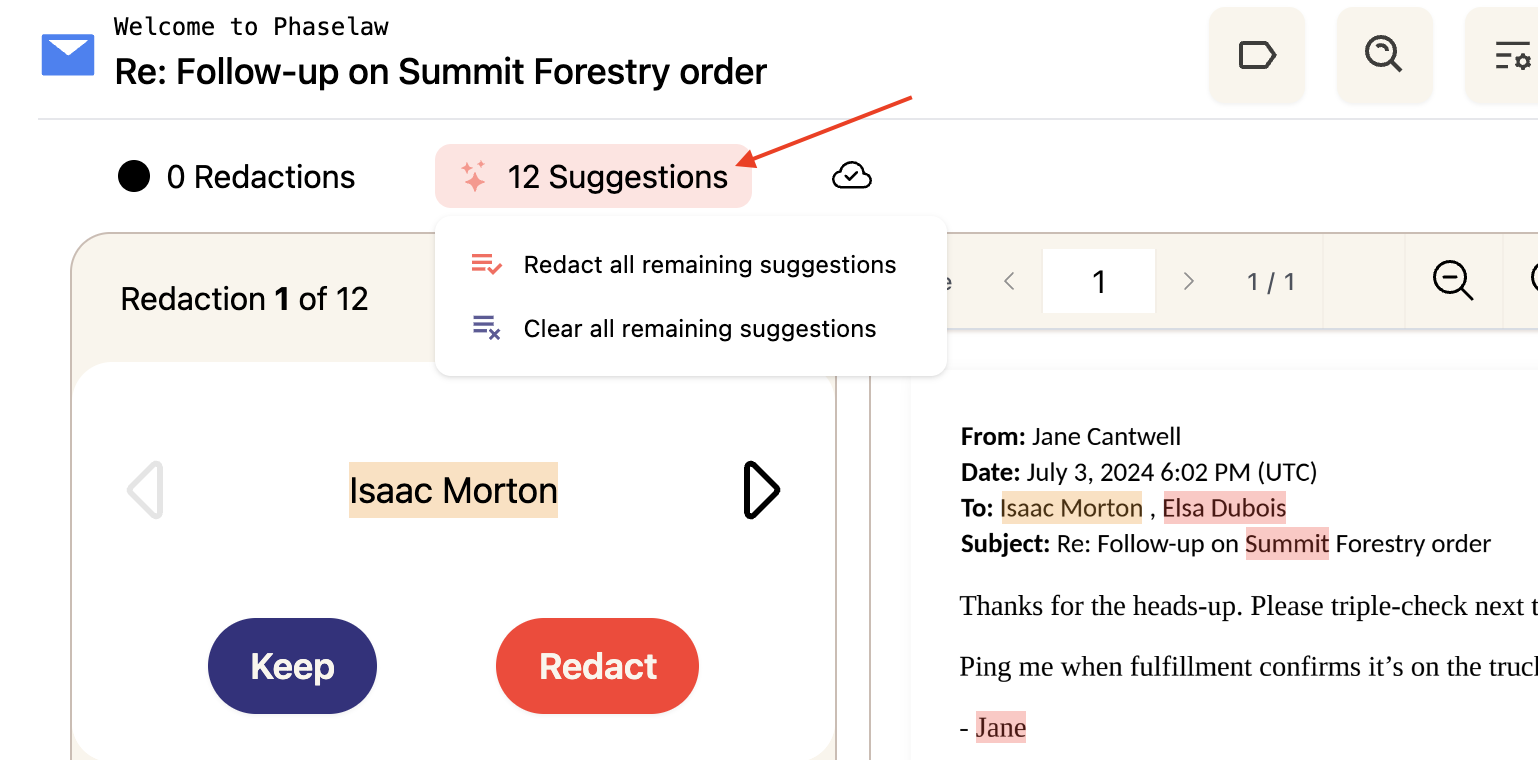
To action all suggestions at once, click the Suggestions button and select Redact all remaining suggestions or Clear all remaining suggestions.
If you apply a redaction by mistake, click Keep to undo it. If it was applied case-wide, the undo will also apply case-wide.
Manual redactions
For anything that Phaselaw hasn't automatically flagged, you can redact text yourself by selecting it directly in the document.
Highlight the text you want to redact
Click the pen mark icon in the toolbar that appears above your selection
Area redactions
Area redactions let you draw a box over any part of a page. This is useful for images, signatures, stamps, or large blocks of content that can't easily be selected as text.
Click the area redaction icon in the document viewer toolbar
Select the relevant exemption reason
Click and drag to draw a box over the content you want to redact
Whole page redactions
A whole page redaction blacks out the entire page — useful when a full page needs to be completely removed from your disclosure.
Navigate to the page you want to redact
Click the whole page redaction icon in the document viewer toolbar
Select the relevant exemption reason
Select the page(s) you want to redact
More Information
Undo or review your redactions → Viewing and Undoing Redactions