Viewing and Undoing Redactions
Last updated: August 17, 2026
In this article: How to undo individual redactions from within a document, and how to view and bulk undo redactions across your entire case.
Undoing a redaction in a document
To undo a redaction:
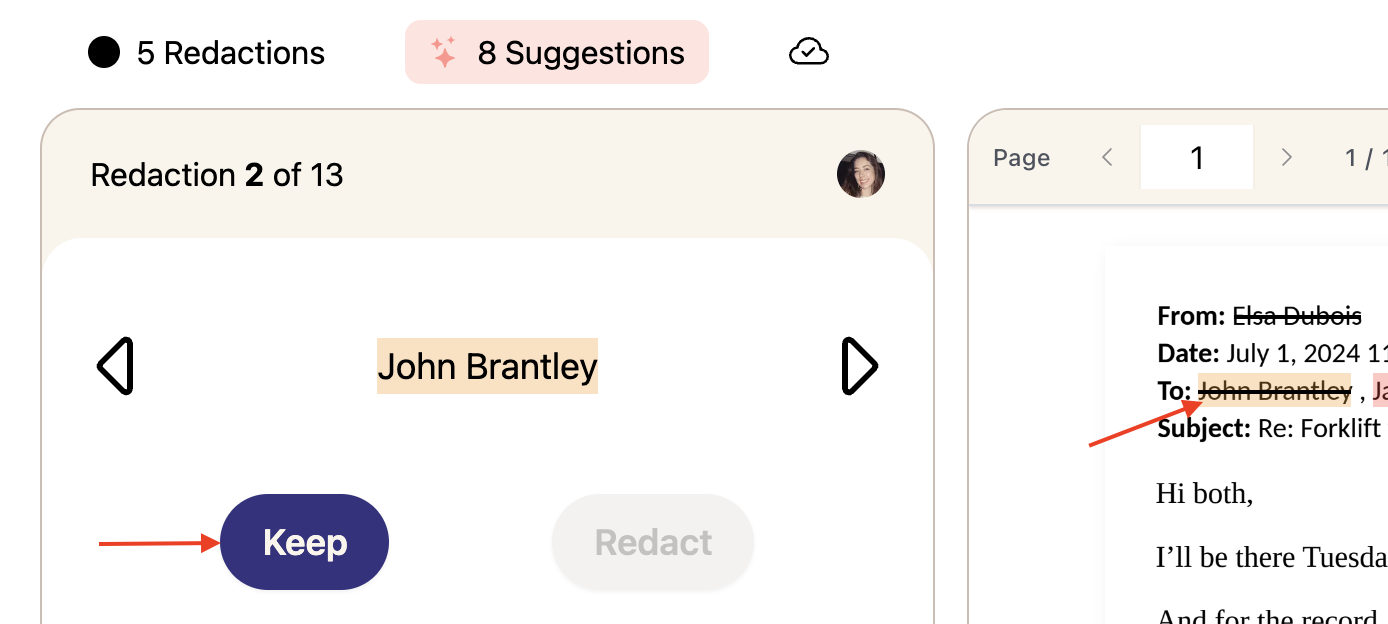
Click the redaction in the document
Click Keep in the action centre
Phaselaw will undo the redaction based on the Apply to scope that was set when the redaction was originally made:
Current Selection — the redaction is removed immediately
This Document or Entire Case — a confirmation popup will appear showing how many instances will be removed across how many files. Click Remove [X] redactions to confirm, or Cancel to go back.
Viewing all redactions in a case
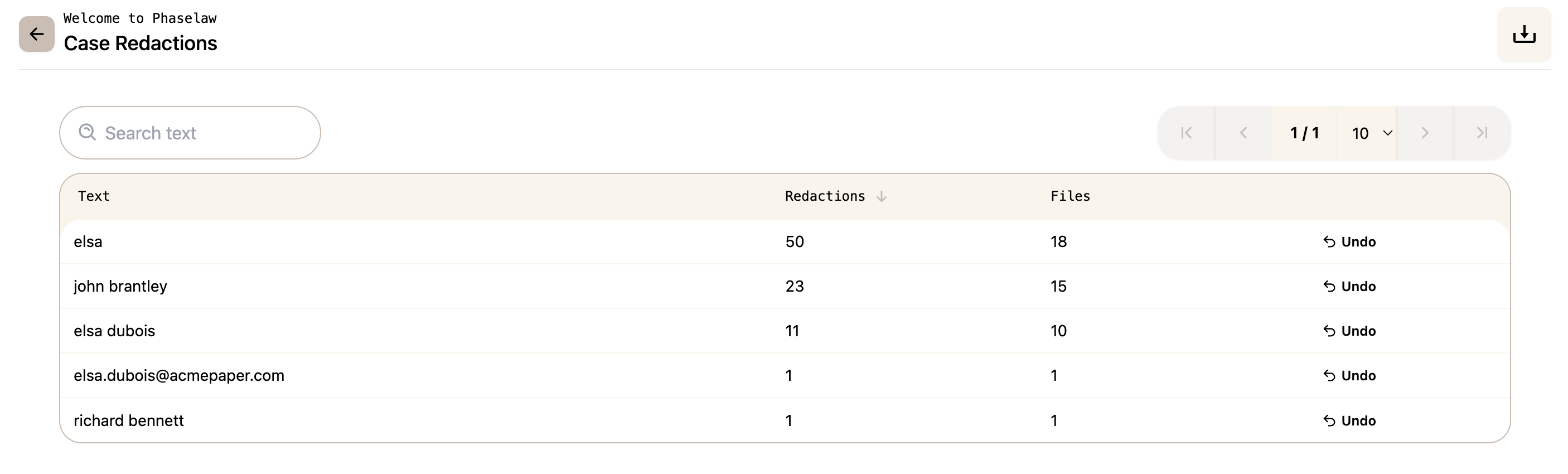
To see a full list of all redactions made across your case, click the Case Redactions icon in the top toolbar and navigate to Redactions

This opens the Case Redactions panel, which shows:
The redacted text
The number of redactions applied for that term
The number of files it appears in
An Undo option for each term
You can also export this data by clicking the Export CSV button at the top of the panel — useful if you want a record of all redactions made across the case.
Undoing redactions in bulk
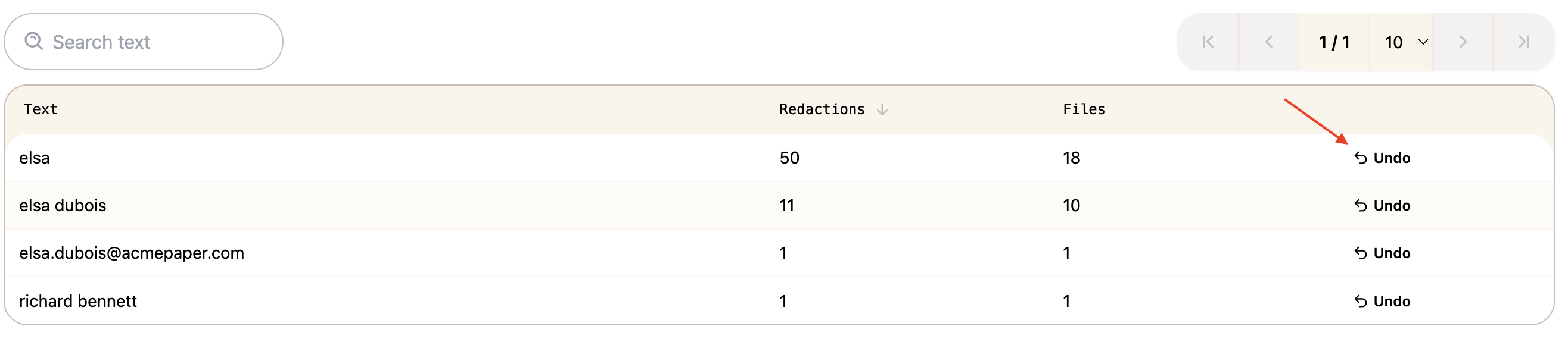
To undo all redactions for a specific term across the case, click Undo next to the term in the Case Redactions panel. A confirmation popup will appear showing how many instances will be removed across how many files. Click Remove [X] redactions to confirm.
Bulk undoing a redaction cannot be reversed in one step — you would need to reapply the redaction manually.