How to Upload Your Documents
Last updated: May 14, 2026
In this article: How to add files to your case in Phaselaw, ready for review.
Step 1: Open your case
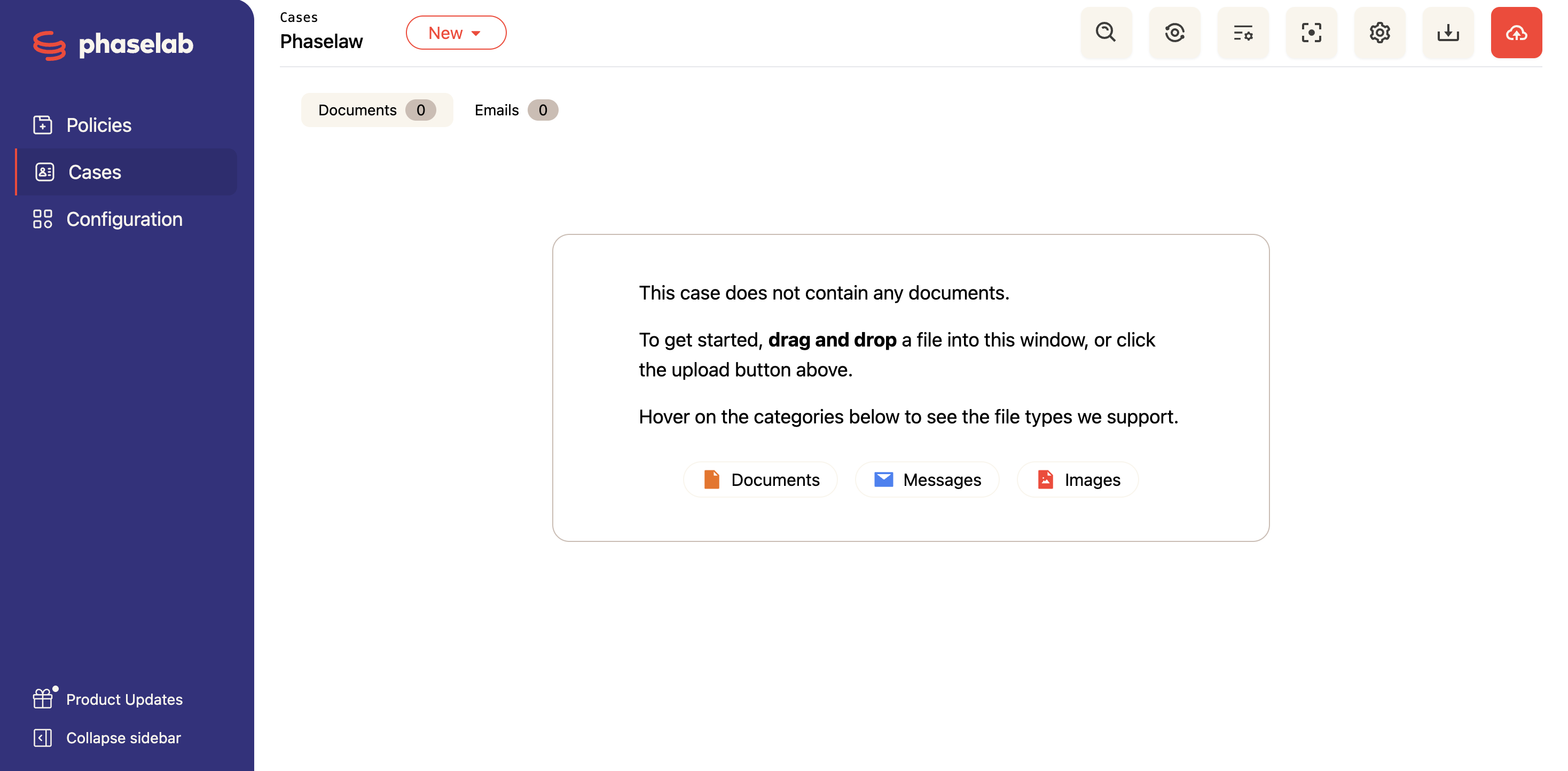
From the Cases screen, click on the case you want to upload documents into. You'll land on the case view, which will show an empty Documents tab until files are added.
Step 2: Upload your files
You have two options for uploading:
Option A: Drag and drop
Drag your files directly into the case window and drop them anywhere on the screen. You can drag multiple files at once, or an entire folder.
Option B: Upload button
Click the red upload button (cloud icon) in the top right corner of the case view. A dropdown will appear with two options:
Upload Files - select one or more individual files from your device
Upload Folder - select an entire folder to upload all of its contents at once

Step 3: Handle any duplicate files
If Phaselaw detects that a file you're uploading has the same content as a file already in the case, you'll see a prompt asking how to handle it.
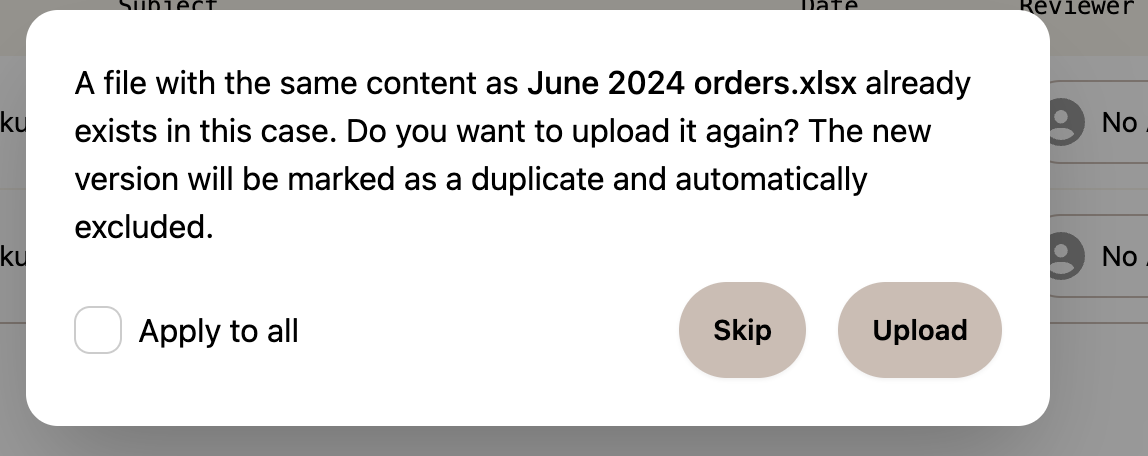
Skip: don't upload the duplicate
Upload: upload it anyway, it will be marked as a duplicate and automatically excluded from review
You can also tick Apply to all to apply your choice to all duplicate files in the upload, rather than deciding one by one
Step 4: Wait for your files to finish uploading
Once you've selected your files, you'll see an upload progress panel in the bottom right corner of the screen showing how many files are being uploaded:
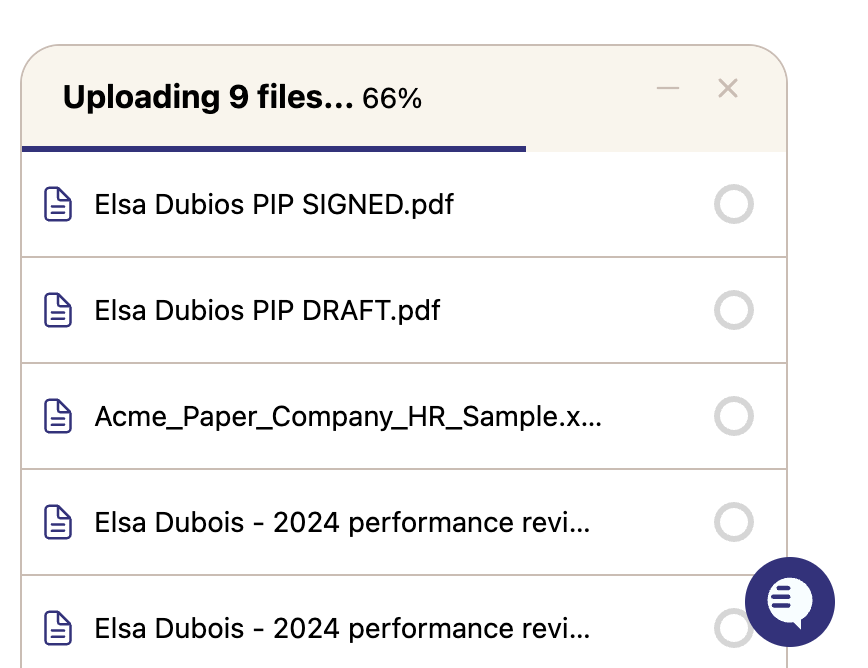
Don't close the browser tab or navigate away until the upload is complete. The upload runs in your browser — if you close the tab, the upload will stop.
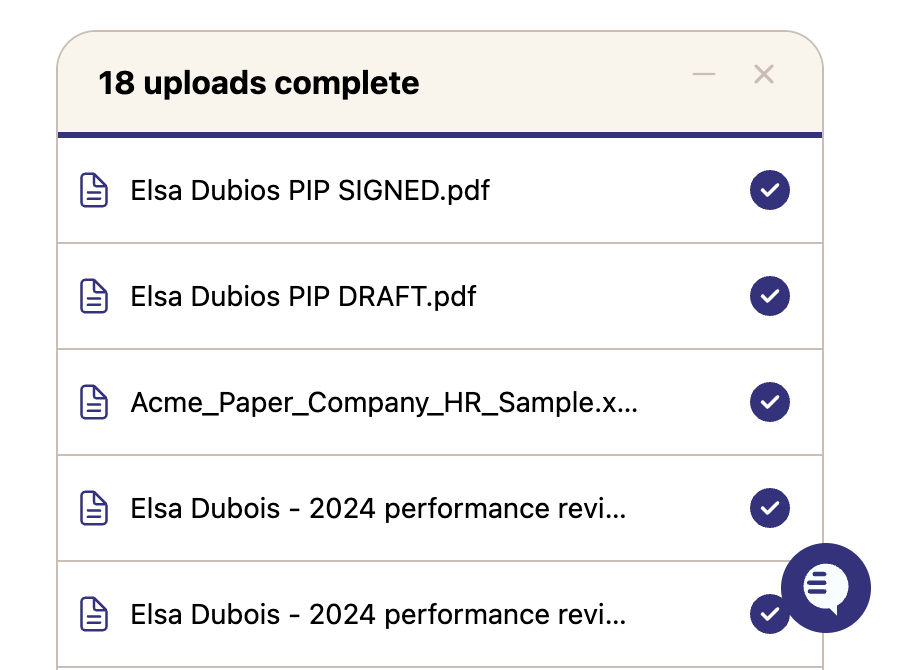
Once the panel shows that all files have been uploaded (as shown below), you're safe to continue:
Step 5: Monitor processing
After uploading, you can monitor the status of each file directly in the Documents and Emails tabs — files will move from Analyzing into a Ready state once they're available to review.
Behind the scenes, Phaselaw is:
Converting all files into review-ready PDFs
Identifying and flagging duplicate files
Extracting email attachments and treating them as separate documents
Scanning for personal data to generate redaction suggestions
If a file fails to process, it will appear in the Errors table. From there you can attempt an automated repair or download the original file for troubleshooting. If the error persists, reach out to support@phase.law for further investigation.
What file types can I upload?
Phaselaw supports three categories of files:
Documents .pdf, .doc, .docx, .xls, .xlsx, .xlsm, .ppt, .pptx, .txt, .csv, .html, .rtf, .odt, .json
Messages .msg, .eml, .mbox, .pst
Images .jpg, .jpeg, .jp2, .png, .tif, .tiff, .heic