How to Add a Team Member to a Case
Last updated: August 25, 2026
In this article: How to give a team member access to a specific case, and what access levels are available.
Before you start: The person you want to add must already have an account on Phaselaw. If they haven't been invited yet, your admin needs to do that first. → How to Invite Team Members to Your Account
When would I need to do this?
Admins and Members can already see all cases by default. Adding a user to a case is primarily used for Restricted users- team members who should only have access to specific cases, such as an external stakeholder who only needs visibility of one request.
Step 1: Open the case settings
From inside the case, click the Settings icon (cogwheel) in the top right toolbar.

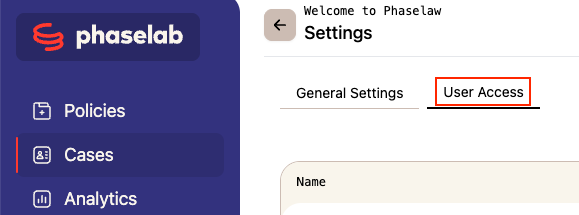
Step 2: Go to User Access
You'll land on the General Settings tab by default. Click User Access to see who currently has access to the case.
Step 3: Add a user
Click the red + Add User button in the top right corner:

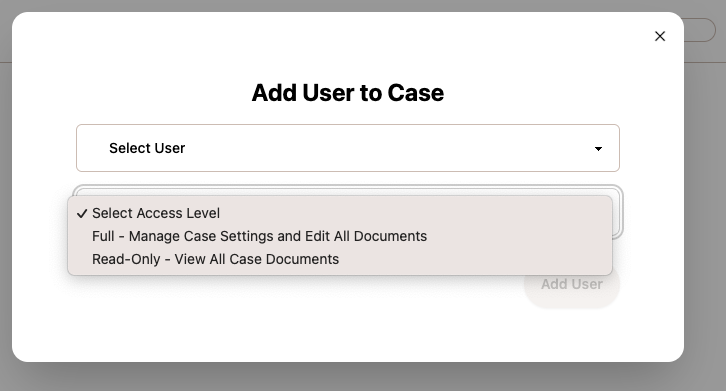
A modal will appear asking you to:
Select a user — choose from existing account members
Select an access level — choose one of the following:
Full — can manage case settings and edit all documents
Read-Only — can view all case documents but cannot make changes
Step 4: Confirm
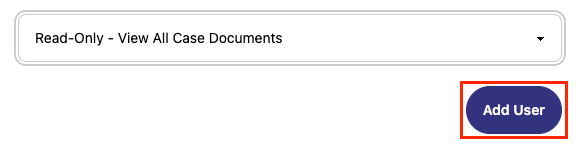
Click Add User to confirm. The user will now be able to access the case based on the access level you selected.