How to Upload Your Documents
Last updated: August 20, 2026
In this article: How to upload files to your case in Phaselaw and track their processing status.
Uploading files
To upload documents to your case, click the upload icon in the top toolbar. You can either:
Drag and drop files anywhere on the page directly into the case
Click Add Files or Add Folder to browse and select files from your device
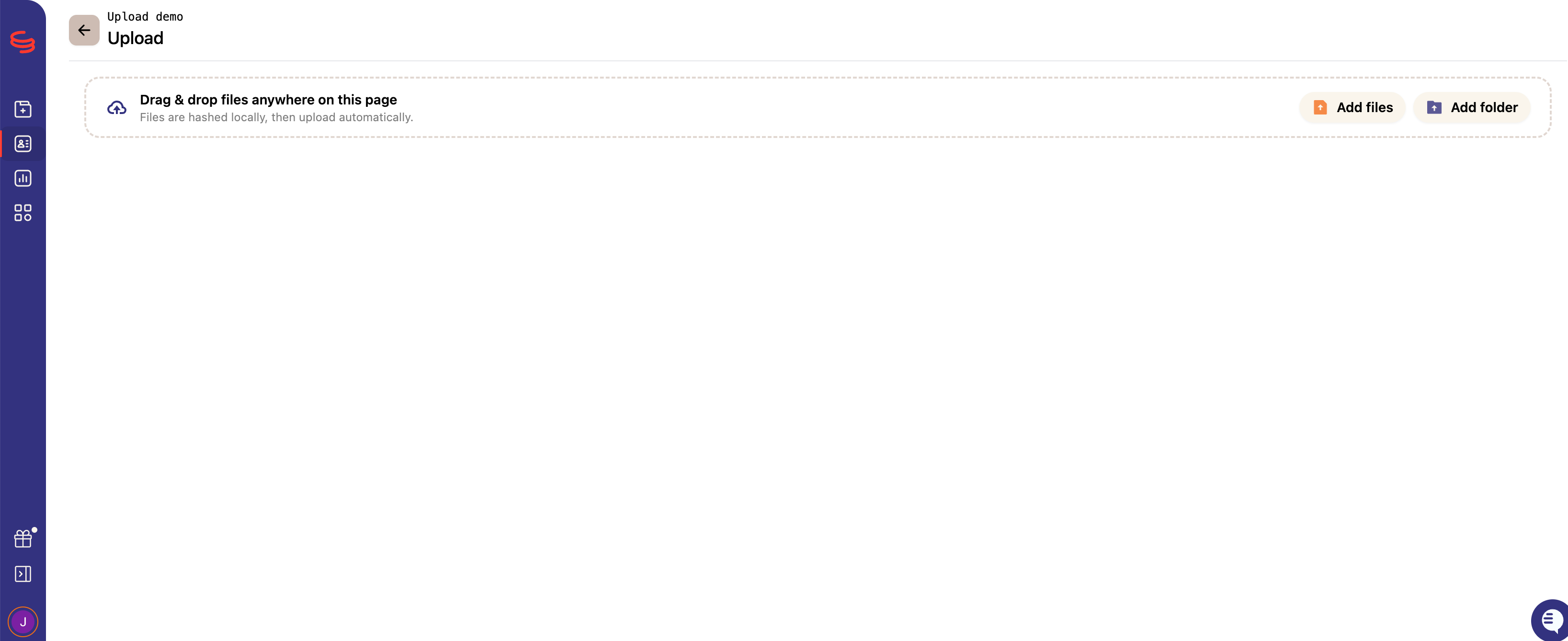
Once files are dropped in, they upload and process automatically. You'll see the upload complete in the list.
If you want to clear the upload list after uploading a large batch, click Clear- this won't delete the files, it just removes them from the upload view.
Tracking your uploads
Once uploaded, your files are visible across three tabs in the case:
Documents: individual files ready for review
Emails: email files (.eml, .msg) extracted and ready for review
Archives: .zip, .mbox and .pst files
The Archives tab
The Archives tab gives you a detailed view of any ZIP files or containers you've uploaded. For each archive you can see:
The name of the file
The total number of files inside it
File size
Who uploaded it and when
How many files were extracted (added to the case)
How many were duplicates (already in the case, not added again)
How many were unsupported or landed in an error state
Processing status- files move through the following stages as they're processed: Analyzing (files are being scanned for content), and Ready (files are available for review).
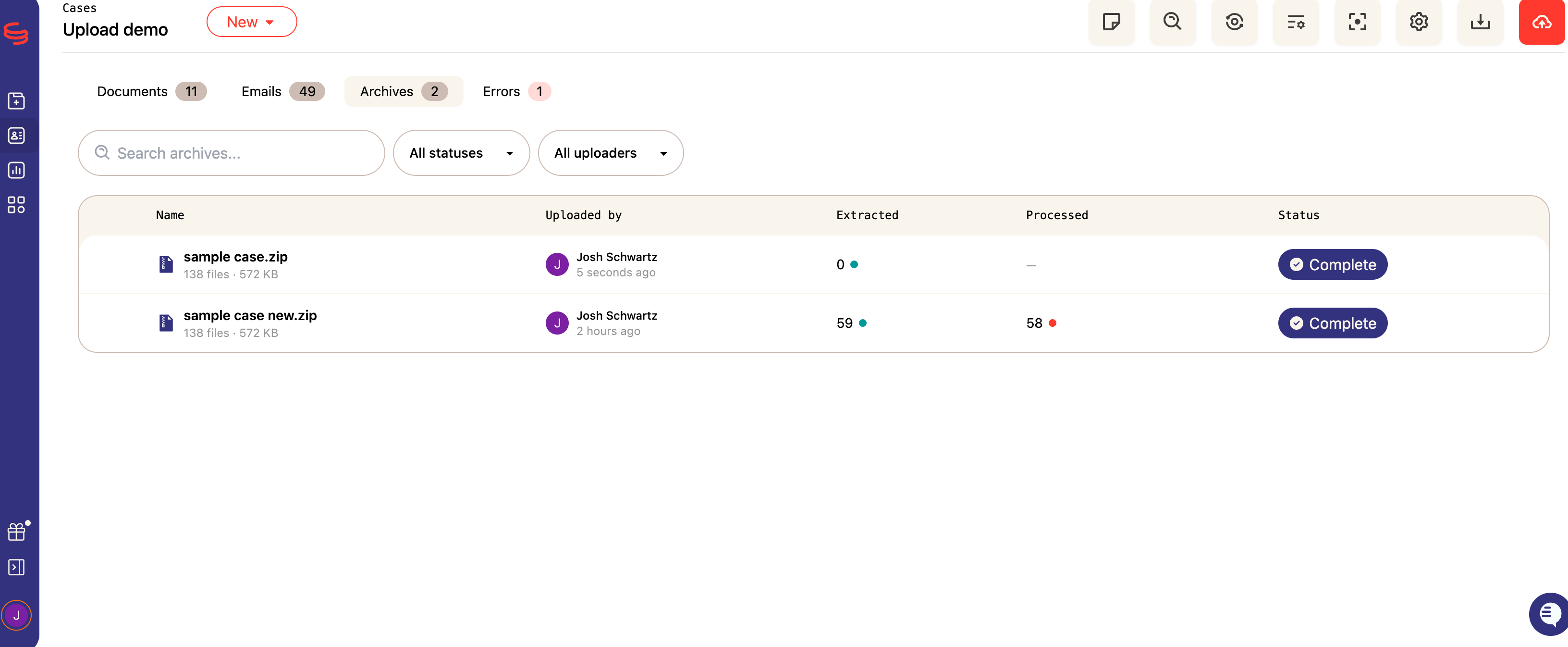
Once all files have finished analyzing, the processing status will update to complete.
If any files in your archive aren't supported, you'll see an option to download a list of unsupported files as a CSV so you can handle them separately.
Filtering your uploads
If multiple people are uploading to the same case, you can filter the Archives tab by uploader to see just your uploads — or filter by status to focus on files still processing or in an error state.
What file types can I upload?
Phaselaw supports four categories of files:
Archives
.pst
.mbox
.zip
Documents
.pdf
.doc
.docx
.rtf
.odt
.xls
.xlsx
.xlsm
.ppt
.pptx
.txt
.csv
.html
.json
Emails
.msg
.eml
Images
.jpg
.jpeg
.jp2
.png
.tif
.tiff
.heic