How to Manage Custom Detectors
Last updated: July 23, 2026
In this article: How custom detectors work and how to get them set up for your account.
Custom detectors let you define your own data types for Phaselaw to automatically flag for redaction. They work using regular expressions- patterns that match specific formats of text, such as internal reference codes, employee IDs, or any organisation-specific identifier. Any text matching the pattern will be suggested for redaction on the next processed document.
Custom detectors are an enterprise feature and are only available to admins to configure. Reach out to the support team via the live chat in the bottom right corner of the product or email support@phase.law to find out more.
How custom detectors work
Each custom detector has:
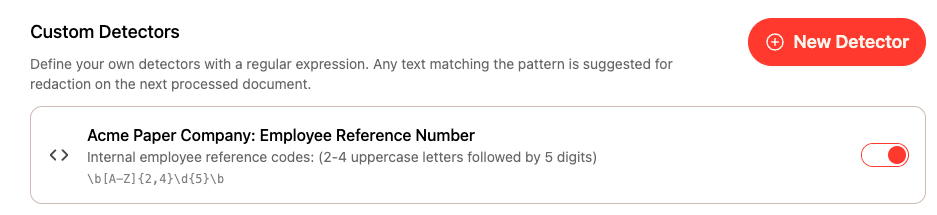
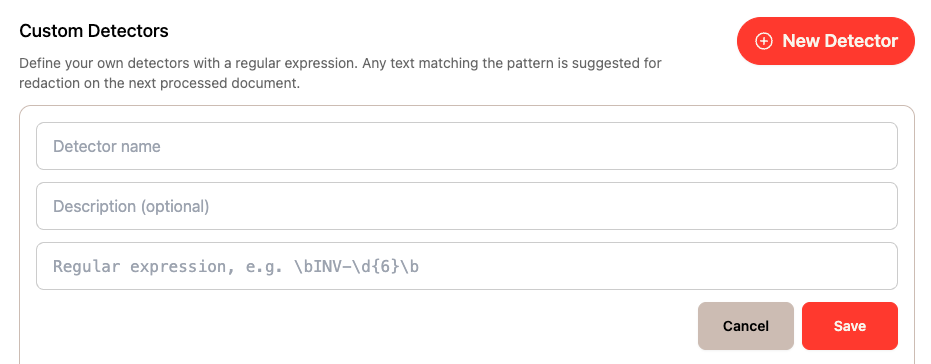
A name — what you call the detector (e.g. "Employee Reference Number")
A description (optional) — a plain-language explanation of what it detects (e.g. "Employee reference codes: (2-4 uppercase letters followed by 5 digits)
A regular expression — the pattern used to match text in your documents (e.g.
\b[A-Z]{2,4}\d{5}\b)
Not sure how to define your pattern? Share an example of the text you want to detect with the support team via live chat or email support@phase.law and we'll help you get it set up.
Once created, each detector can be toggled on or off in the same way as system detectors.
Adding a new custom detector
From the left sidebar, click Configuration
Under General Settings, scroll down to Custom Detectors
Click the red + New Detector button
Enter a name, description, and regular expression for your detector
Click Save
Custom detectors apply to the next document processed. If you need to regenerate suggestions on an existing document, you'll need to reset it first-note that this will permanently remove all redactions and comments. → Resetting a Document to Its Original State