Creating Your First Policy
Last updated: September 16, 2026
This guide is designed to help new users create their first policy and understand how policies are used throughout the product.
What Is a Policy?
A policy is a set of rules that can be applied to a case. Policies define important constraints such as deadlines, extensions, and—most importantly—exemption rules used for redactions.
You can create as many policies as you like, and different cases can use different policies depending on jurisdiction, regulation, or internal practice.
Exemptions Are the Core of a Policy
The heart of every policy is its list of exemptions. Exemptions are used throughout the product any time you:
Make a redaction
Exempt a document or part of a document
If exemption reasons are required by your policy, users must select from this list whenever they redact information.
System Template: UK GDPR Policy
Every tenant starts with a UK GDPR system template policy.
This policy cannot be edited or deleted
It contains all allowed exemptions under the UK GDPR, along with ICO guidance for each one
Many customers choose to clone this policy and then:
Remove exemptions they do not use in practice
Rename exemptions for internal consistency
Add internal descriptions or guidance
Cloning the system template is often the fastest way to create a compliant, production-ready policy.
Displaying Exemption Reasons in Redactions (Optional)
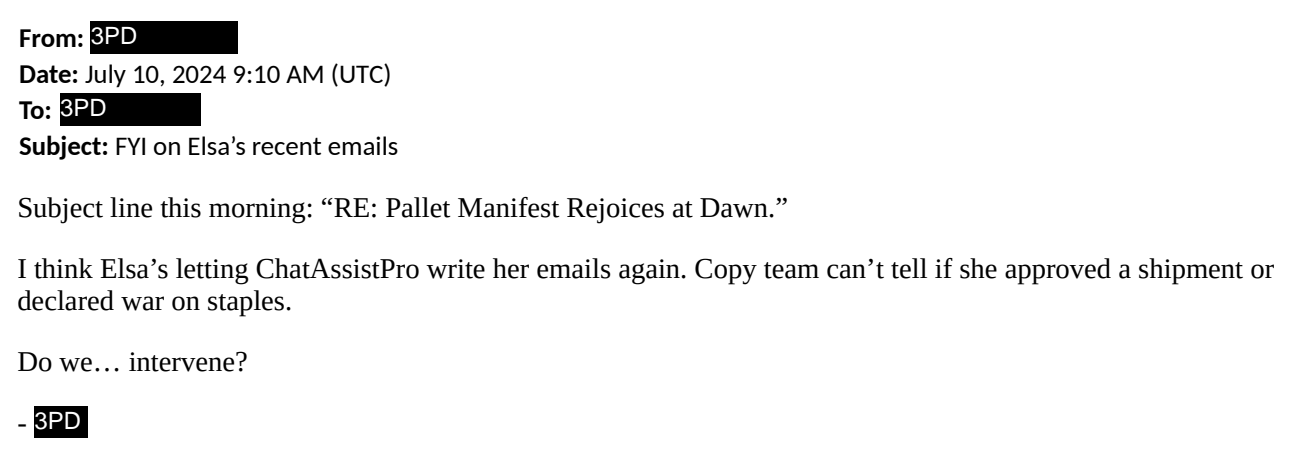
Some customers choose to display the exemption reason directly inside each redaction for full transparency to the data subject.
If you enable this option, we recommend:
Using short exemption names or codes so they fit neatly inside redaction bars
Providing a legend in your cover letter to explain these codes
Example:
Full exemption name: Protection of the Rights of Others
Short code used in redactions: 3PD (Third-Party Data)
Step-by-Step: Creating Your First Policy
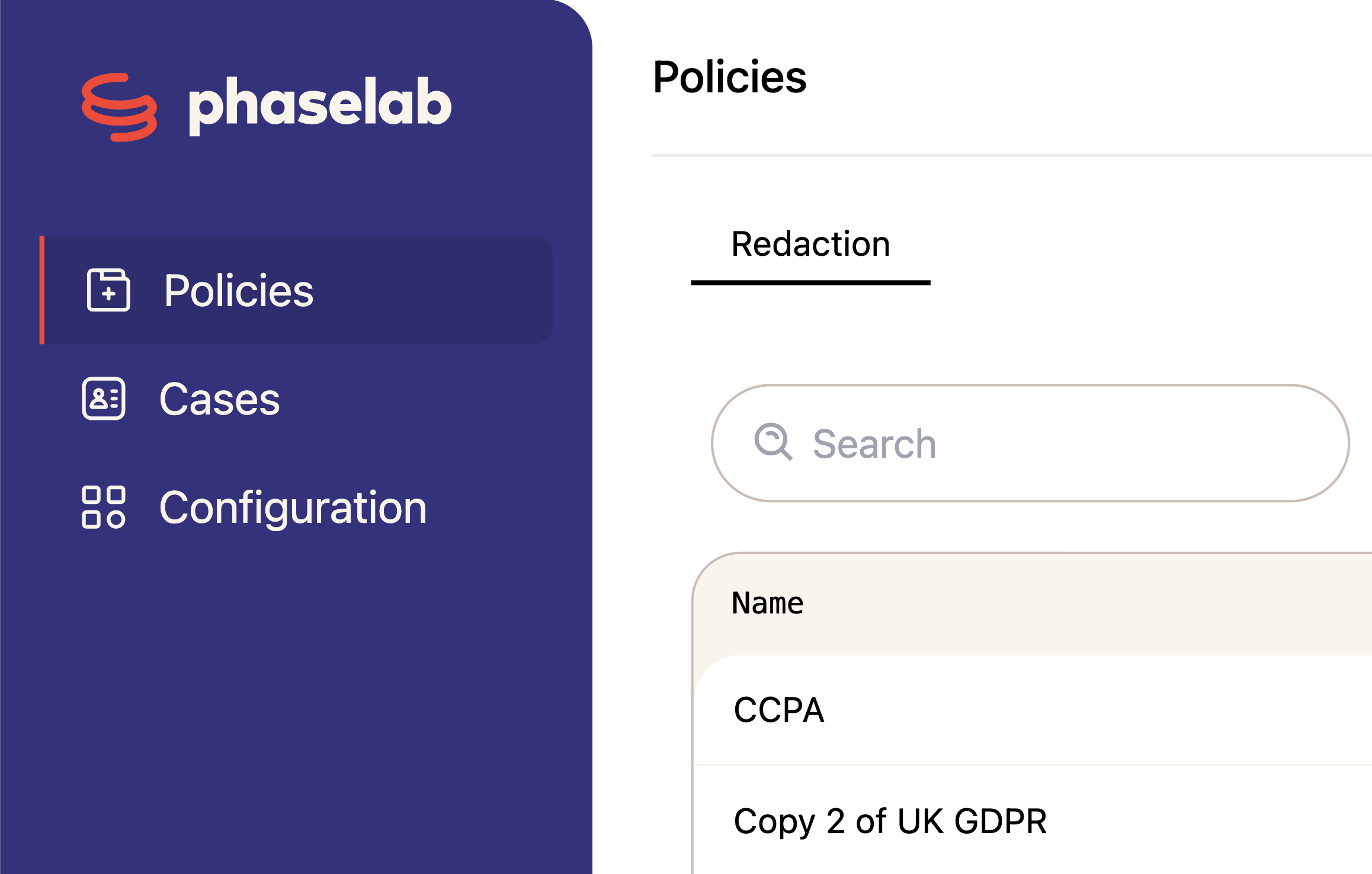
Step 1: Navigate to the Policies Page
From the main navigation, click Policies.
You’ll see a table listing existing policies.
Step 2: Create a New Policy
Click New Policy.
A modal titled “Create a new policy” will appear.
Enter a Policy Name (required).
Click Create Policy.
Step 3: Configure Policy Details
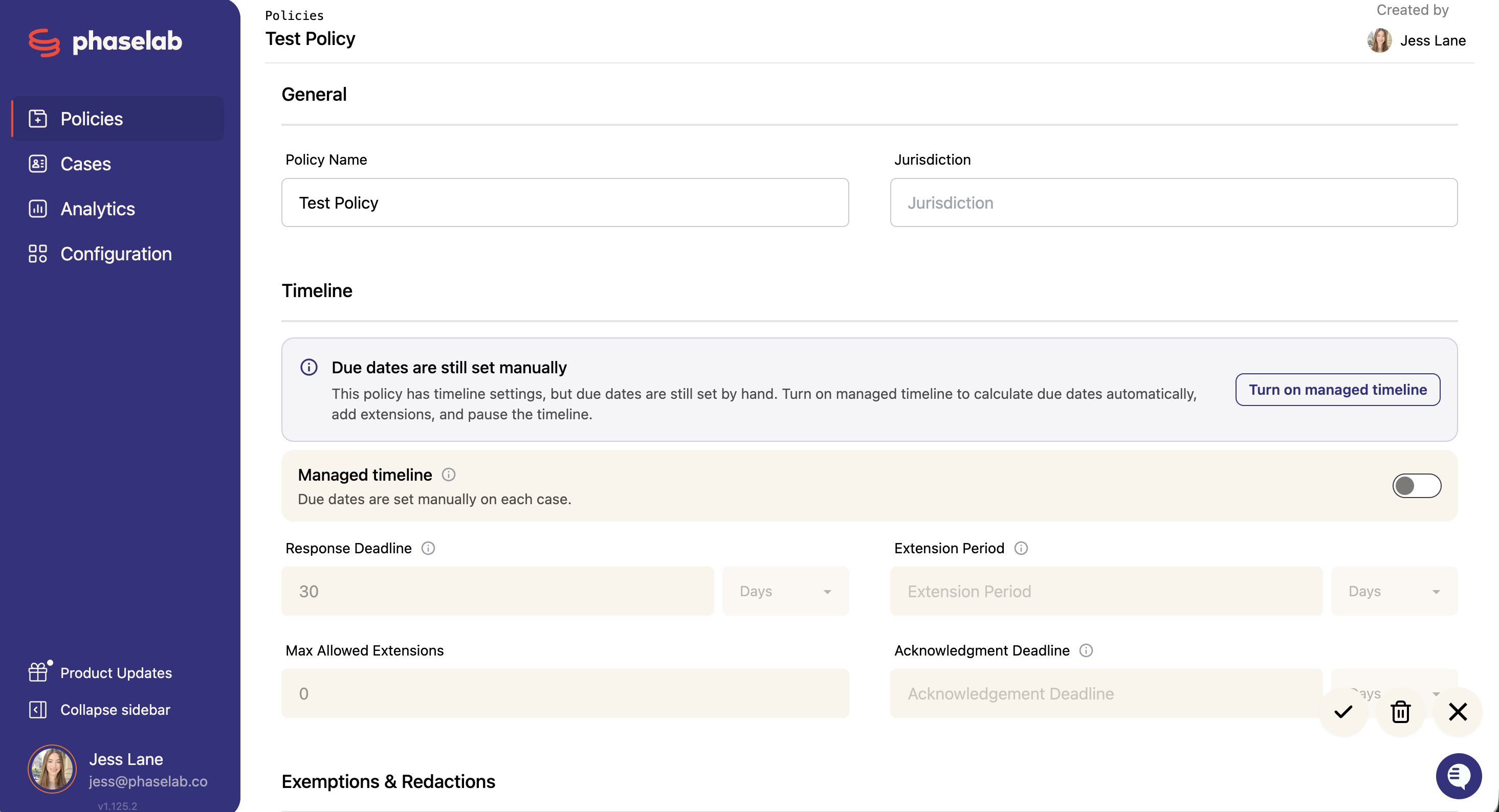
You’ll be taken directly to the policy detail page in edit mode.
Basic Information
Policy Name – Editable at any time
Jurisdiction – e.g. UK, EU, California
Step 4: Timeline
By default, due dates are set manually on each case. To have Phaselaw calculate them for you, click Turn on managed timeline (or switch on the Managed timeline toggle).

Once it's on, Phaselaw works out the due date from the fields below, and unlocks extensions and pausing. For how that works on a live case, see Tracking Deadlines, Pauses and Extensions.
Response Deadline (days) – The amount of time you have after the initial request to provide a complete response to the data subject.
Extension Period (days, weekdays or months) –The amount of time you are allowed to extend the response deadline after the initial period.
Max Allowed Extensions – Maximum number of deadline extensions allowed
Acknowledgment Deadline (days, weekdays or months) – The amount of time you have after the initial request to acknowledge receipt of the request to the data subject.

Step 5: Exemptions and Redactions
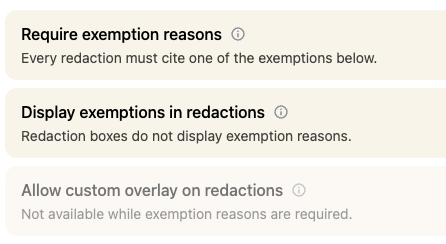
Below the main fields are three optional toggles:
Hover over any ℹ info icon for additional context.
Require Exemption Reasons
When enabled, users must select an exemption reason for every redaction.
Display Exemptions in Redactions
Only available if Require Exemption Reasons is enabled
Displays the selected exemption directly inside redaction boxes in exported documents
Allow Custom Overlay on Redactions
Not available while exemption reasons are required.
Reviewers can type overlay text, such as initials, onto redactions.
Step 5: Add Exemptions
If Require Exemption Reasons is enabled, an Exemptions section will appear.
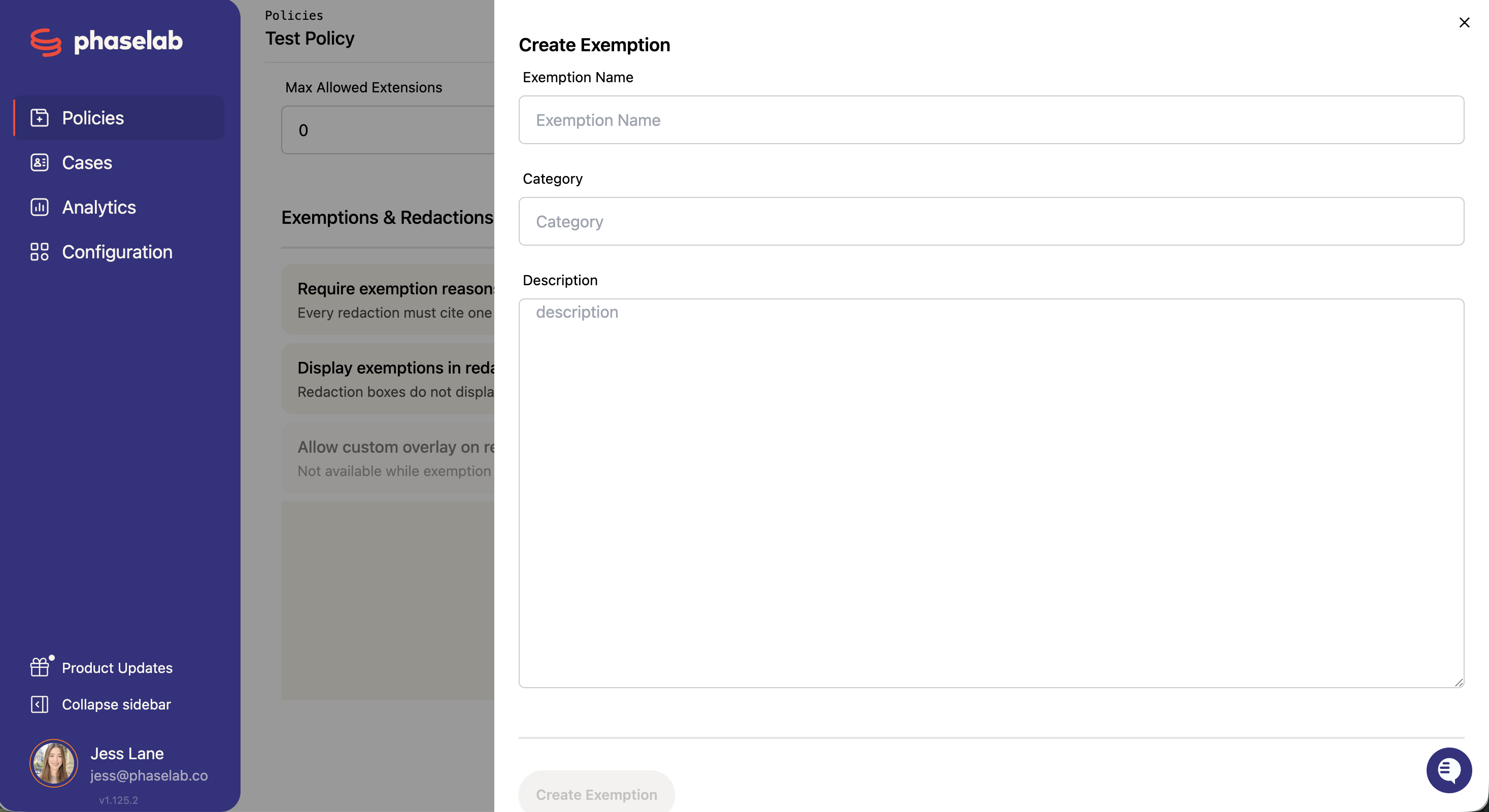
Create an Exemption
Click Add Exemption.
Complete the following fields:
Exemption Name (required)
Category (optional)
Description – supports Markdown
Click Create Exemption.
Manage Exemptions
View: Click a row to open details
Edit: Click the pencil icon in the drawer
Delete: Available while editing
If exemption reasons are required, you must create at least one exemption before saving the policy.
Step 6: Save Your Policy
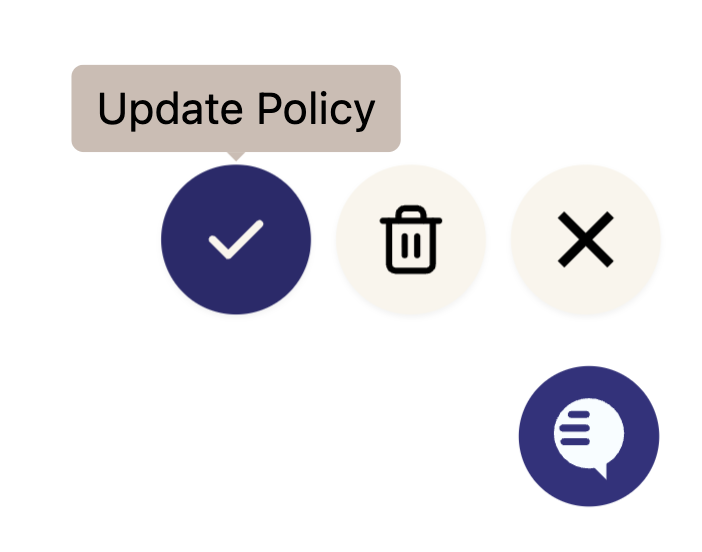
Click the checkmark (✓) button in the bottom-right corner.
You’ll see a success confirmation.
The policy will switch to view mode.
Step 7: Review and Manage
From view mode you can:
Click Edit to make changes
Delete the policy (if it’s not associated with any cases)
Helpful Tips
Clone before building: Cloning the UK GDPR system template is usually faster than starting from scratch
Keep exemptions practical: Only include exemptions your team actually uses
Use short names if displayed: Especially if exemption reasons appear in redactions
Troubleshooting
Can’t save the policy? Ensure required fields are filled
Extension Period disabled? Set Max Allowed Extensions to at least 1
Can’t display exemptions in redactions? Enable Require Exemption Reasons first
Error about exemptions? Add at least one exemption if they are required
You’re all set 🎉
Once created, your policy can be applied to cases to ensure consistent, compliant handling of data subject requests.