How to Invite Team Members to Your Account
Last updated: August 17, 2026
In this article: How to add new members to your Phaselaw account and assign them a role.
Admins only. Only administrators can invite new team members. If you need someone added to your account and don't have admin access, speak to your Phaselaw administrator or reach out via In-app chat or email support@phaselab.co for further support.
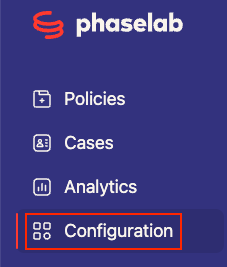
Step 1: Go to Configuration
From the left navigation sidebar, click Configuration. You'll land on the General Settings tab by default.
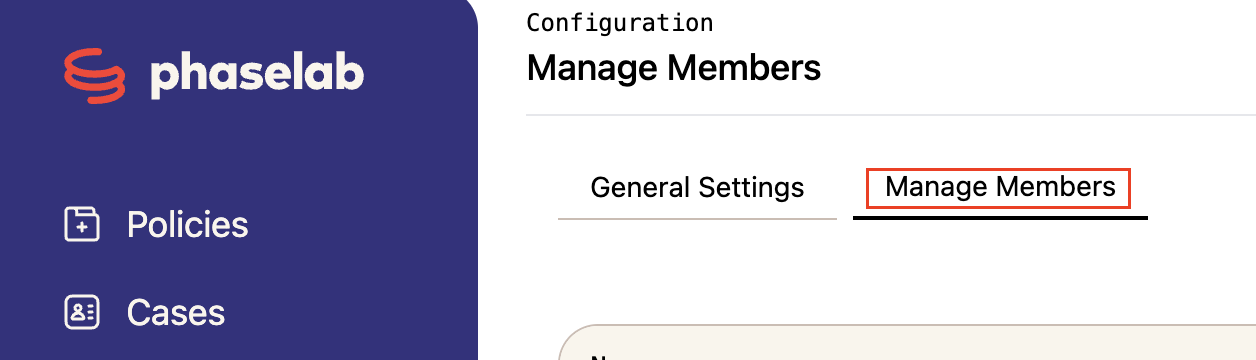
Step 2: Open Manage Members
Click the Manage Members tab. This shows a list of everyone currently on your account, including their role, last login, and status.
Step 3: Invite a new member
Click the red + New Member button in the top right corner:

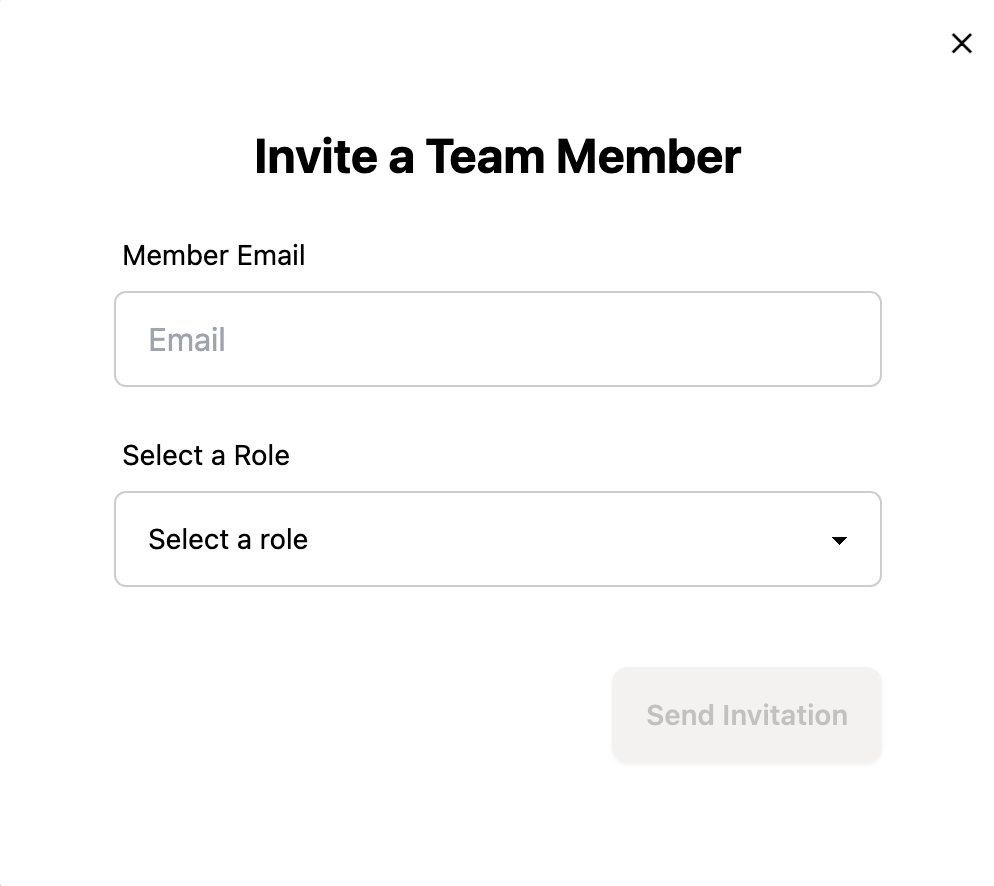
A modal will appear asking for two things:
Member Email — the email address of the person you're inviting
Select a Role — choose from Admin, Member, or Restricted
Not sure which role to assign? Here's a quick summary:
Admin- full access to all cases, plus the ability to manage users and configuration
Member -can view and manage all cases, but cannot access configuration or manage users
Restricted — can only access cases they have been explicitly granted access to. Useful for external stakeholders
Step 4: Send the invitation
Once you've entered the email address and selected a role, click Send Invitation. The person will receive an email from support@mail.phaselab.co inviting them to set up their account.
⚠Invitation not received? If the person hasn't received their invite, check that the email address is correct and they have checked their spam folders.
You can also copy the invite link directly from the Manage Members screen and send it to them via Slack, Teams, or email. Note that invite links are unique to each person- don't share one person's link with someone else:

Step 5: Confirm their status
Back on the Manage Members screen, you'll be able to see the status of the invitation:
Pending: The invitation has been sent but not yet accepted
Active: The person has accepted the invitation and set up their account
Expired: If no action is taken within 7 days, their status will show as expired, at which point you can resend the invite:

What's next?
Now that your team is set up, you're ready to start working on cases:
Create your first case → How to Create a New Case