How to Handle Oversized PDFs
Last updated: August 17, 2026
In this article: How to enable automatic splitting of large PDFs so they're easier to review in Phaselaw.
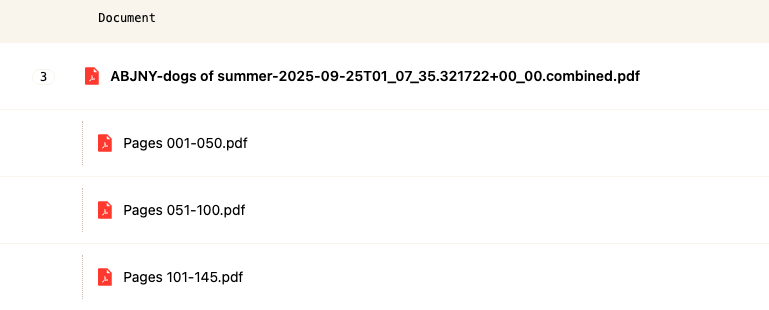
Very large PDFs can be slow to open and navigate during review. When the Split oversized PDFs into sections setting is enabled, any PDF over the assigned page limit is automatically split into sections — each section is reviewed as a separate document, grouped under the original file. Your final export will still contain the complete document with all pages in the correct order.
Changes to this setting take effect on the next document uploaded — it won't affect files already in your case. If the oversized PDF has already been uploaded to your case, you can reset it to apply the split. Note: If you reset a file, all redactions, edits, and comments on the document will be removed: Resetting a Document to Its Original State
How to enable PDF splitting
From the left sidebar, click Configuration and navigate to General Settings
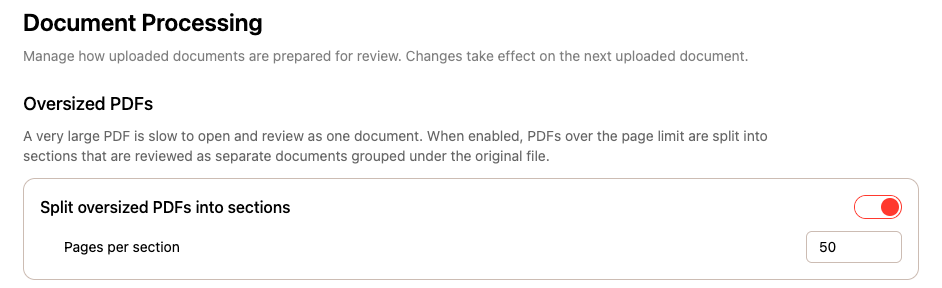
Under Document Processing, toggle on Split oversized PDFs into sections
Enter the desired Pages per section (must be a minimum of 50)
What happens when a PDF is split?
When a PDF exceeds the page limit, Phaselaw automatically divides it into sections. Each section appears as a separate document in your document list, grouped under the original file name.