Leaving and Resolving Comments
Last updated: August 20, 2026
In this article: How to leave comments on documents, notify colleagues using @mentions, reply to threads, and resolve them once addressed.
Leaving a comment
There are two ways to leave a comment on a document:
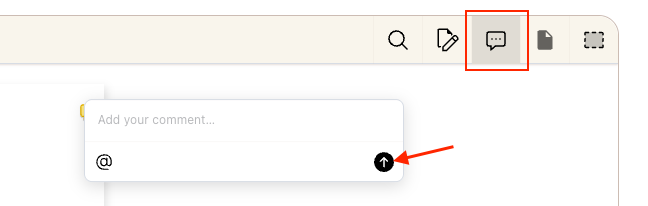
1. Comment on the document generally
Click the Comment icon in the document viewer toolbar. Click anywhere on the document. A comment panel will open- type your comment and click the send button (arrow icon) to post it
2: Comment on specific text
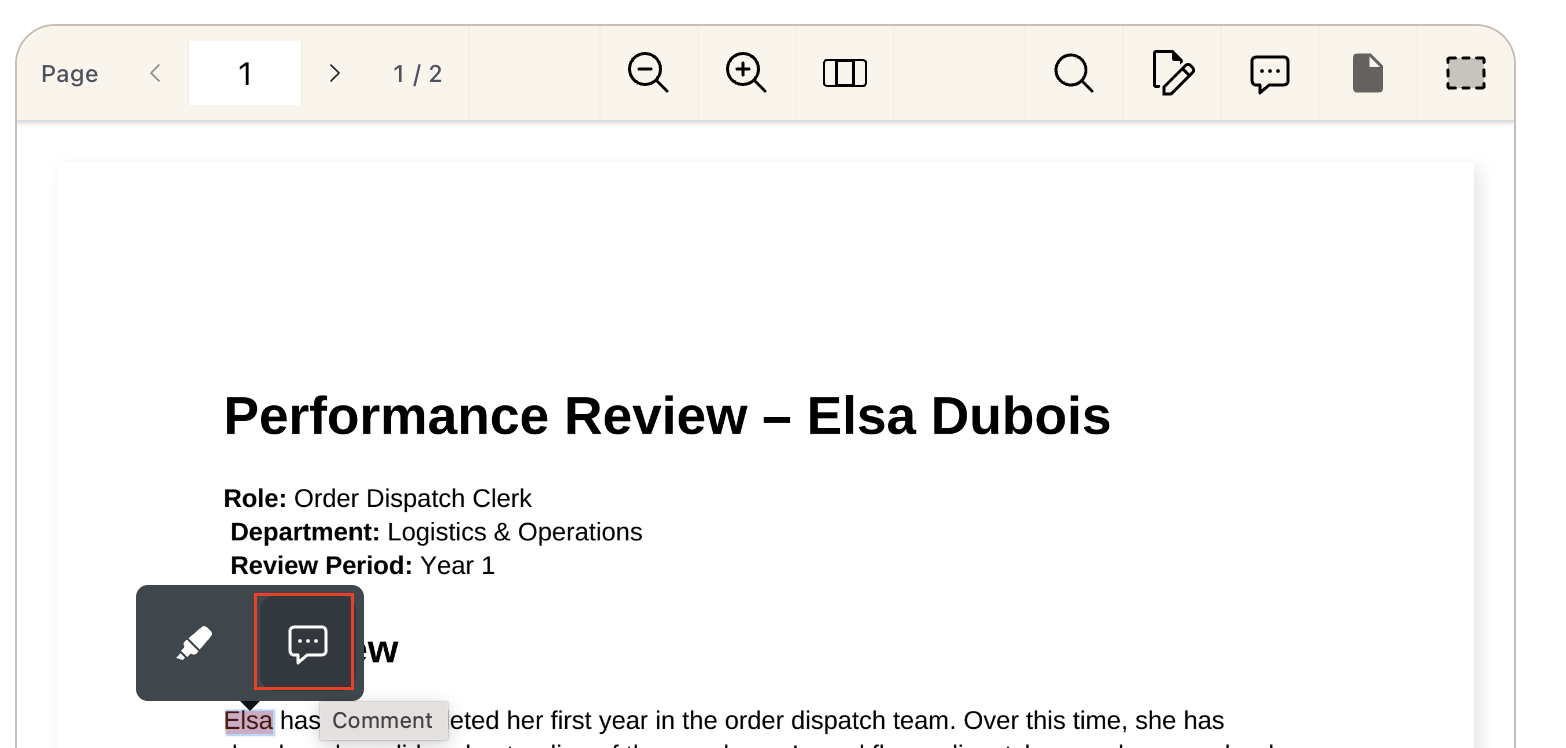
Highlight the text you want to comment on
Click the comment icon in the toolbar that appears above your selection
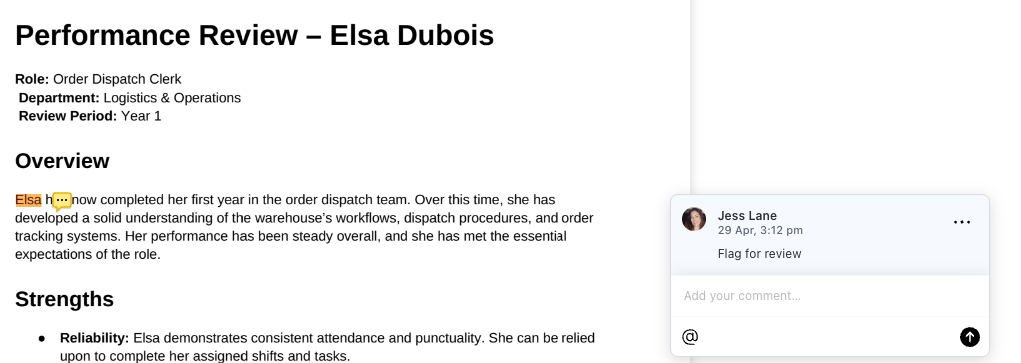
Type your comment in the comment panel on the right
Click the send button (arrow icon) to post it
Once posted, the selected text is highlighted in yellow with a comment indicator next to it. Each comment shows the author's name, date, and time.
Mentioning a colleague
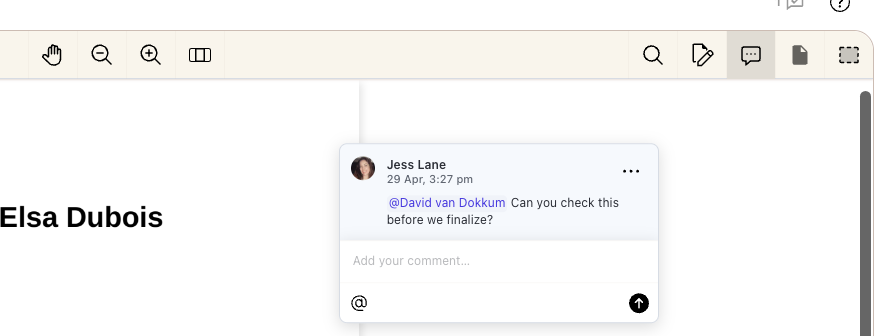
Type or Click @ followed by a colleague's name in any comment to notify them directly. They'll receive an email with a link to the document — the email doesn't include any document content, and only users who have been granted access to the case can open it.
Replying to a comment
Type your reply in the Add your comment… field below any thread and click the send button to post it.
Filtering by Open Comments
If you want to see all documents that have unresolved comments, you can filter the document list without opening each one individually.
From the document list, click More Filters
Select Open Comments
This will show only documents with comments that haven't yet been resolved.
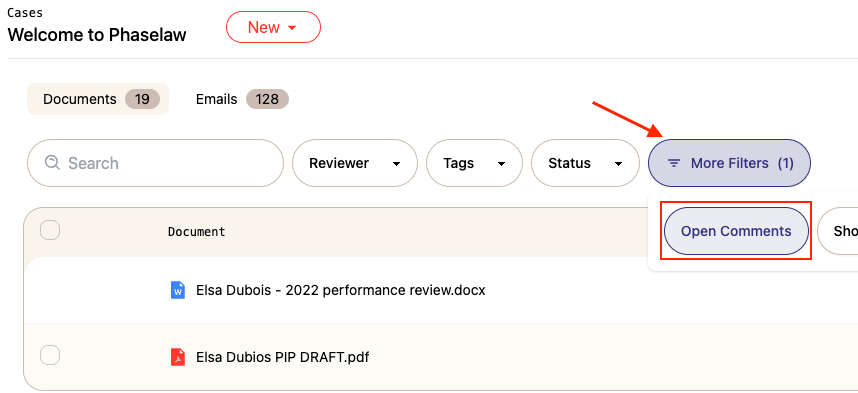
This is useful if your team prefers not to use @mentions — instead of notifying colleagues directly by email, reviewers can leave comments and colleagues can use this filter to check for anything outstanding at their own pace.
Editing, deleting, or resolving a comment
Click the ··· menu on any comment to see your options:
Edit content — update the comment text
Delete comment — permanently remove the comment
Resolve thread — mark the thread as complete and remove it from the active view
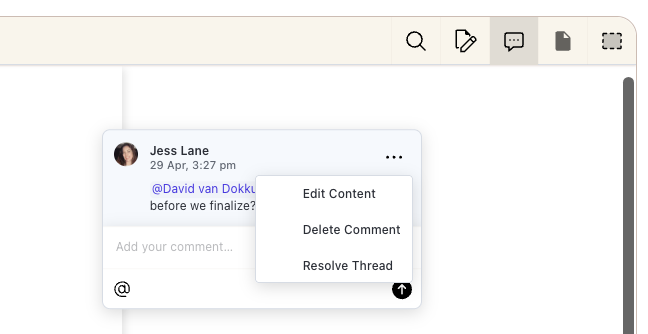
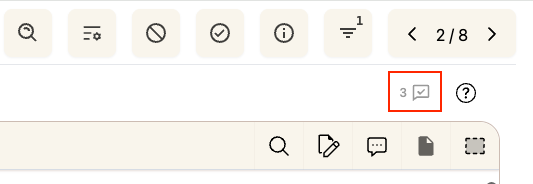
Resolving a thread removes it from the active view but it's not permanently deleted. You can view all resolved comments at any time using the resolved comments toggle at the top of the comments panel.
Managing Your Notification Settings
By default, you'll receive an email notification if you are mentioned in a comment, or receive replies in your comment threads. You can opt out of these notifications by updating your notification settings → Managing Your Notification Settings