Using the Advanced Search Query Builder
Last updated: October 9, 2026
In this article: How to use the Advanced Search Query Builder to apply rules-based searches across your document set and take bulk actions on the results.
What problem does this solve?
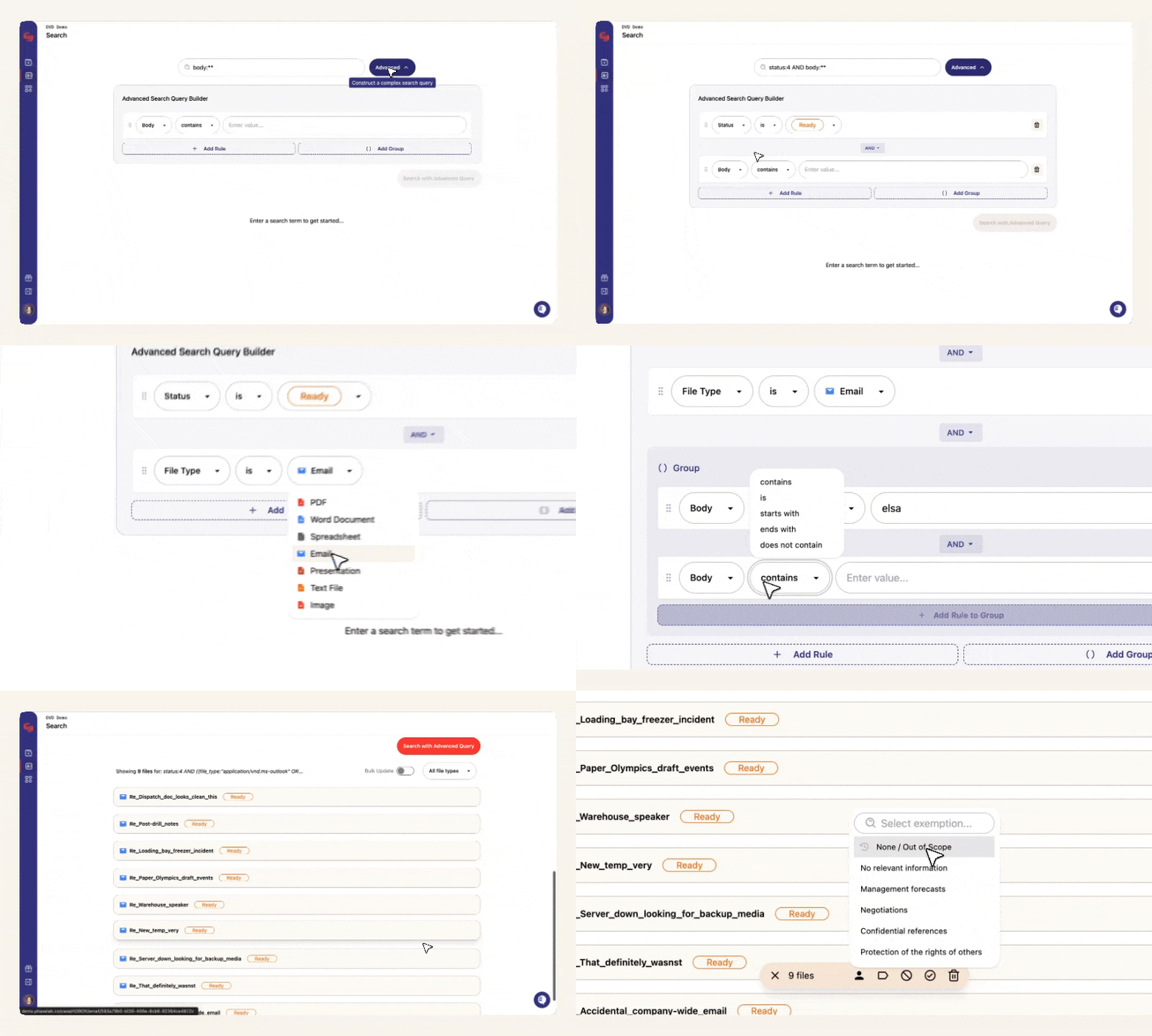
The Advanced Search Query Builder lets you build precise, rules-based searches across your entire document set — filtering by content, metadata, file type, status, and more.
You can use it to:
Find specific files — search for a name, keyword, or phrase across all files in a case
Assign documents to reviewers — filter by file type or sender and assign matching documents to a team member
Tag documents — apply any tag to a set of results for easier filtering and organisation later
Scope out irrelevant documents in bulk — identify documents that don't mention the data subject and exclude them all at once, without opening a single file
How to access Advanced Search
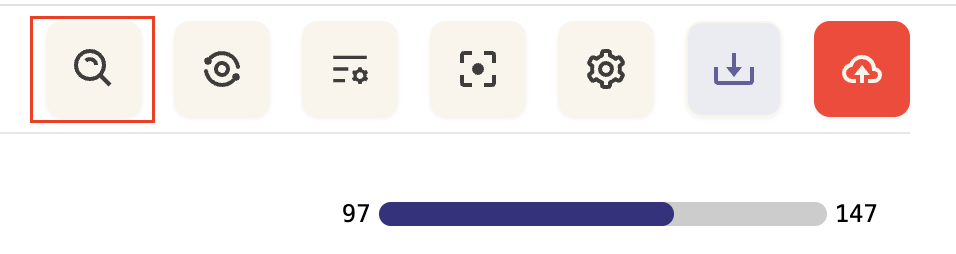
From inside your case, click the Search icon in the top toolbar to open the search page. From here you can run a simple keyword search across all documents in your case.
Click Advanced to open the Advanced Search Query Builder — which lets you build complex, rules-based queries using multiple conditions, boolean logic, and grouping.

AI-assisted search
Not sure how to build your query? You can describe what you're looking for in plain English and let Phaselaw translate it into an Advanced Search query automatically.
Click the AI assist button in the search bar, type a natural language description of your search — for example, "Emails from 2024 mentioning Elsa or ED" - and Phaselaw will generate the query for you. You can then review and edit it before running it.

Handling ambiguous searches
For straightforward searches — like filtering by date or keyword — the translation will be exact. For more abstract searches, Phaselaw will make its best effort and show you a clear explanation of what it translated your search into. If the search can't be translated, you'll see an error message explaining why.
The AI-generated query is always editable- you can adjust any rule before running it.
Building a search query manually
A search query is made up of one or more rules. Each rule has three parts:
Field — what you're searching (e.g. Body, Filename, Sender, File Type, Status, Tag)
Condition — how to match it (e.g. contains, does not contain, is, is not)
Value — what you're looking for (e.g. a name, a date, a file type)
Available fields
The query builder covers a wide range of fields across two categories:
Content
Body, Filename, Subject
Metadata
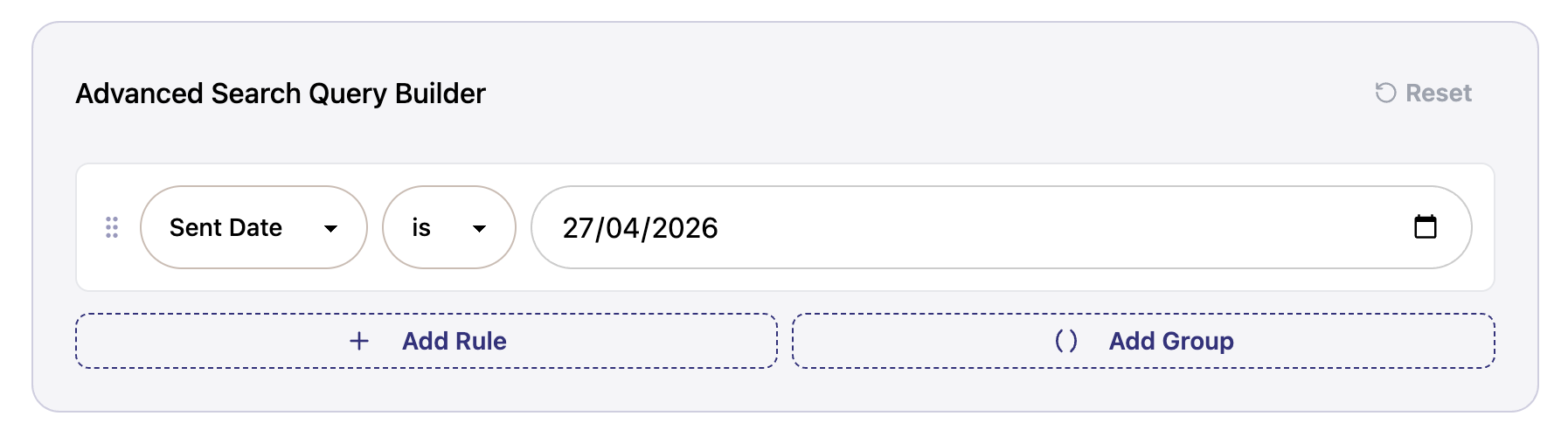
File Class, File Type, Is Attachment, Sender, Recipients, Sent Date, CC, BCC
Status
Status, Tag, Reviewer, Uploaded By, Exemption, Is Excluded, Is Finalized, Needs Triage, Is Duplicate, Is Near Duplicate, Has Unresolved Comments, Is Redundant
Adding multiple rules
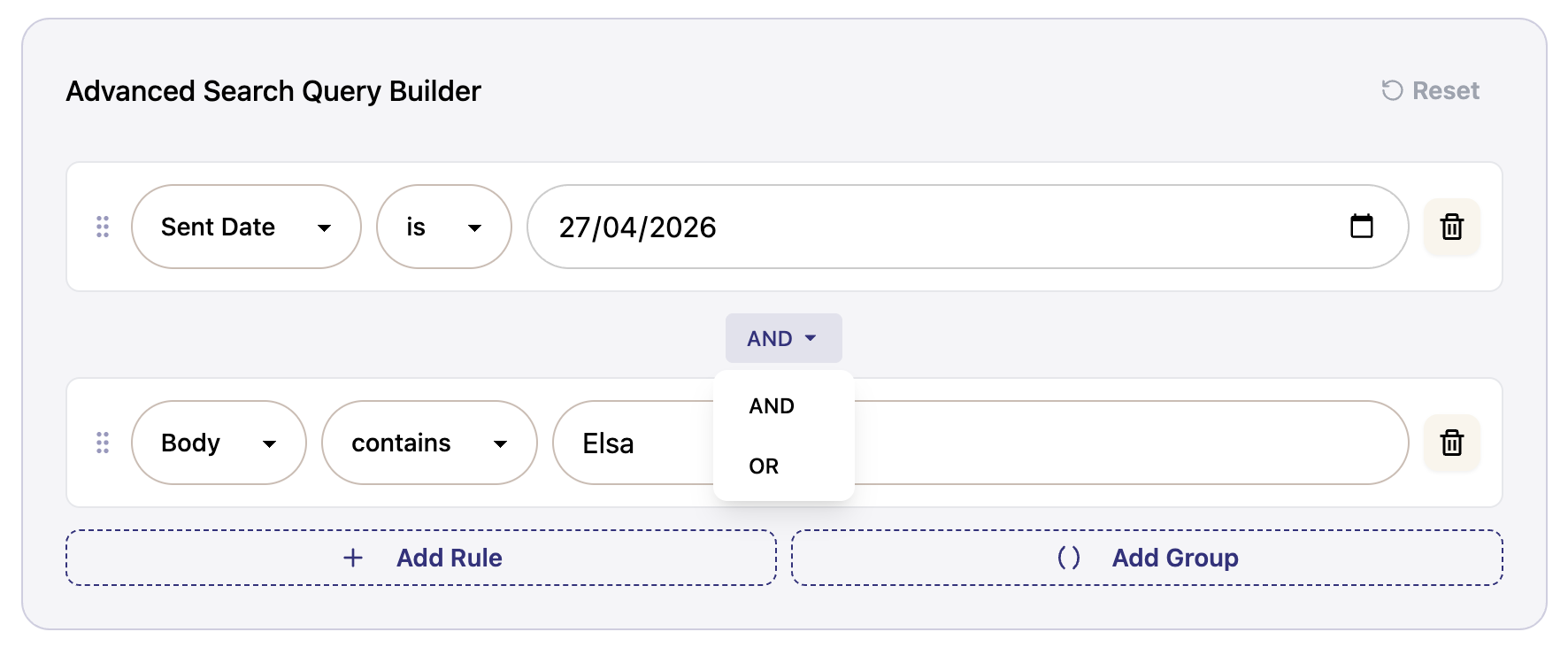
To narrow your search further, click + Add Rule to add another condition. Multiple rules are joined by AND or OR logic — click the AND button between rules to switch between them:
AND — the document must match all rules
OR — the document must match at least one rule
Using groups
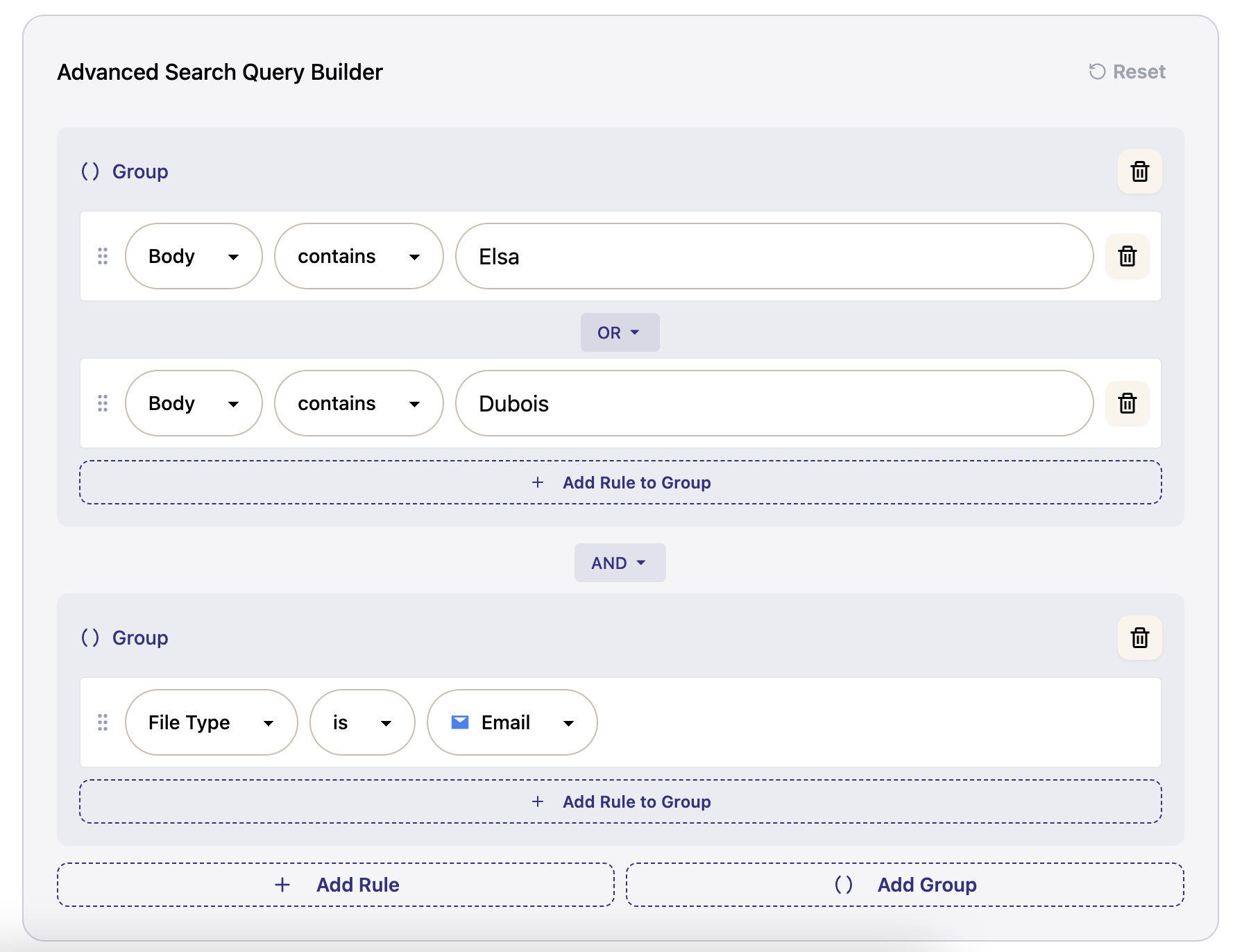
For more complex searches, you can use groups to apply bracket logic — similar to how you'd use parentheses in a formula. Click + Add Group to create a group, then add rules inside it.
For example: (Body contains "Elsa" OR Body contains "Dubois") AND File Type is Email — this finds all emails that mention either the first or last name of the data subject.
Running your search and taking action
Once you've built your query, click Search with Advanced Query to view your matches. Click Select All to take action on all matching documents at once:


Assign to a reviewer — assign all results to a specific team member
Apply a tag — tag all results for easier filtering later
Exclude from review — mark all results as out of scope in one action
Finalize/Unfinalize — finalize or unfinalize all results in bulk
Delete — delete files in bulk
Avoid deleting files. Deleting removes the associated metadata and means the file won't appear in your audit trail. Marking files out of scope is almost always the better option.
Working with more than 1,000 results? Select All selects up to 1,000 documents at a time. To apply a bulk action to a larger set, see Taking Bulk Actions on More Than 1,000 Files in Advanced Search.
Resetting your search
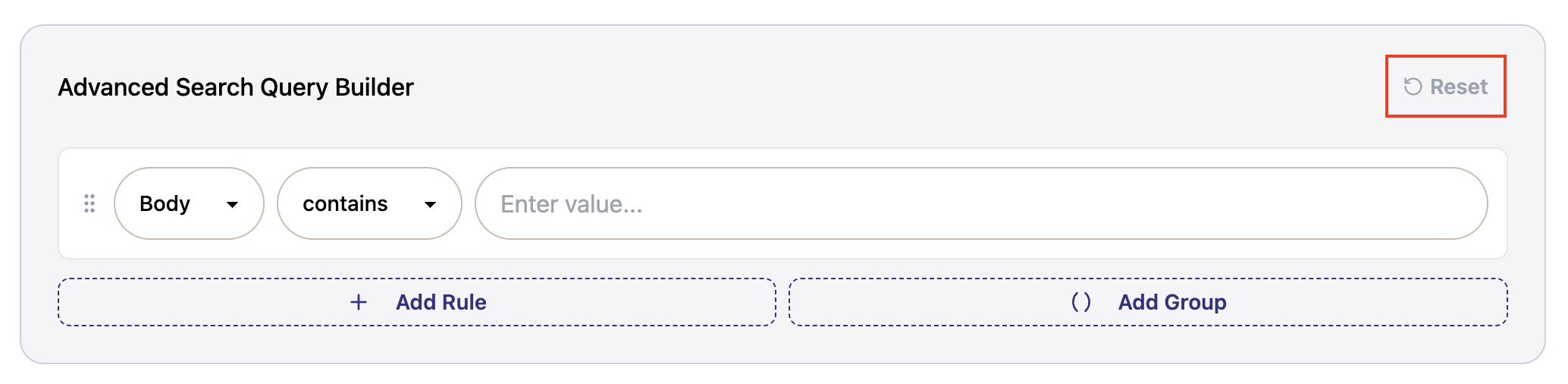
Click Reset in the top right of the query builder to clear all rules and start fresh.