How To Use Triage Mode
Last updated: August 17, 2026
In this article: How to use Triage Mode to quickly work through your remaining documents and mark them as in scope or out of scope.
What is Triage Mode?
Triage Mode is a fast, focused way to work through your document set after you've completed the automated cleanup steps (deduplication, redundant email exclusion, and search-based scoping). It loads each unreviewed document one at a time and gives you two simple options — In Scope or Out of Scope — so you can make quick decisions without getting distracted by the full document list.
How to access Triage Mode
From inside your case, click the Triage icon in the top toolbar to enter Triage Mode.

How it works
Triage Mode loads each document that still needs to be triaged in full so you can read it before making a decision. At the bottom of the screen you'll see two buttons:
Out of Scope — mark the document as not relevant and move to the next one. Click the dropdown arrow next to the button to select an exemption reason before marking it out of scope
In Scope— mark the document as relevant and move to the next one
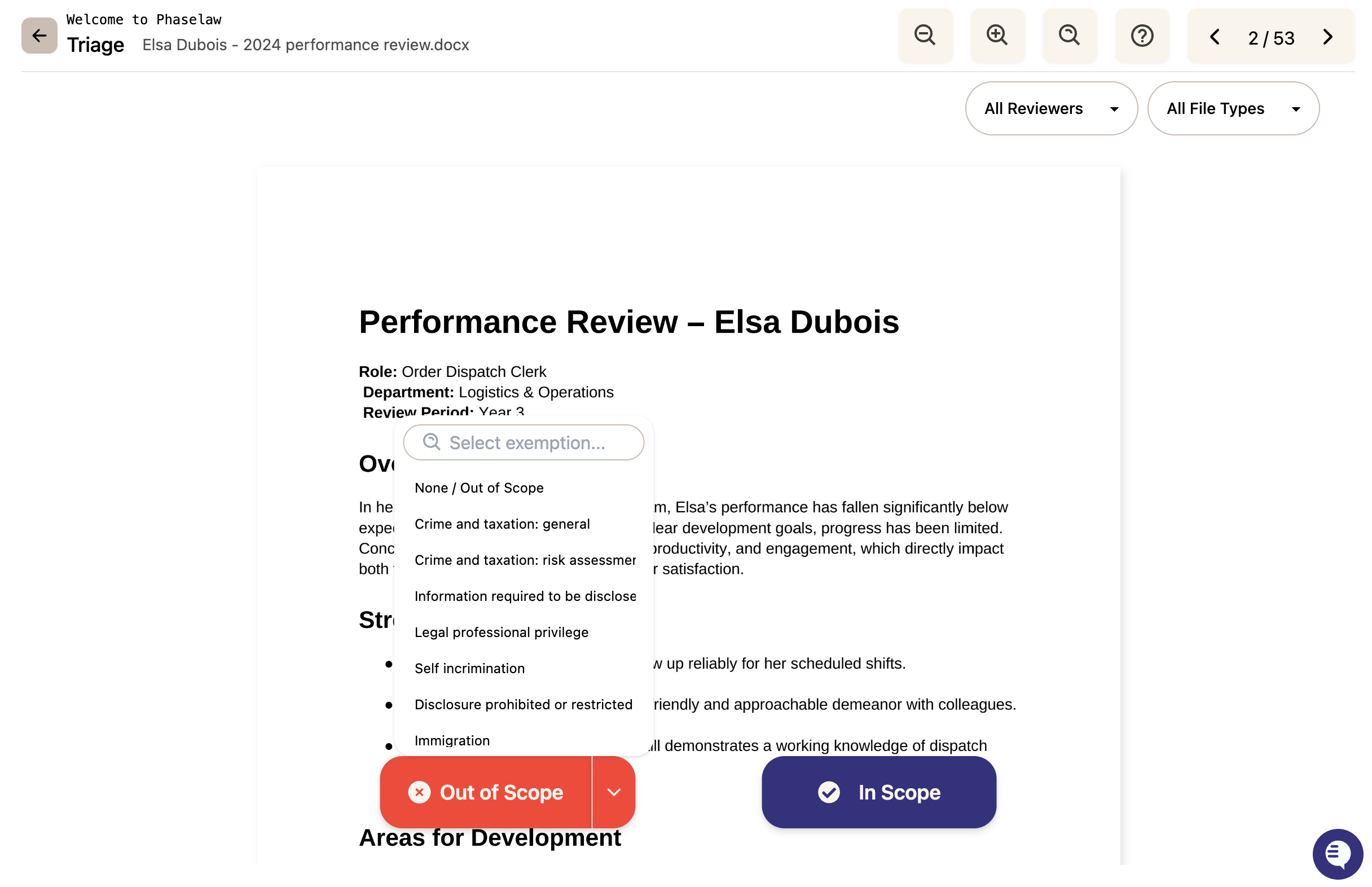
The counter in the top right shows which document you're on and how many are left.
Filtering in Triage Mode
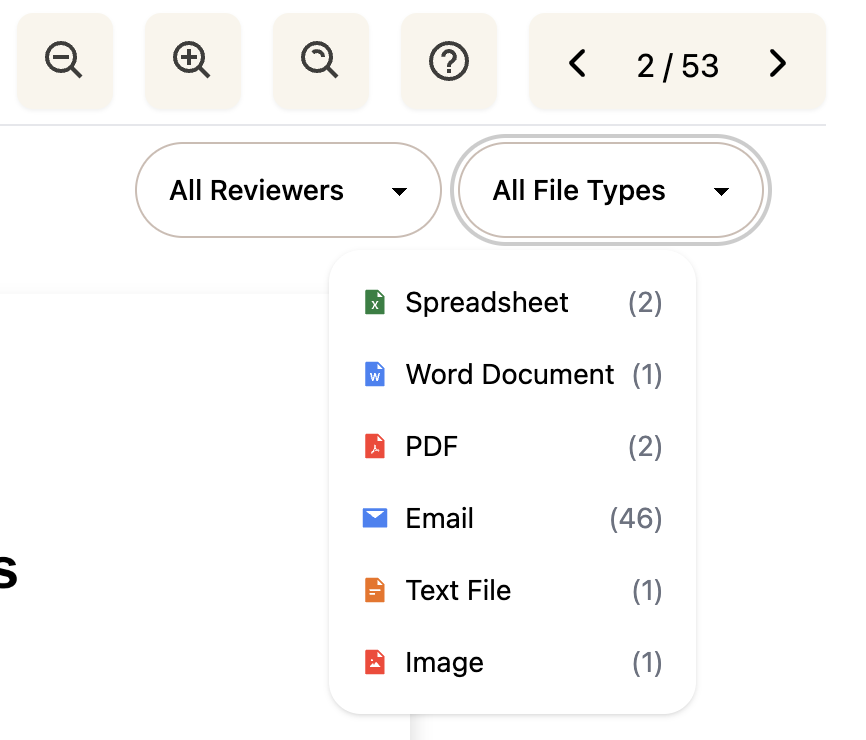
At the top of the screen you can filter the documents shown in Triage Mode by:
Reviewer — show only documents assigned to a specific team member
File Type — show only a specific type of file with a count of how many of each type are in the triage queue
This is useful for splitting triage work across a team — each reviewer can filter to their own assigned documents and work through them independently. You can also use the file type filter to tackle all emails first, then documents, for example.
Triage Mode remembers your progress
If you leave Triage Mode partway through, your progress is saved. When you return, it will pick up from where you left off — only showing documents that haven't been triaged yet.