How to Manually Mark Documents as Out of Scope
Last updated: August 20, 2026
In this article: There are several ways to mark documents as out of scope in Phaselaw- through automated tools like deduplication and redundant email exclusion, or in bulk using advanced search. This article covers how to mark individual documents or a selection of documents as out of scope directly from the document list or document viewer.
When you upload documents into a case, apart from duplicate files which are automatically identified and excluded, everything is in scope by default — meaning it will be included in the final disclosure unless you decide otherwise. As you review, you can mark individual documents as out of scope if they aren't relevant to the request.
Out of scope documents are excluded from the final export but remain in the case. If your policy has Require Exemption Reasons enabled, every out of scope decision will be logged with a reason — giving you a clear audit trail.
Marking a single document out of scope from the document viewer
Open the document you want to mark as out of scope
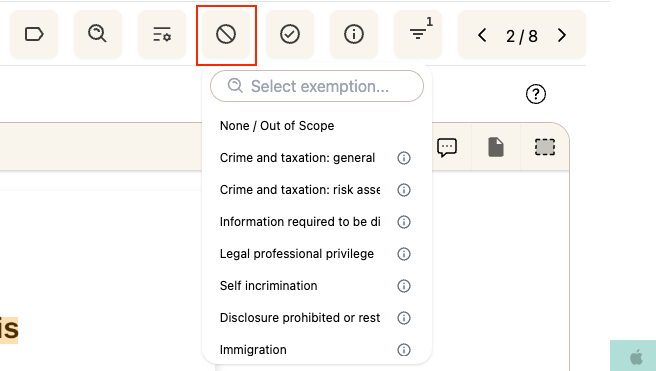
Click Mark document as exempt/out of scope in the top toolbar
A dropdown will appear- select an exemption reason, or select None / Out of Scope if no exemption reason applies
The document will be marked as out of scope and removed from the final export
Bulk marking documents out of scope from the document list
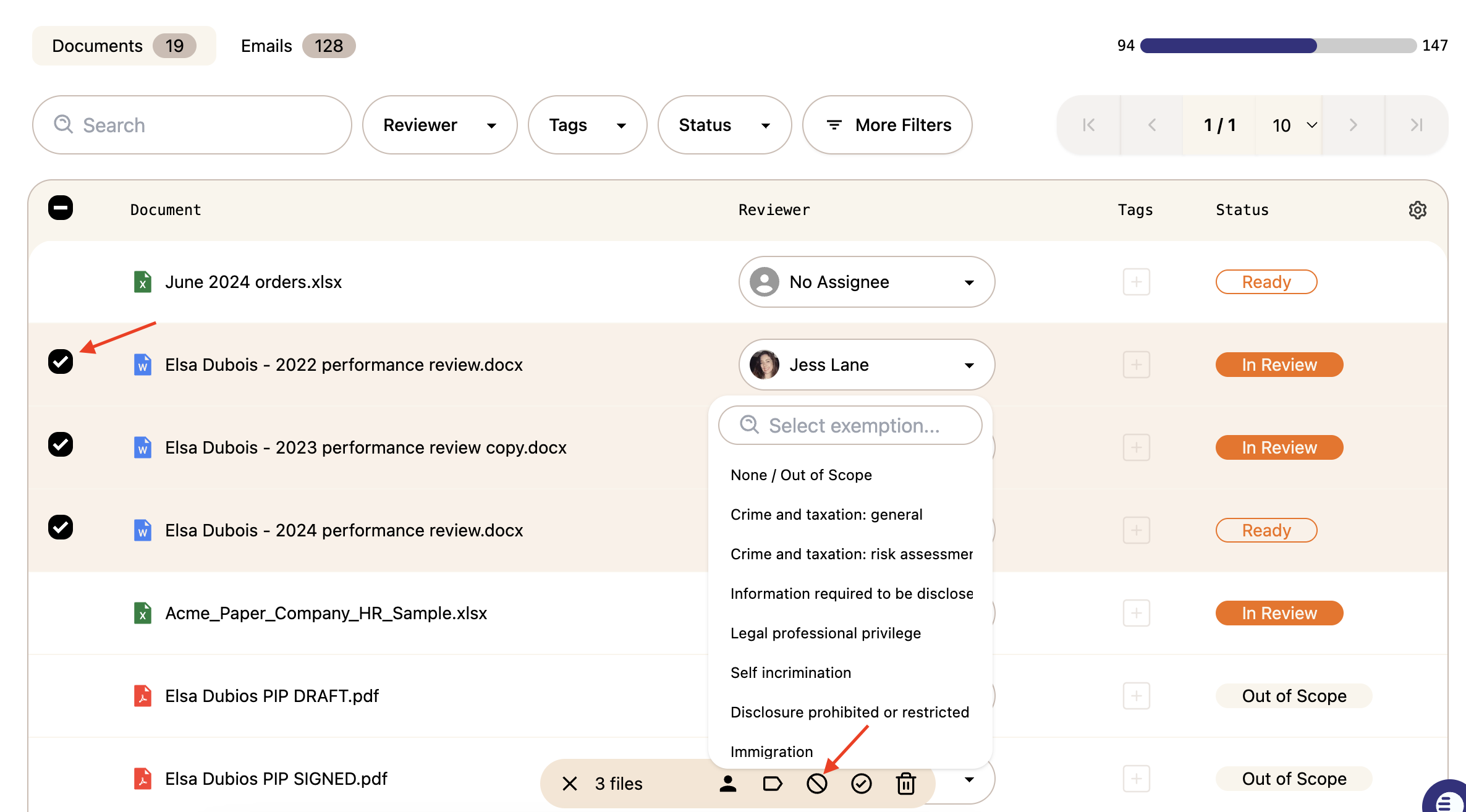
From the document list, tick the checkbox next to each document you want to mark out of scope — or tick the checkbox at the top to select all visible documents
A bulk action bar will appear at the bottom of the screen showing how many files are selected
Click the circle/no icon (🚫) in the bulk action bar
A dropdown will appear — select an exemption reason, or select None / Out of Scope if no exemption reason applies
All selected documents will be marked as out of scope
How to mark a document back in scope
If you've marked a document as out of scope, you can bring it back into scope at any time:
Find the document in the document list- you can filter by Excluded status to locate it quickly
Open the document
Click Mark document as in scope in the top toolbar to mark it back in scope
