How to Use AI Scoping
Last updated: November 19, 2026
In this article: How to use AI scoping to get a suggested scope for every document in your case, and how to review the results.
AI scoping compares every document in your case against a description you write, then suggests whether each one is in scope, out of scope, or borderline. It helps you narrow a case down to the relevant documents before you start redacting.
To turn AI Scoping on for your organization, contact your Phaselaw account team.
Before you start
Exclude anything that doesn't need AI scoping first, so it only looks at the files that do. A good place to start is:
Advanced Search — find documents you can rule out with simple rules, such as emails sent before a certain date, and mark them out of scope → Using the Advanced Search Query Builder
Exclude Redundant Emails → How to Exclude Redundant Emails
Exclude Near Duplicates, if it suits your case → How Near-Duplicate Detection Works
Updating your Request Description
AI scoping uses your request description to decide what's relevant. Describe the documents you're looking for, and the documents you want to exclude.
You can add or edit the description in three places:
Request Description when you create the case or run the AI scoping task
Case Settings, which has a larger text box
Notes, using the Add button
How to run it
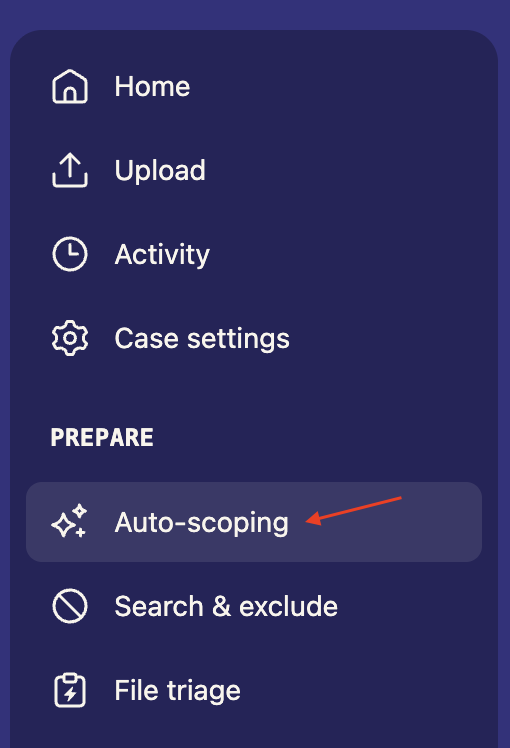
From inside your case, go to Auto Scoping
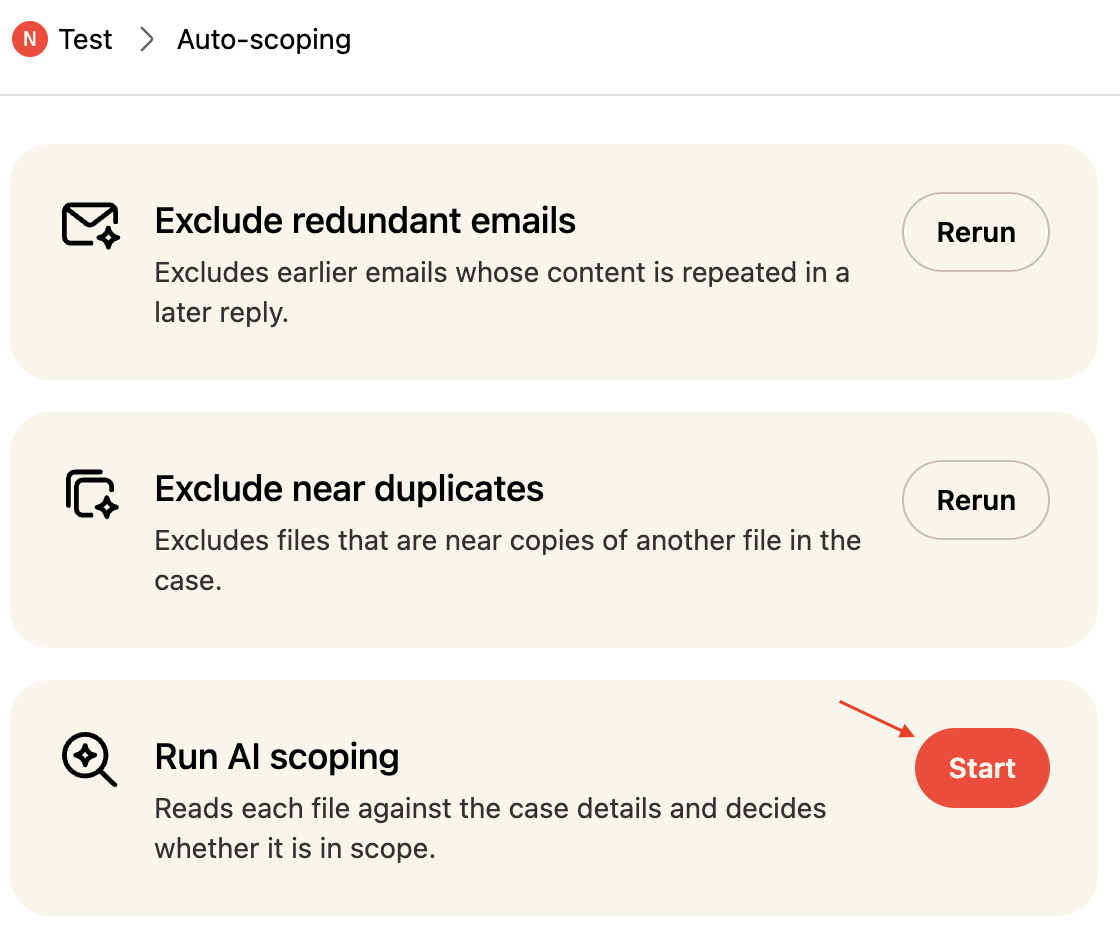
Next to Run AI scoping, select Start
Enter your request description. You can also copy in the original request received from the data subject. The more detail you give, the better the results. A sentence works, but a paragraph or two with examples works better.
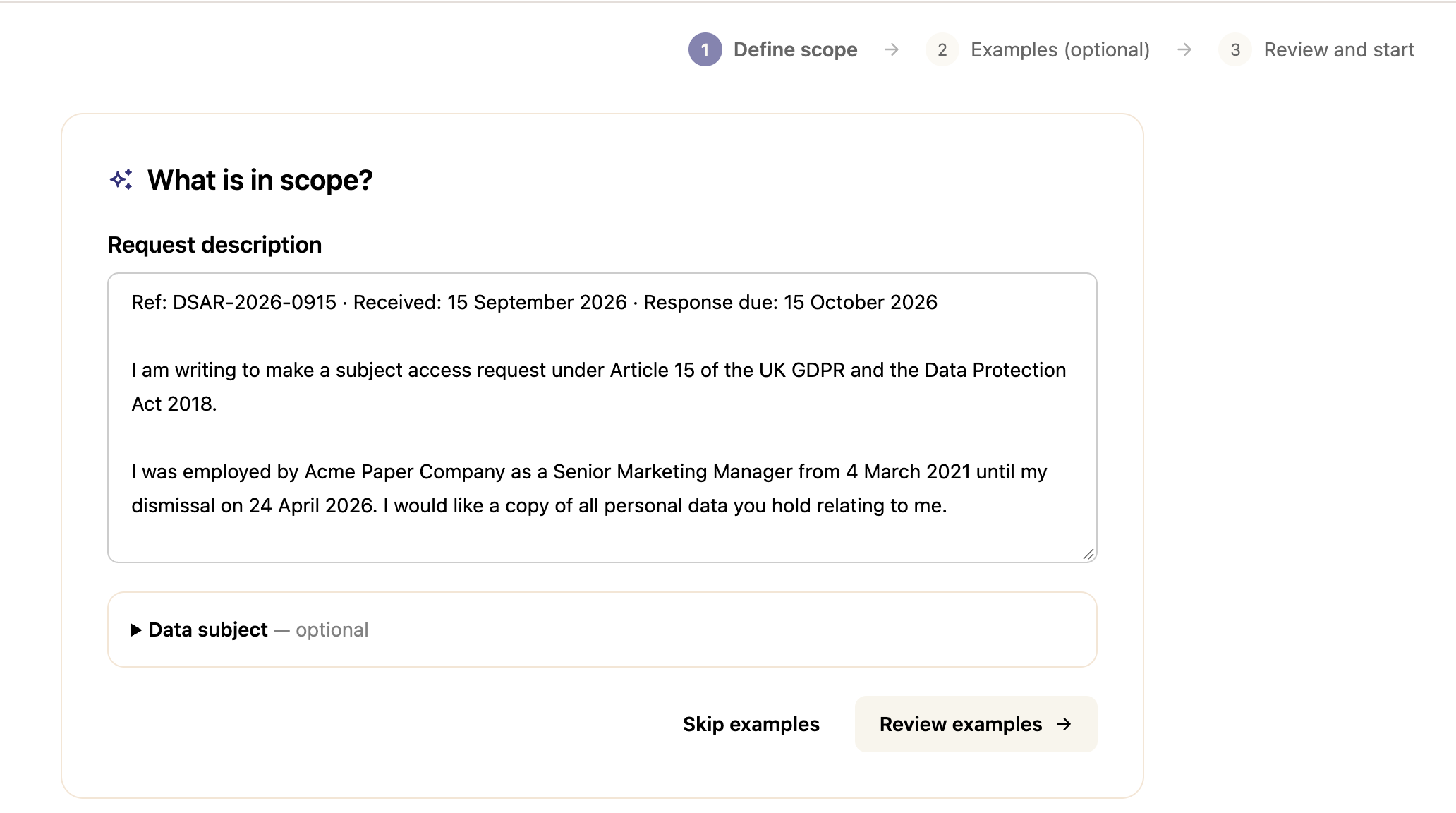
Add the Data subject details (optional)
Select Review examples, or Skip examples to continue without them
If you review examples, Phaselaw shows you three files from your case, each with the current AI suggestion and a short explanation. For each file:
Choose In scope or Out of scope
Add a reason (optional). The AI reads your reason when it looks at the other files in your case
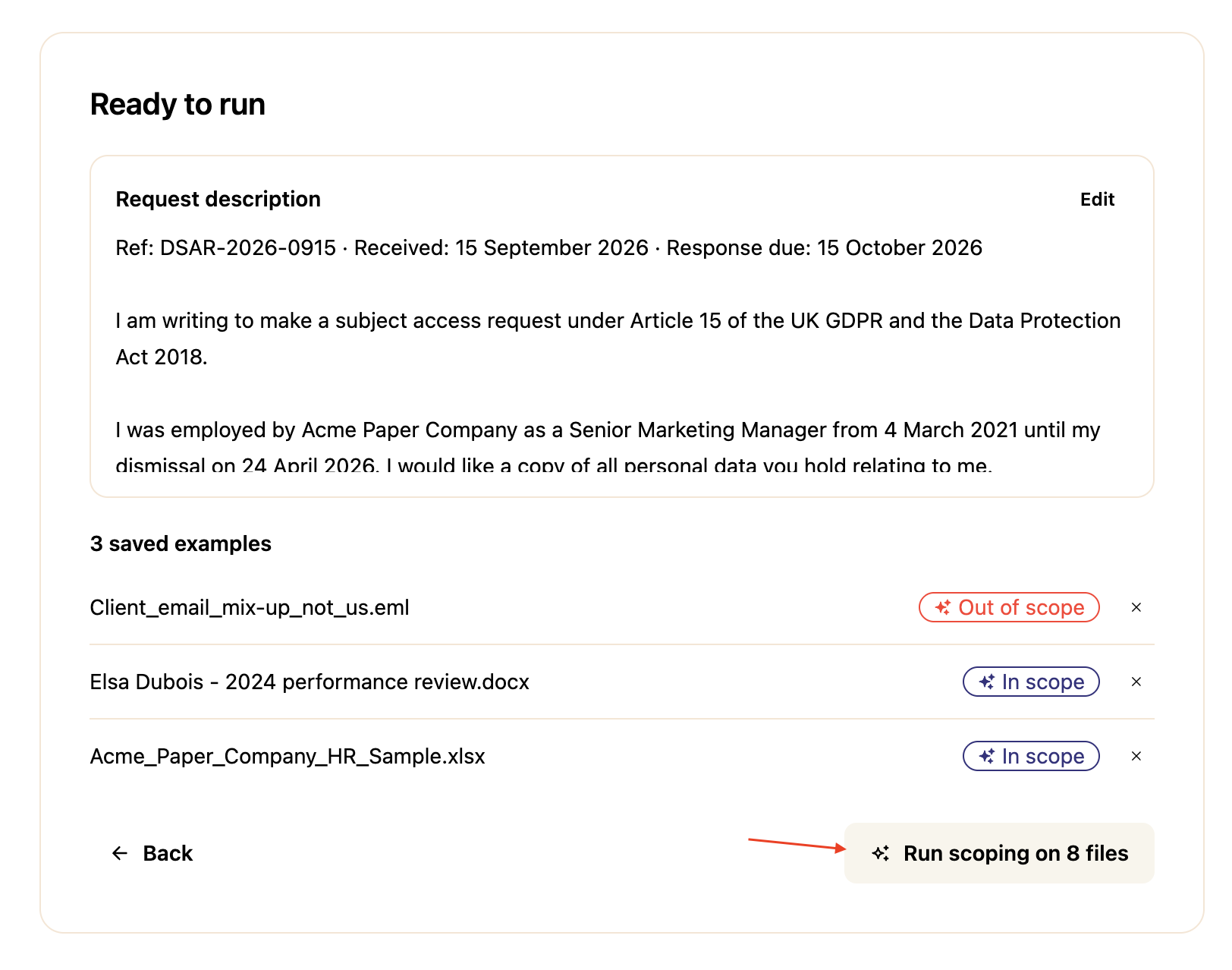
On the Ready to run screen, you can check your request description and any saved examples before you start. Use Edit to change the description, or the × next to an example to remove it. Select Back to return to the previous step.
Select Run scoping on [X] files. The number shows how many files are left to scope, so it will change depending on your case
AI scoping only looks at documents that are still in Ready status. Anything you've already marked out of scope isn't re-evaluated. On cases with thousands of documents it can take a few minutes. You can close the page and come back later.
Understanding the results
Each document now has a value in the Suggested Scope column:
In scope — based on your request description, AI scoping suggests the file is in scope
Borderline — the file may or may not be in scope and needs review
Out of scope — based on your request description, AI scoping suggests the file is out of scope
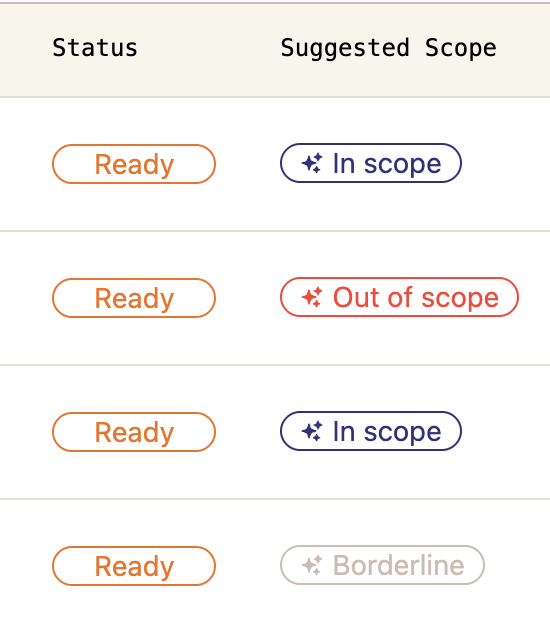
Suggestions appear on both the Documents and Emails tabs, so review each one.
Reviewing the suggestions
You have a few ways to work through them:
Filter by suggested scope — Select More Filters > Suggested Scope to pull up just the out of scope, borderline, or in scope documents and work through each group
Triage Mode — filter to one group, then use Triage Mode with the Suggested Scope filter to preview each document quickly and confirm or change the suggestion → How to Use Triage Mode
Bulk action — filter to one group, select all, and mark them in scope or out of scope in one go. If you're marking documents out of scope, you'll be asked to select an exemption reason
Once you've acted on a document, its suggestion is greyed out because the decision has been made.
A common approach is to run a quality check before acting in bulk. Filter to the documents suggested as out of scope, review a random sample of around 100, and if they're all correctly identified, you can action the rest with more confidence.
Improving your results
If the results aren't what you expected, edit your case description and run AI scoping again. The new run only covers documents you haven't made a decision on, so your earlier decisions stay as they are.