Managing Your Notification Settings
Last updated: October 13, 2026
In this article: How to control which email notifications you receive from Phaselaw.
Phaselaw sends email notifications to keep you informed of activity relevant to your work. You can choose exactly which notifications you receive- these are personal settings, so each team member can configure their own preferences independently.
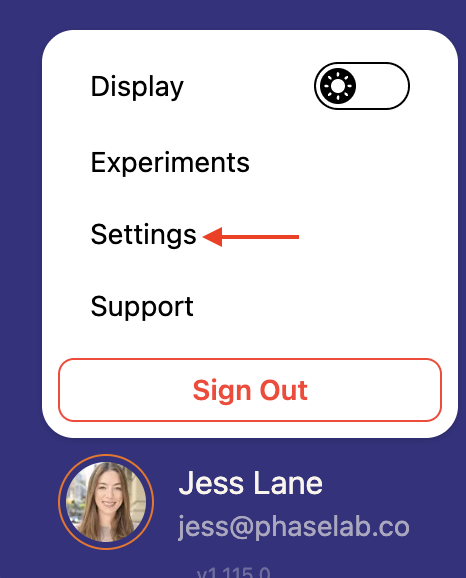
How to access notification settings
Click your name or profile icon in the bottom left corner of the screen
Click Settings
Select the Notifications tab
Available notifications
The following notifications are available and switched on by default:
Document assigned to you — when a team member assigns a document to you
Mentioned in a comment — when someone @mentions you in a comment
Replies in your comment threads — when someone replies to a comment you left
Export finished — when an export you created is ready to download
The following notifications are available but off by default:
Case assigned to you — when a team member assigns a case to you
Redundancy analysis finished — when an exclude redundant emails task completes
Near duplicate detection finished — when a near duplicate detection task completes
How notifications work
Suppression: Phaselaw won't notify you about actions you take yourself. For example, if you assign a document to yourself, you won't receive a notification — but if a colleague assigns one to you, you will.
Buffering: if you receive multiple notifications in a short period, Phaselaw groups them together so you don't get flooded with emails. For example, if you're mentioned in several comments quickly, you'll receive a single email summarising them.