Exporting Your Case
Last updated: August 17, 2026
In this article: How to export your documents from Phaselaw, including draft, final, and summary exports.
To start an export:
Click View and manage case exports in the top toolbar. This takes you to the exports page where you can see a history of all previous exports and create new ones.

Click New Export to open the Create a New Export form, then select your export type.
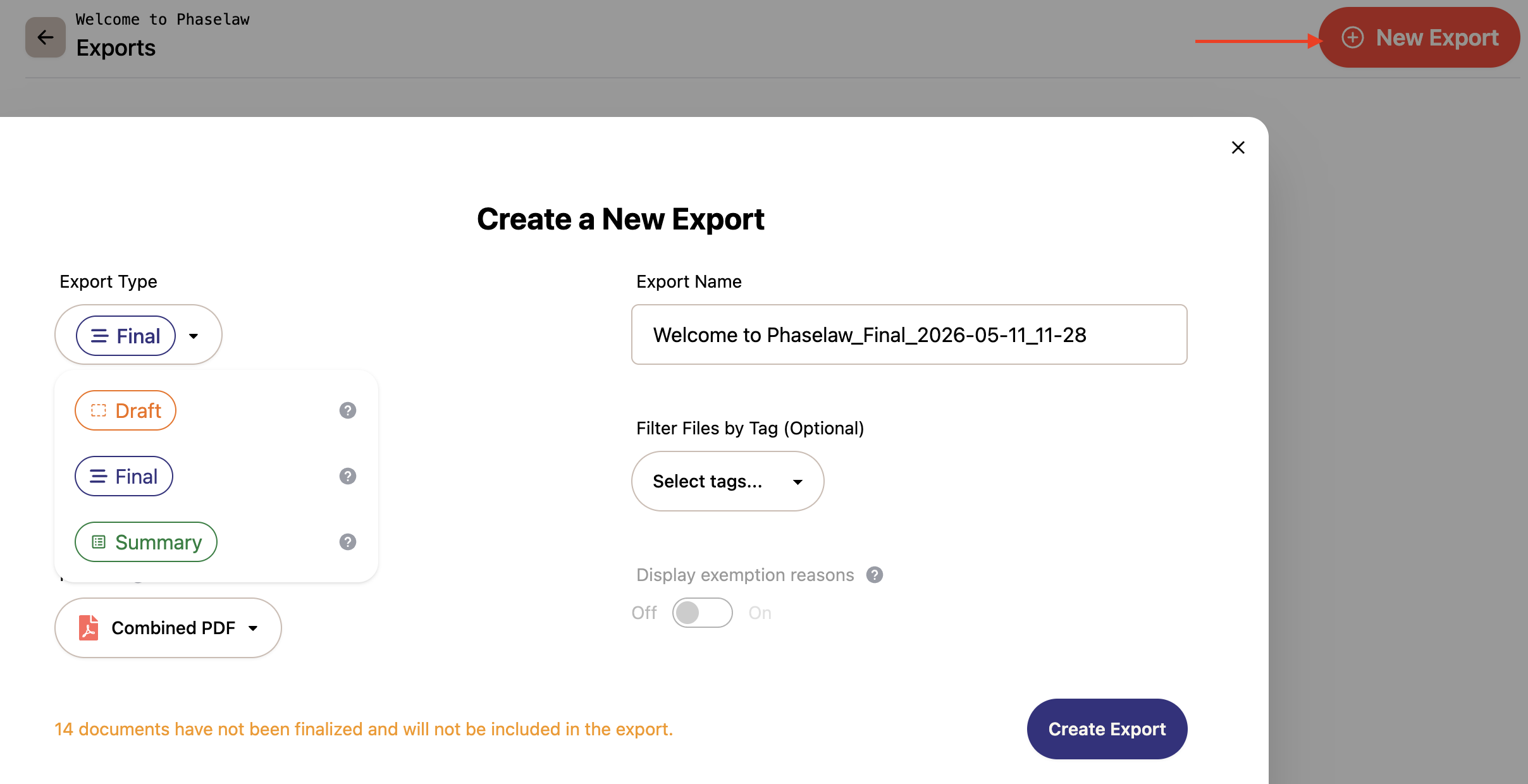
Export types
Draft
Draft exports are unredacted — redactions are shown as red outlines rather than fully redacted, and comments are included. Use this for internal review and collaboration before your disclosure is finalized. Available as Individual Files or a single Combined PDF.
Do not share a draft export externally — the underlying content is still visible.
→ How to Create a Draft Export
Final
Final exports are redacted, showing the final versions of files and do not include comments. Only finalized documents are included. This is the version you share externally as your formal disclosure. Available as Individual Files or a single Combined PDF.
→ How to Create a Final Export
Summary
Summary exports are an Excel spreadsheet listing every document in the case (in and out of scope) and the exemptions applied to each.