How to Create a Draft Export
Last updated: September 22, 2026
In this article: How to create a draft export of your case, with options to filter by tag and file status.
A draft export lets you share your case with reviewers before it's finalized. Redactions are shown as red outlines rather than fully redacted, and comments are included — giving reviewers the context behind each redaction decision.
Draft exports display redactions as red outlines — the underlying content is still visible. Do not share a draft export externally. When you're ready to export your final redacted disclosure, see → How to Create a Final Export
How to create a draft export
From inside your case, click View and manage case exports in the top toolbar

Click the red New Export button

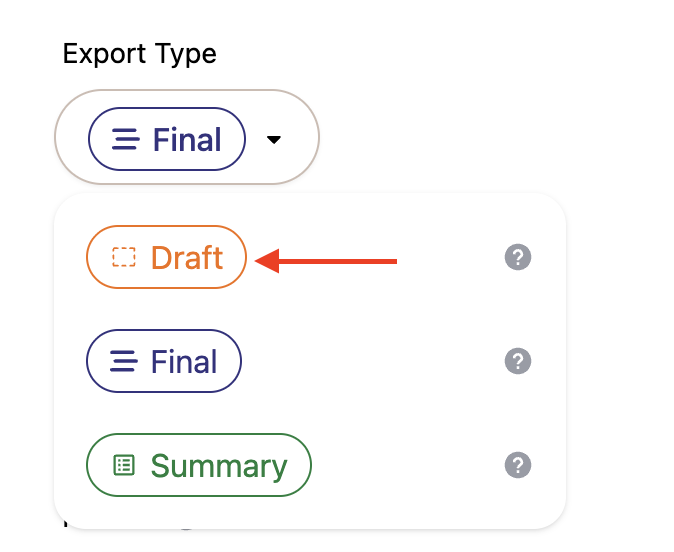
Set Export Type to Draft
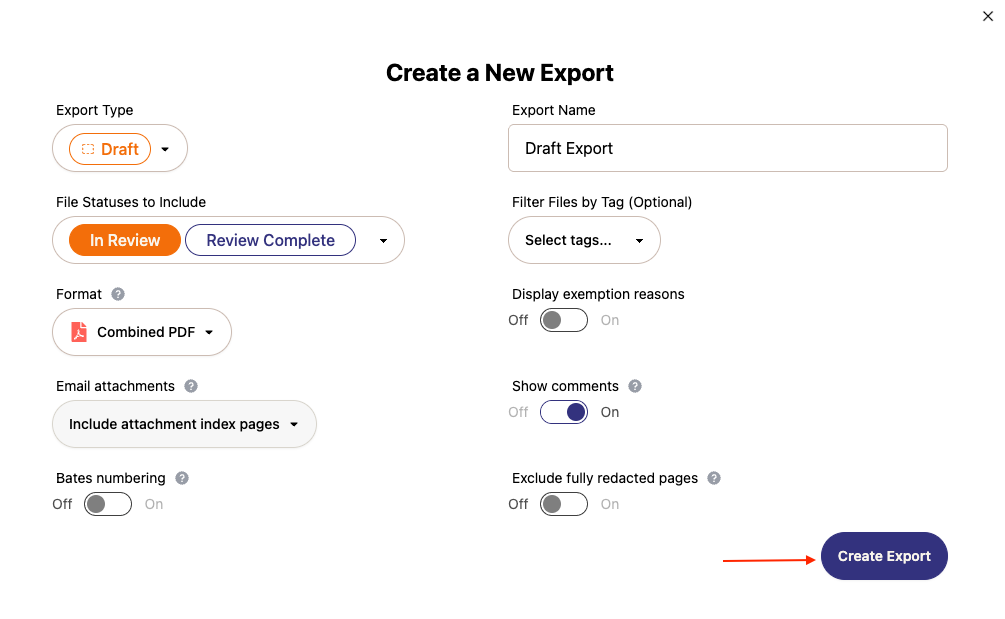
Give your export a name in the Export Name field — a name is generated automatically but you can edit it
Under File Statuses to Include, select which statuses to include — draft exports can include files in any status, including files marked out of scope
Under Filter Files by Tag (Optional), select one or more tags to export only documents with those tags → Using tags to filter your exports
Choose your Format — Individual Files (downloads each document as a separate file, compressed into a ZIP folder) or a single Combined PDF (merges all documents into a single PDF file, useful for sharing as one document)
Use the Email attachments dropdown to choose how attachments are organised. Options differ depending on your format:
For Combined PDF:
Include attachment index pages (default) — adds an index page after each email showing where to find its attachments in the export
Append to email — attachments appear directly beneath the email they belong to
Sort alphabetically — attachments sorted alphabetically alongside other documents
For Individual Files:
Include attachment manifest (default) — includes a CSV file mapping the relationships between attachments and their parent emails
Sort alphabetically — attachments sorted alphabetically with no manifest
Toggle Display exemption reasons on if you want exemption reasons to be visible in the export
Toggle Exclude fully redacted pages on if you want to remove pages that were redacted with "Redact Entire Page" from the export. Removed pages keep their Bates numbers as gaps and stay listed in the export log.
Click Create Export
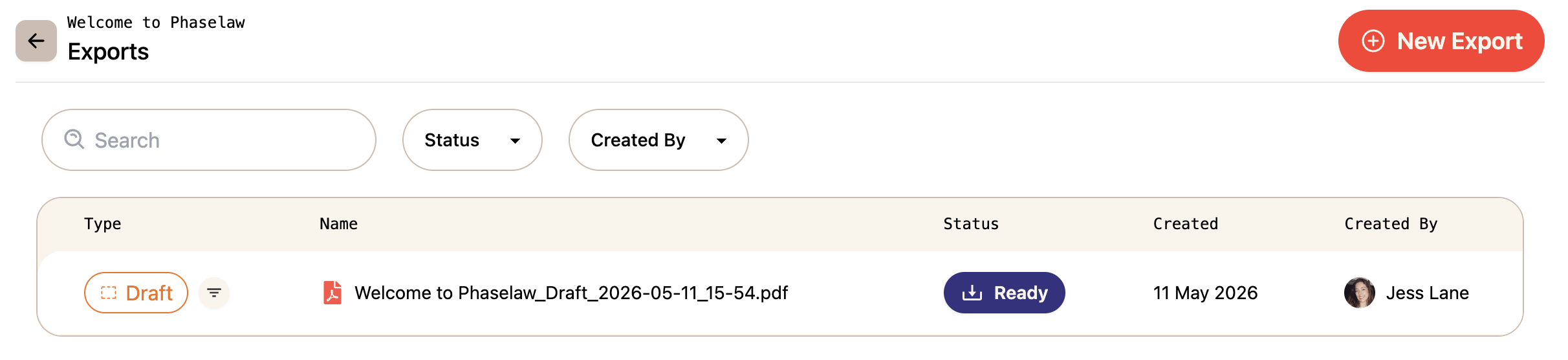
Your export will appear in the exports history once it's ready to download. You can filter your exports history by Status or Created By to find a specific export.