Using Tags to Organise Your Documents
Last updated: August 20, 2026
In this article: How to create tags and apply them to documents to help organise your review workflow.
Tags are created by admins in Configuration. → How to Create and Manage Tags
What are tags?
Tags are colour-coded labels you can apply to documents to help organise your case. You can assign multiple tags to a single document and use them to quickly identify, filter, and search for content based on criteria like sensitivity level, workflow status, or document type.
Common examples include:
Flag — to mark a document that needs a second look
Final Review — to indicate a document is ready for sign-off
First Pass — to track documents that have been through an initial review
Applying tags to documents
How to apply a tag from the document list
In the document list, find the document you want to tag
Click the + icon in the Tags column
A dropdown will appear showing all available tags — select one or more to apply
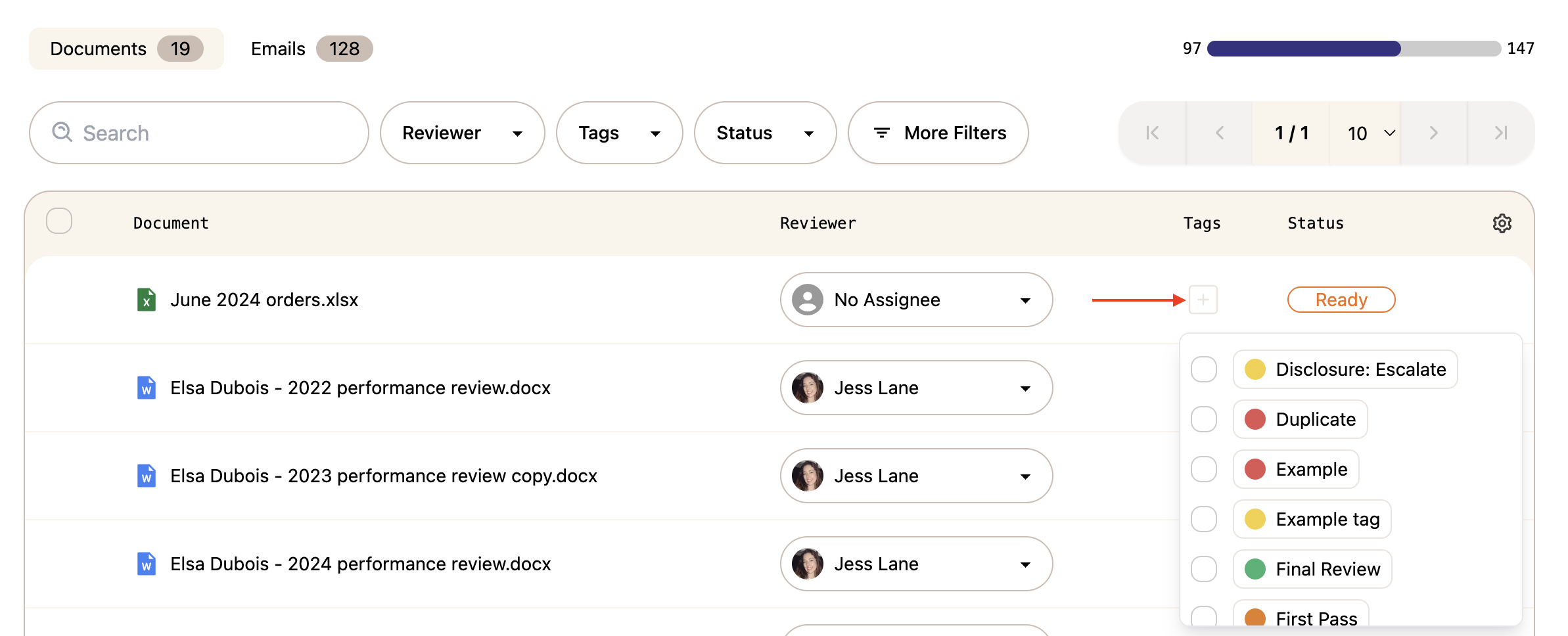
To remove a tag, click the tag on the document and deselect it from the dropdown, or click Clear tags to remove all tags at once.
Applying tags to multiple documents at once
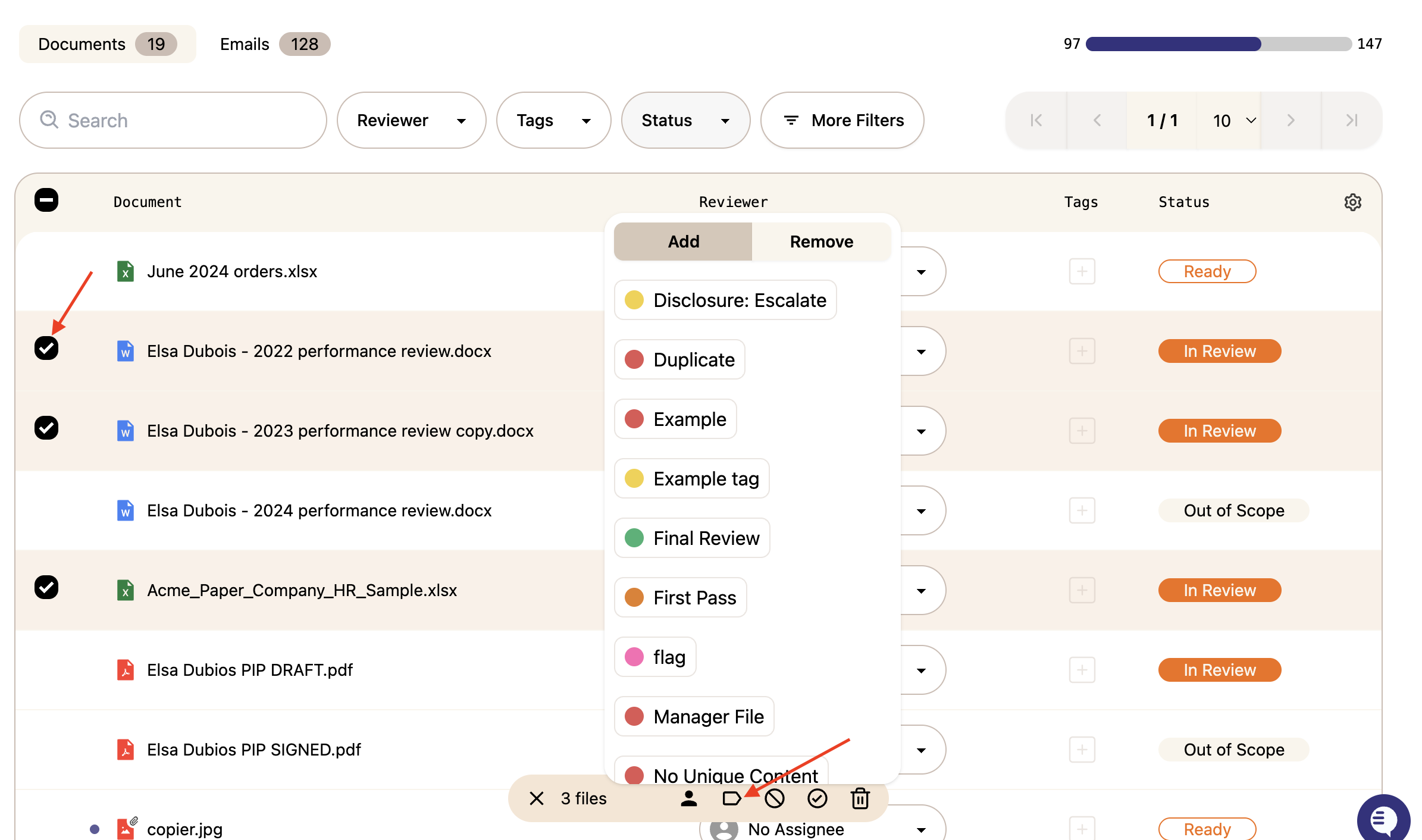
Select multiple documents using the checkboxes in the document list
Use the bulk action bar at the bottom of the screen
Select Add to apply a tag to all selected documents, or Remove to remove a tag from them
Filtering by tag
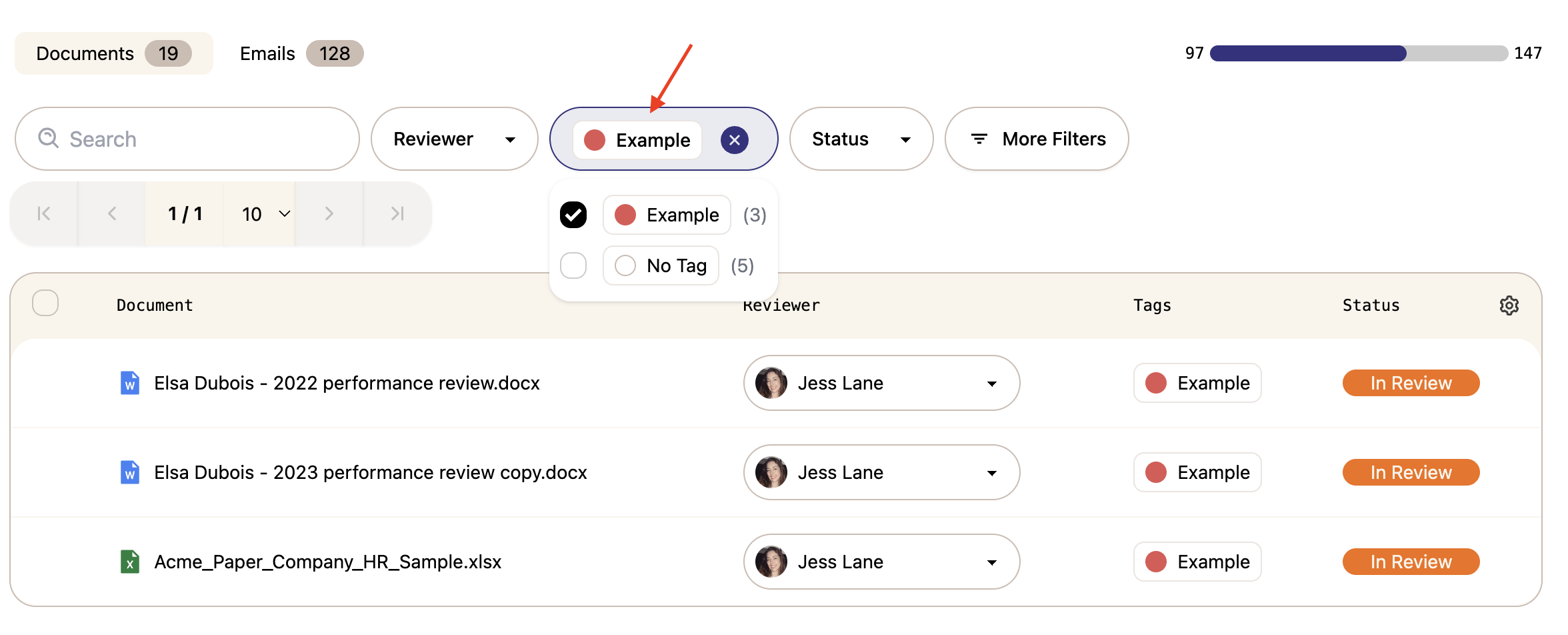
Once tags are applied, you can use the Tags filter at the top of the document list to show only documents with a specific tag — or filter for documents with No Tag to find anything that hasn't been categorised yet.
Searching by tag using Advanced Search
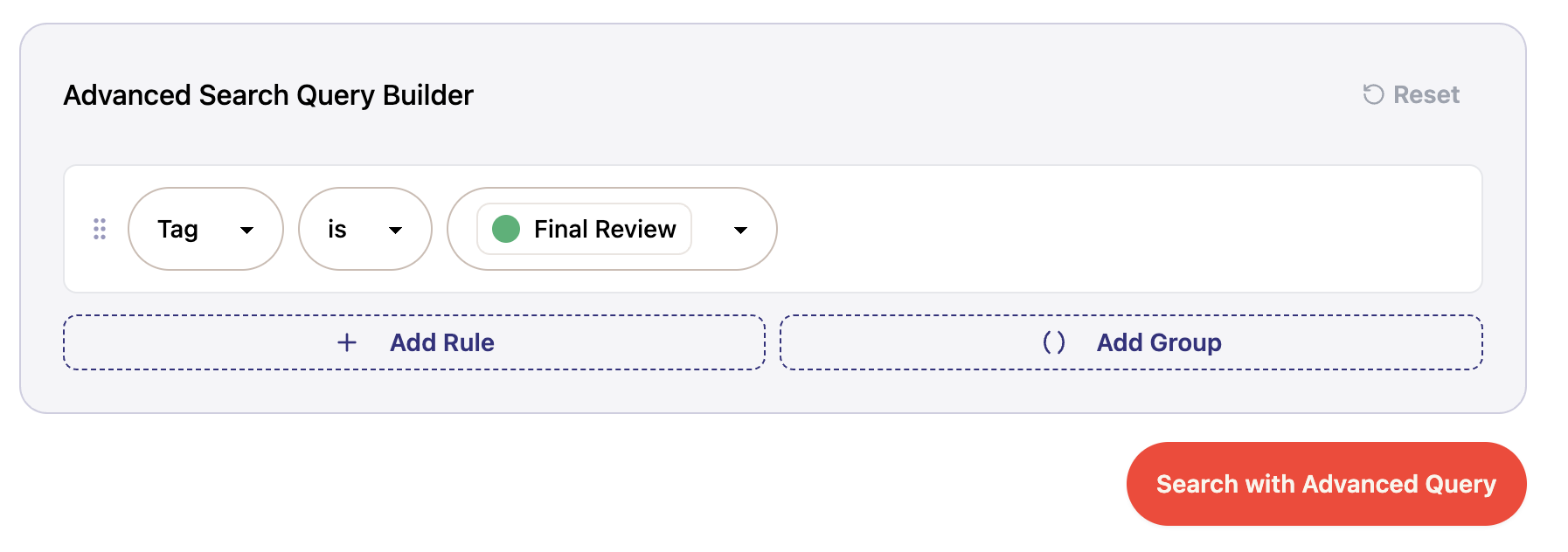
You can also use tags as a search criterion in the Advanced Search Query Builder. Select Tag as your field, choose is as your condition, and select the tag you want to search for from the dropdown. This is useful for combining tag filters with other criteria — for example, finding all documents tagged "Final Review" that are also assigned to a specific reviewer.
→ Learn more: Using the Advanced Search Query Builder
Using tags to filter your exports
You can use tags to filter which documents are included when creating a draft or final export. This is useful if you want to export only a specific subset of documents — for example, all documents tagged "Final Review."
How to filter an export by tag
From inside your case, click View and manage case exports in the top toolbar
Click New Export
Set Export Type to Draft or Final
Under Filter Files by Tag (Optional), select one or more tags from the dropdown
Complete the remaining fields and click Create Export
→ Learn more: