Understanding Document Statuses
Last updated: August 17, 2026
In this article: Every document in Phaselaw has a status that tells you where it is in the review process. Statuses fall into three groups: upload and processing, review, excluded and error states.
Upload and processing statuses
These statuses appear while your file is being uploaded and prepared for review. You don't need to do anything during this stage.
Waiting for Document
The upload has started but hasn't finished yet.
Processing
The upload is complete and the file is in the queue for analysis.
Unpacking
The file is being unpacked — used for files uploaded in a container format such as PST or MBOX.
Converting
The file is being converted to PDF. This status only appears when you manually click Convert to PDF in the Spreadsheet Scoping Tool. → How to Use the Spreadsheet Scoping Tool
Analysing
Phaselaw is scanning the file for personal data to generate redaction suggestions.
Ready
Processing is complete. The document is ready for you to review.
Review statuses
These statuses reflect where a document is in your review workflow:
In Review
The document is currently being reviewed. This status is set automatically when redactions are made on a document, or can be set manually via the Document Details panel.
Review Complete
The document has been reviewed and is ready to be included in the final disclosure. This status is set automatically when all suggested redactions have been actioned, or can be set manually via the Document Details panel.
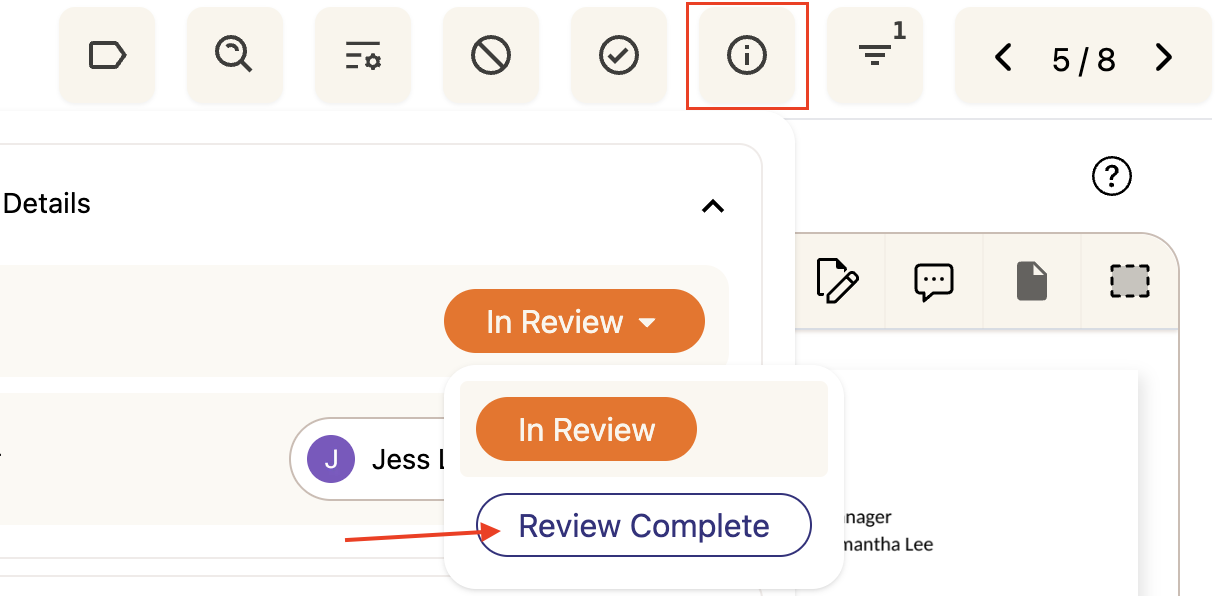
To manually update a document's status between In Review and Review Complete from within the document viewer: click the i (Info) icon in the top toolbar and update the status from the Document Details panel:
Finalizing
The document is in the process of being finalised.
Finalized
The document has been locked and is ready for export. When a document is finalised, it moves out of edit mode and redactions are locked in.
Need to make further changes? A finalised document can be unfinalized at any time, returning it to edit mode by selecting Unfinalize Document:

Excluded Statuses
These statuses indicate that a document has been removed from your active review set. Excluded documents remain in the case and are always recorded in the audit log.
Out of Scope
The document has been marked as not relevant to the request and will be excluded from the final disclosure. Out of scope documents remain in the case and are always recorded in the audit trail.
Duplicate
The document was identified as an exact copy of another file already in the case. Duplicates are automatically excluded from review. → [How Deduplication Works]
Redundant
Redundant documents apply to emails specifically. If an earlier email in a thread is fully quoted in a later reply, Phaselaw can identify it as redundant and flag it- but this requires you to run the redundancy analysis task from within your case. Redundant emails are marked out of scope when you run the Exclude Redundant Emails task. → How Email Redundancy Analysis Works
Exempt
The document has been marked as out of scope with an exemption reason logged against it. This status appears when your policy has Require Exemption Reasons enabled.
Near-Duplicate
The document has been identified as having near-identical content to another file in the case, but with slight differences in metadata.
This is an experimental feature. To enable it, click your name at the bottom of the sidebar → Experiments → toggle Near Duplicate Detection on and refresh the page.
Error statuses
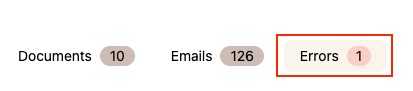
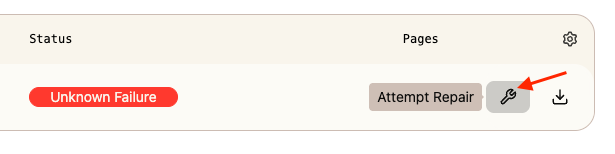
These statuses indicate that something went wrong during processing. If you encounter one, you can attempt an automated repair or download the original file from the Errors table.
Analysis Failed
Phaselaw was unable to scan the file for personal data.
Corrupt File
The file is empty or could not be opened. Office documents can sometimes be recovered by opening them in your application's recovery mode.
Conversion Failed
The file could not be converted into a review-ready PDF.
Finalization Failed
Something went wrong while finalising the document.
Unknown Failure
An unexpected error occurred.
Password Protected
If you upload a file that is password-protected, Phaselaw will detect this automatically and show a Password Required status on the file. There are two ways to input the password: How to Handle Password-Protected Files
If you see any error status, go to the Errors table to attempt an automated repair or download the original file for troubleshooting:
If the issue persists, get in touch with our Support Team using our in-app chat or by emailing support@phase.law.