Triaging Your Documents: An Overview
Last updated: August 17, 2026
In this article: What triage means in Phaselaw, why it matters, and the tools available to help you work through large document sets efficiently.
What is triage?
When you open a case, you'll see a blue progress bar at the top of your document list. Every file will end up in one of two states — excluded because it's not relevant, or finalised because it's relevant and will be sent to the data subject. That bar tracks your progress towards getting there.
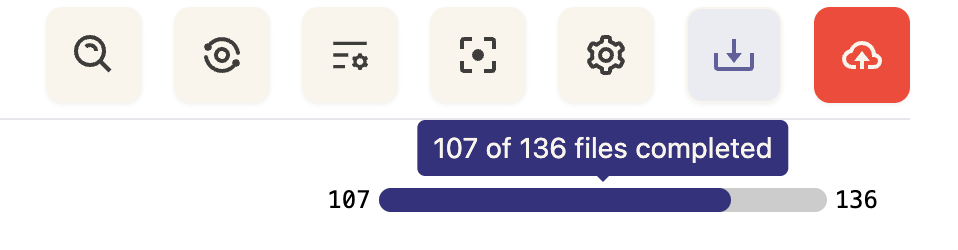
Triage is the process of working through your document set to reach that point as efficiently as possible. The more files you can exclude early, the less you'll have to review and redact in detail.
Not everyone needs to triage — if your export only contains files that are relevant to the request, you can go straight to reviewing and redacting. If you do need to do a first pass to remove irrelevant files, the tools below will help you do that quickly.
Triage methods in Phaselaw
Phaselaw gives you several tools to triage your document set:
1. Deduplication
Happens automatically when you upload files. Phaselaw identifies exact copies of the same file and excludes them from review — so you never have to review the same document twice.
→ Learn more: How Deduplication Works
2. Redundant Email Exclusion
After deduplication, run the Exclude Redundant Emails task to clean up your email threads. This identifies emails whose content is wholly contained within a later reply in the same thread, and marks them as out of scope automatically.
→ Learn more: How to Exclude Redundant Emails
3. Advanced Search and Bulk Scoping
Use Phaselaw's advanced search to filter your document set by specific criteria — for example, documents that don't mention the data subject's name at all — and bulk mark them as out of scope in one action. This is often the highest-leverage step in the triage process.
→ Learn more: Using the Advanced Search Query Builder
4. Triage Mode
Once you've completed the automated cleanup steps, use Triage Mode to quickly work through any remaining unreviewed documents. Each document is shown as a quick preview with two options — mark it in scope or out of scope — so you can move through large numbers of files at speed.
→ Learn more: How To Use Triage Mode
5. Spreadsheet Scoping
If your case contains Excel spreadsheets, use the Spreadsheet Scoping Tool to collapse them down to just the relevant rows, columns, and tabs before converting to PDF. This avoids generating a large PDF where only a small portion is actually relevant.
→ Learn more: How to Use the Spreadsheet Scoping Tool
6. Near-Duplicate Detection
For cases with large sets of loose files or unthreaded emails with near-identical content, near-duplicate detection helps identify and clean up files that wouldn't be caught by standard deduplication.
→ Learn more: How Near-Duplicate Detection Works