Reviewing Suggestions Across Your Case
Last updated: July 24, 2026
In this article: How to view and bulk action all redaction suggestions across your entire case in one place.
The Case Redactions view gives you a complete list of every suggested redaction across all documents in your case. From here you can review, bulk redact, or bulk keep suggestions without having to open each document individually.
To access it, click the Case Redactions icon in the top toolbar.

Suggestions tab
The Suggestions tab shows all pending suggestions grouped by category. Each suggestion shows the number of occurrences and files it appears in across the case.
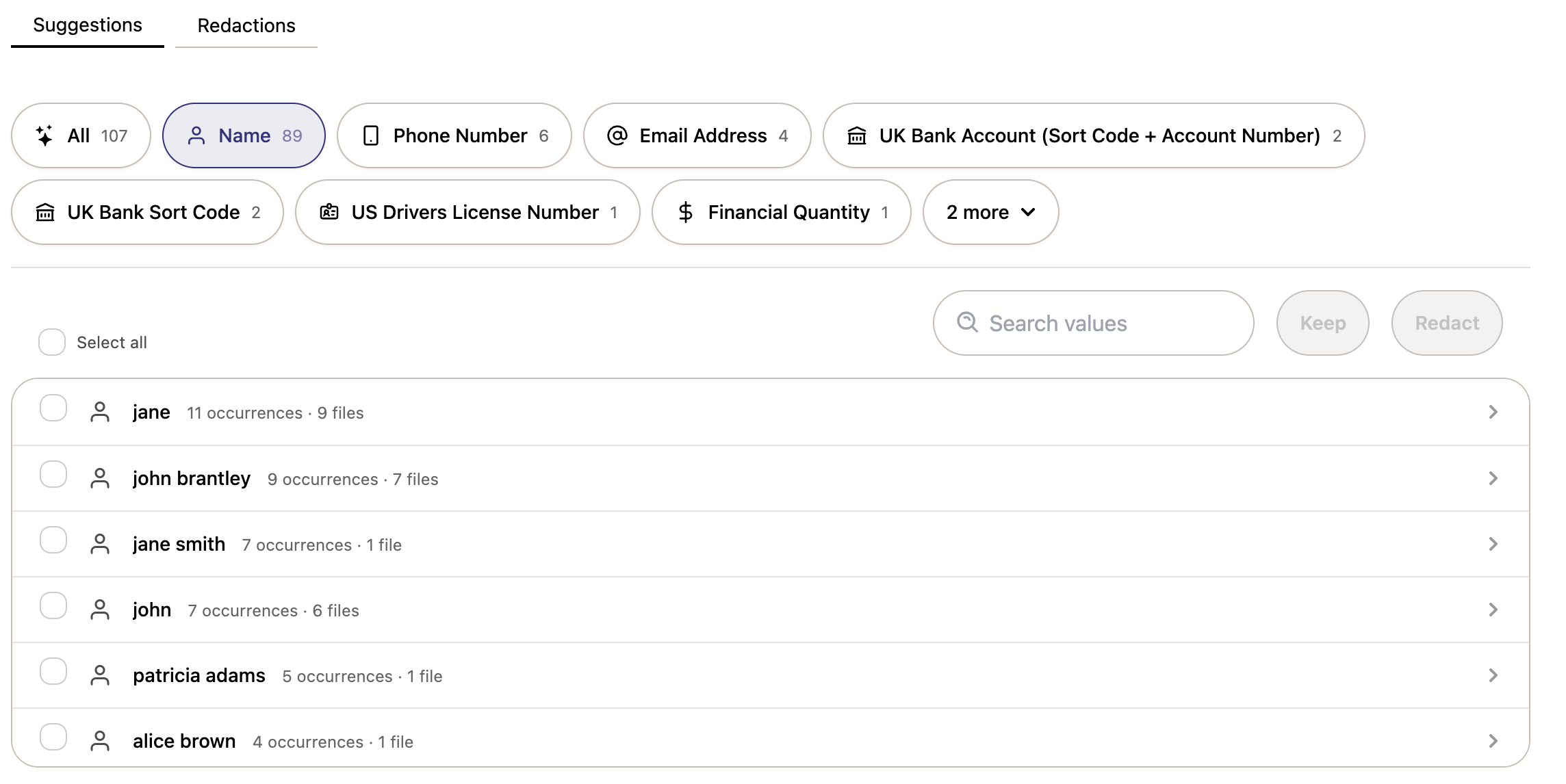
You can filter suggestions by detector type using the tabs at the top — for example, Name, Email Address, or Phone Number— to focus on a specific category. Use the Search values field to find a specific term.
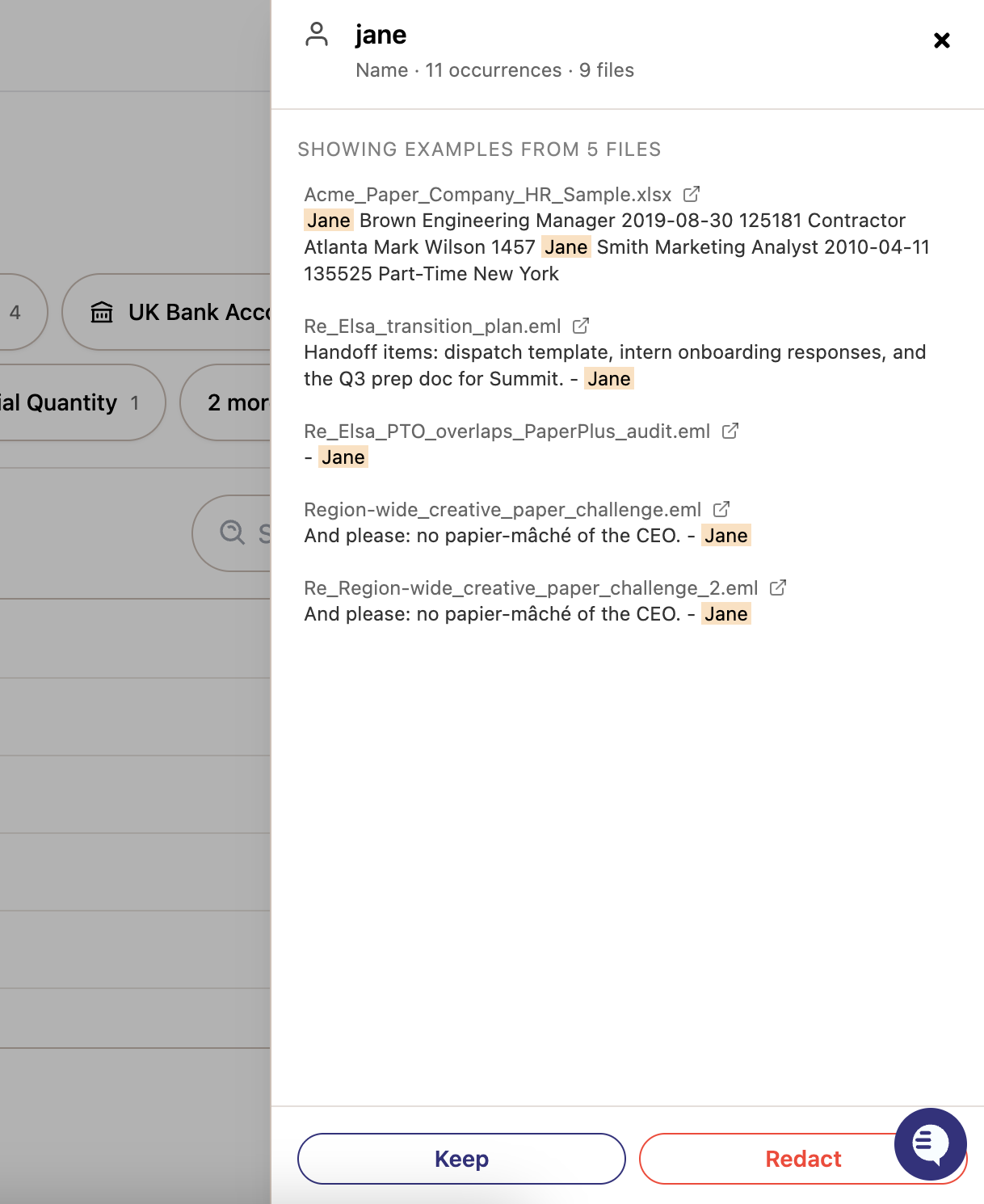
Click on any term to open a detail panel showing example occurrences across files, including a snippet of the surrounding text. Click the file link to jump directly to that document. You can also Keep or Redact the term directly from this panel.
Taking bulk actions
Select one or more values using the checkboxes, or click Select all
Click Redact to apply redactions, or Keep to dismiss them
If redacting, select an exemption reason from the dropdown before confirming

Redactions tab
The Redactions tab shows all redactions that have already been applied across the case, grouped by term with a count of how many times each has been redacted. You can search for a specific term using the Search text field.
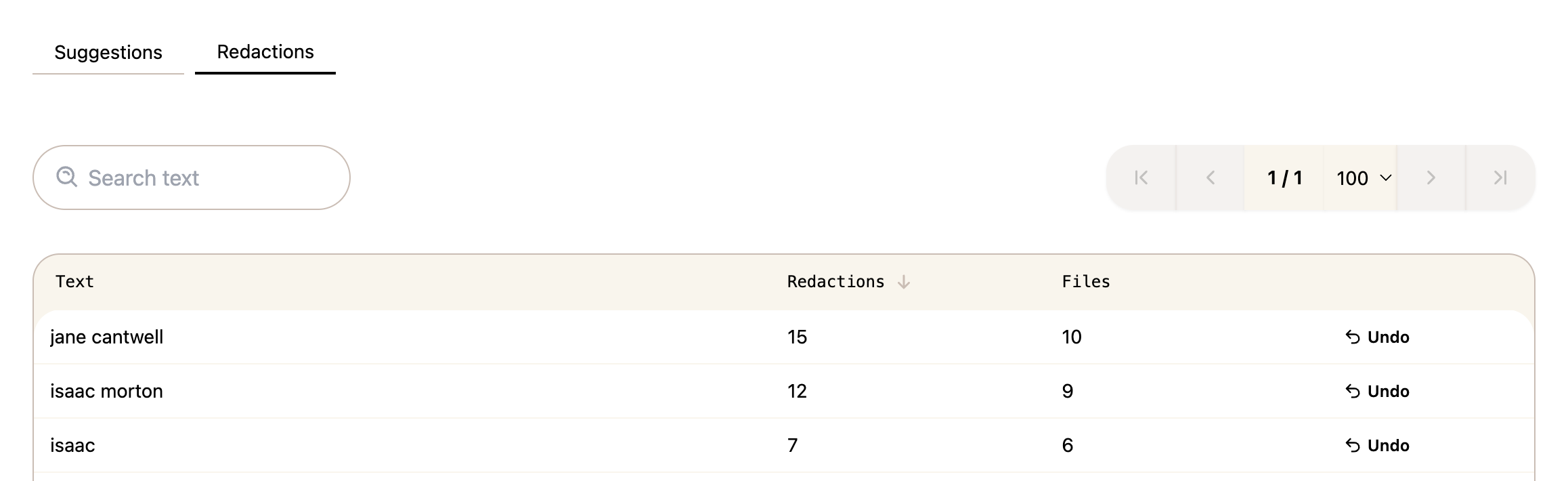
To undo a redaction, click Undo next to the term. A confirmation popup will appear showing how many instances will be removed — click Remove [X] redactions to confirm.
→ Learn more: Viewing and Undoing Redactions
What appears in this view?
Suggestions are based on which system detectors are currently enabled for your account. → How to Manage System Detectors
If a term is appearing that you never want suggested, you can add it to the Do Not Suggest list to remove it from this view. → How to Use the Do Not Suggest List