How to Finalize a Document
Last updated: September 22, 2026
In this article: How to lock in your redactions and mark a document as ready for export.
Once you've completed your redactions on a document, you can finalize it to lock them in. When a document is finalized, it moves out of edit mode and redactions are permanently locked- it's then ready to be included in your export.
How to finalize a document
Open the document in the document viewer
Click the Finalize Document button in the top toolbar
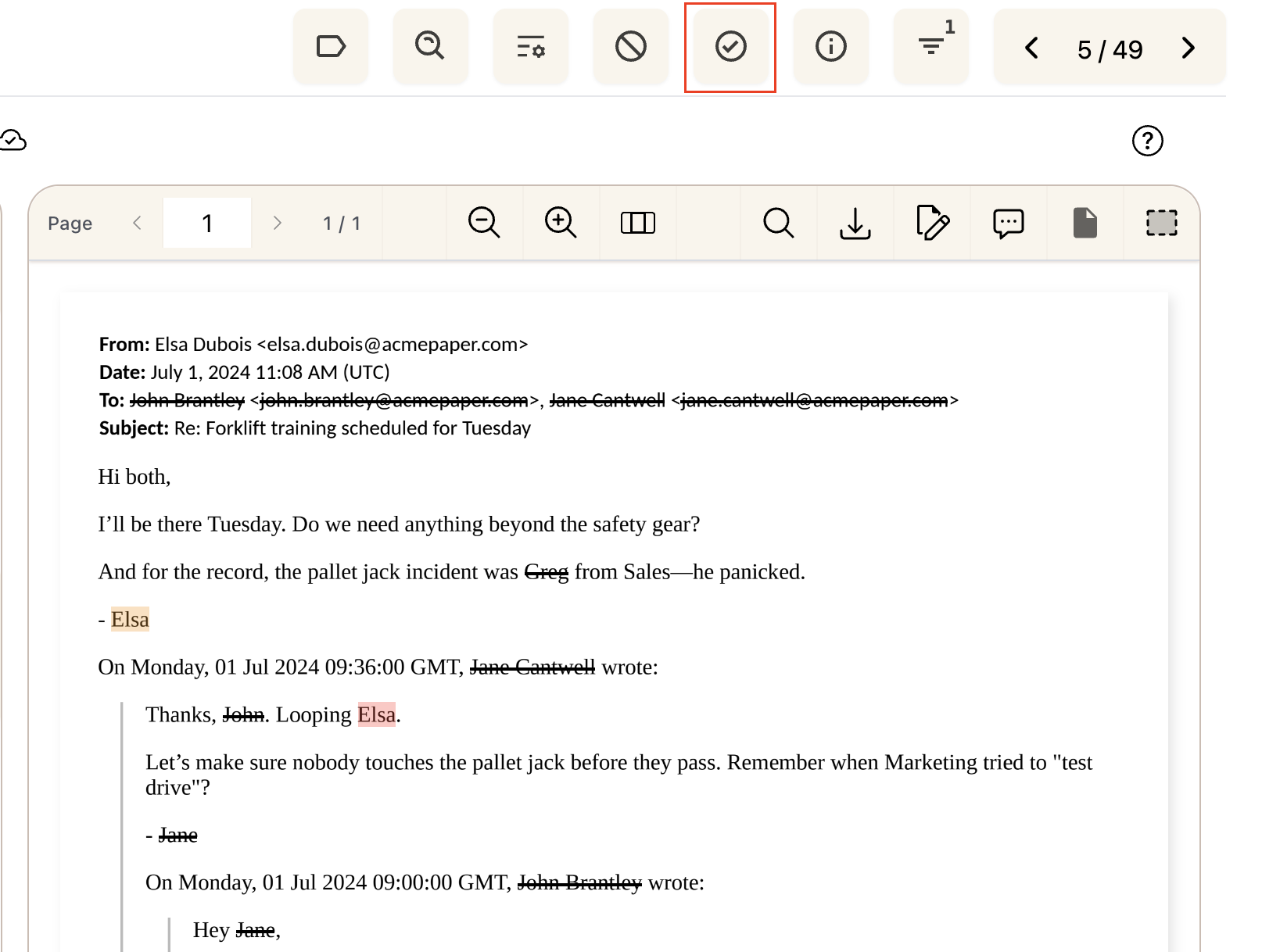
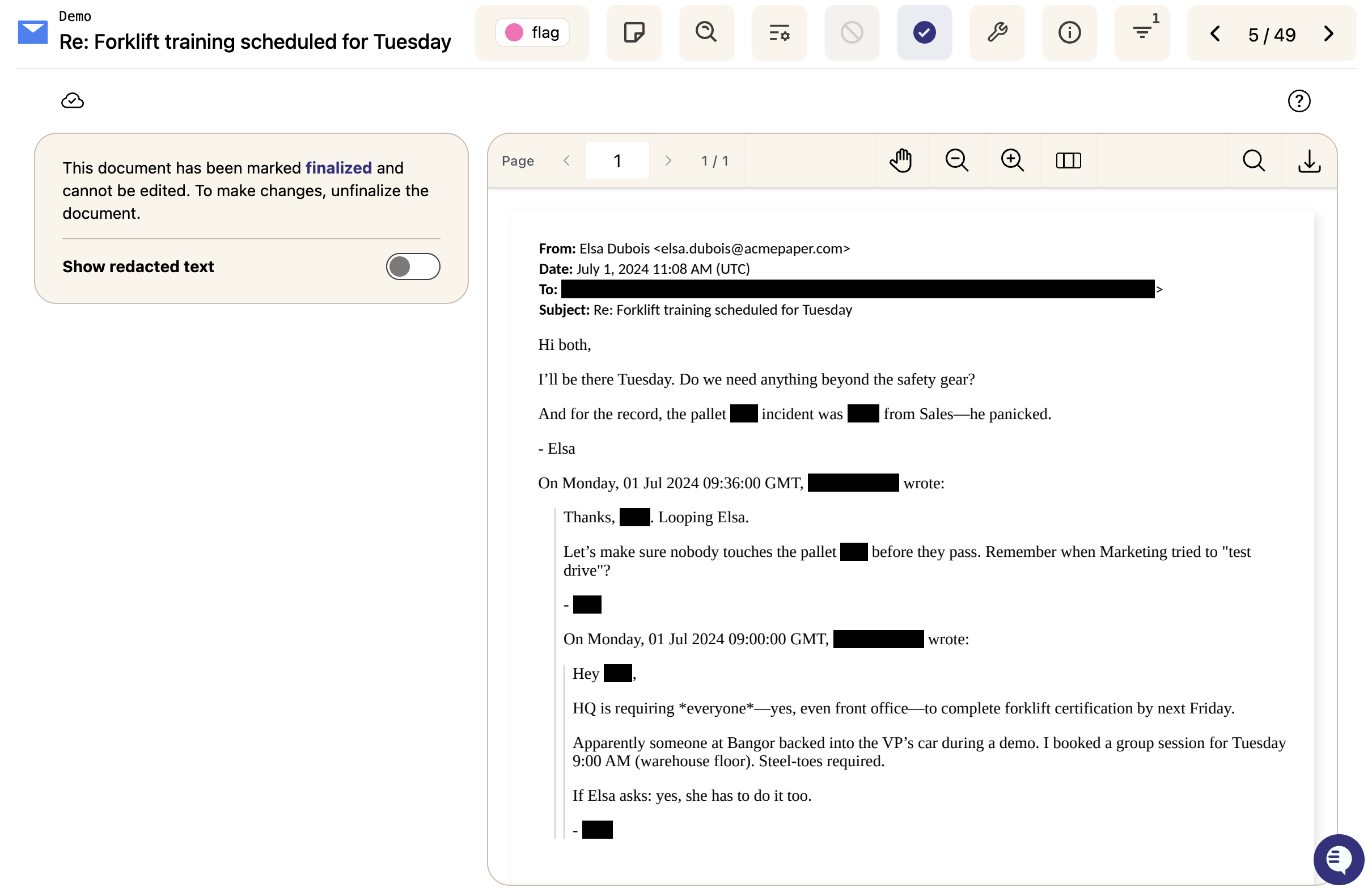
The document will be locked and ready for export. You'll see a confirmation that the document has been finalized.
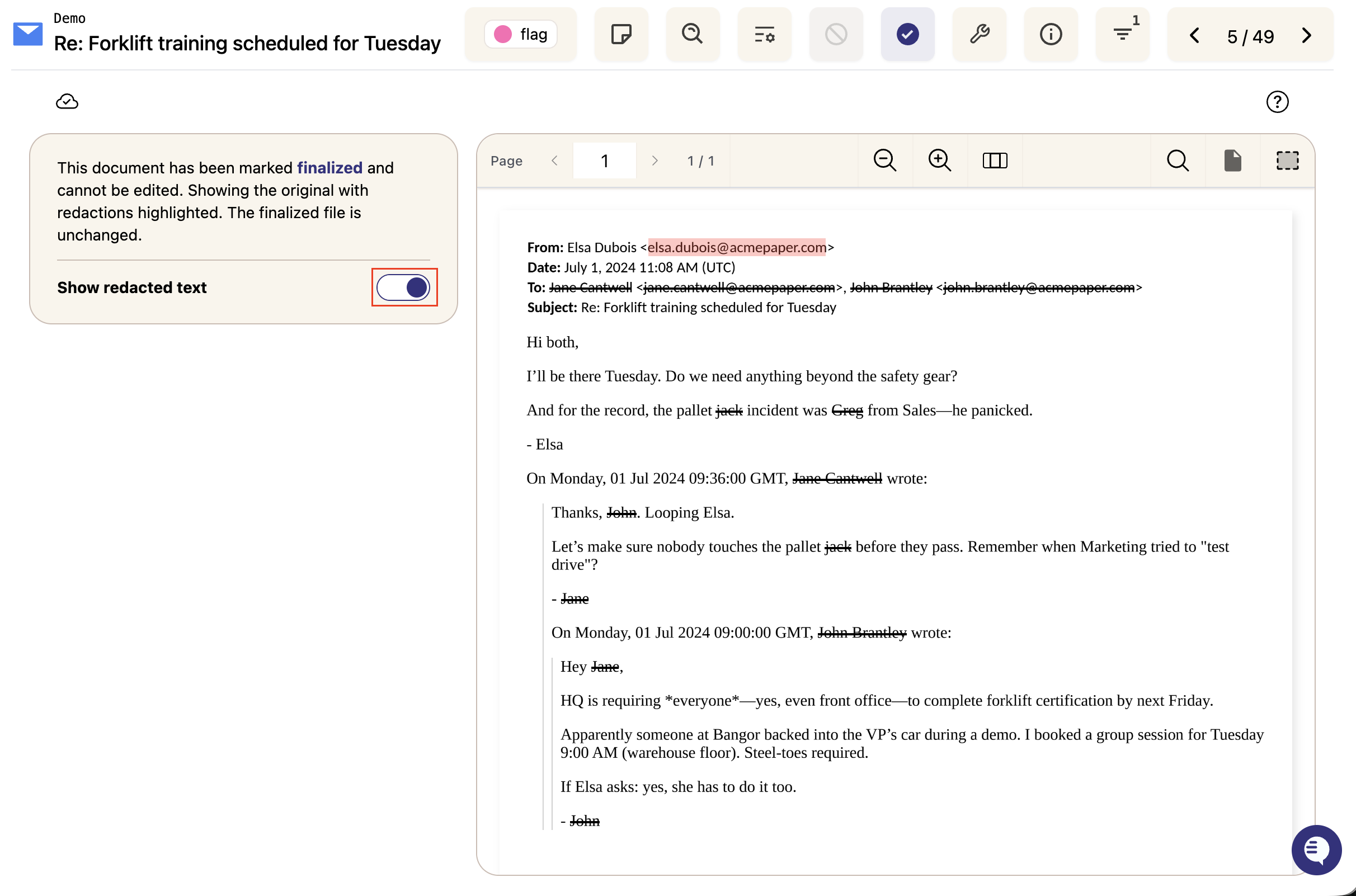
Toggle on Show redacted text to reveal the original content beneath the redactions so you can review them. It affects this preview only- the finalized document still exports with all redactions applied.
Once a document is finalized, redactions are locked and cannot be edited. To make changes, click the Unfinalize Document button to unfinalize it, make your edits, then refinalize when done.

This also means an Entire Case redactions won't apply to files that are already finalized. To redact a term across the whole case, apply the Entire Case redaction before finalizing, or unfinalize the affected documents first.
Finalizing/Unfinalizing multiple documents at once
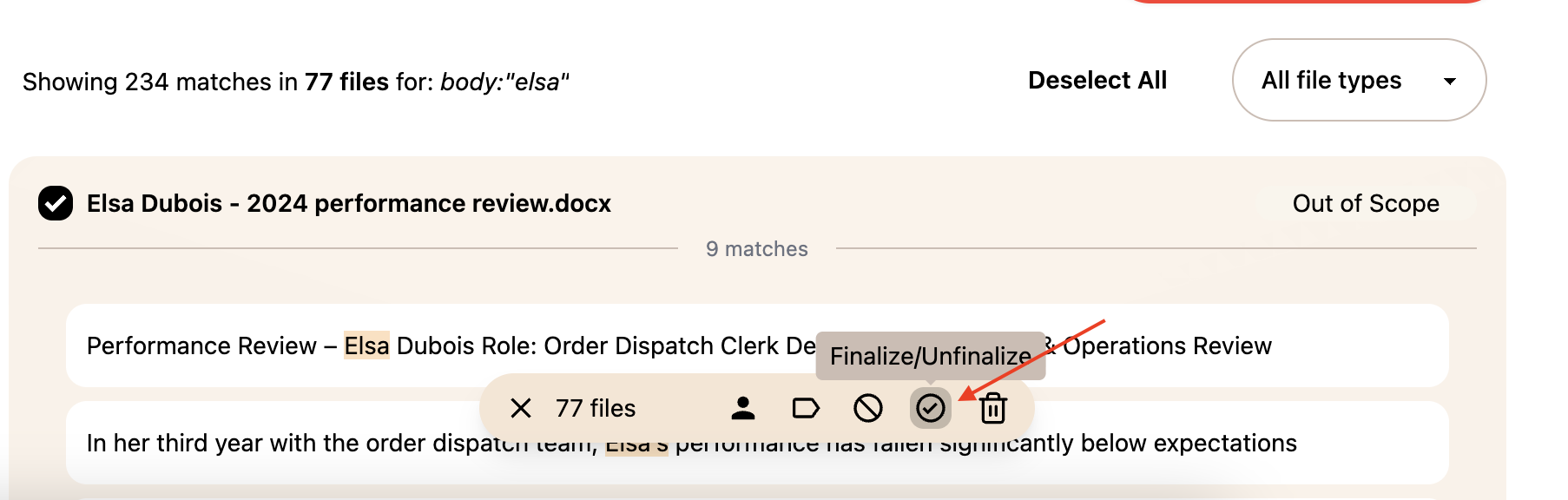
Select the documents you want to finalize using the checkboxes in the document list
Click the Finalize/Unfinalize button in the bulk action bar at the bottom of the screen
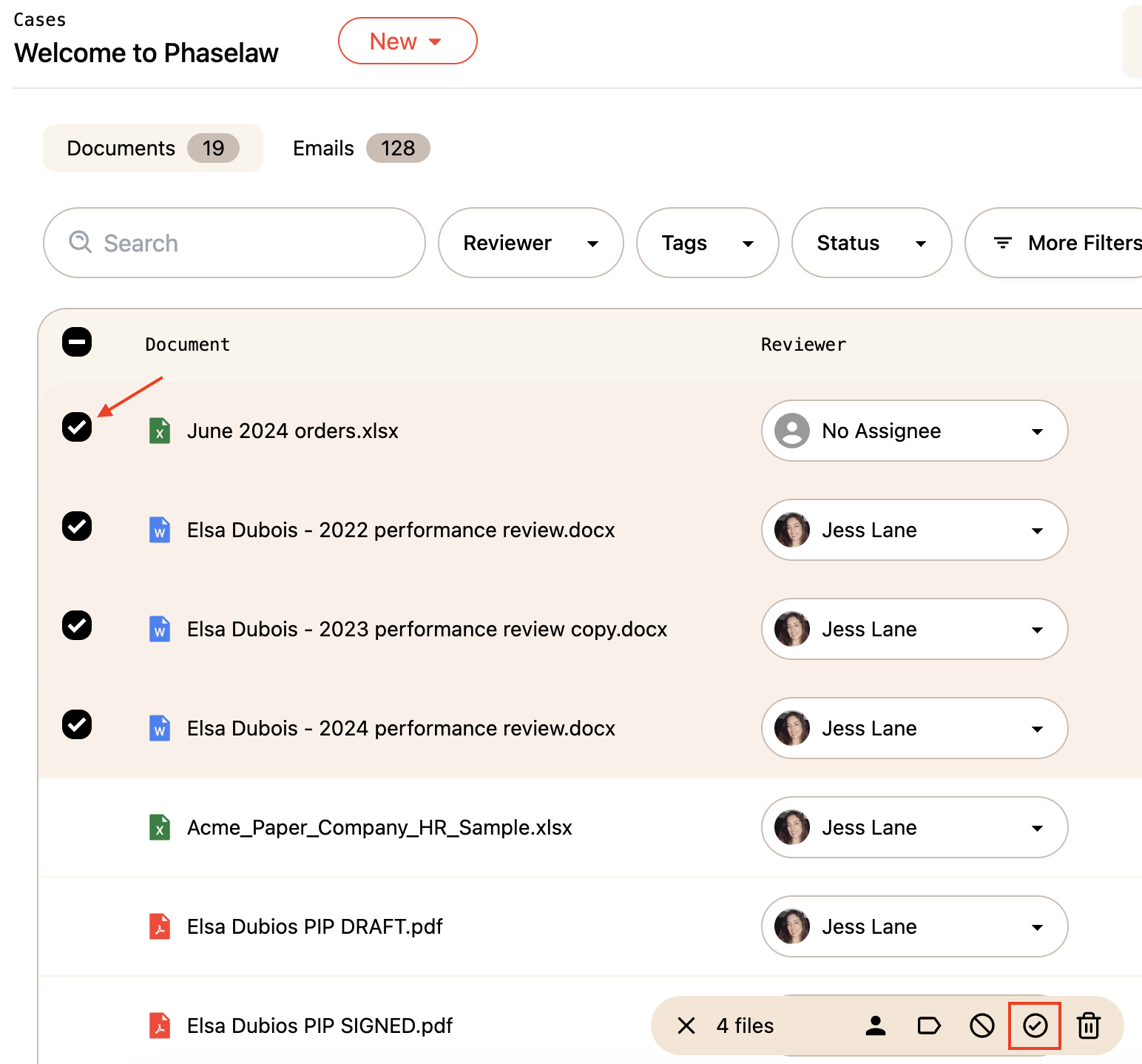
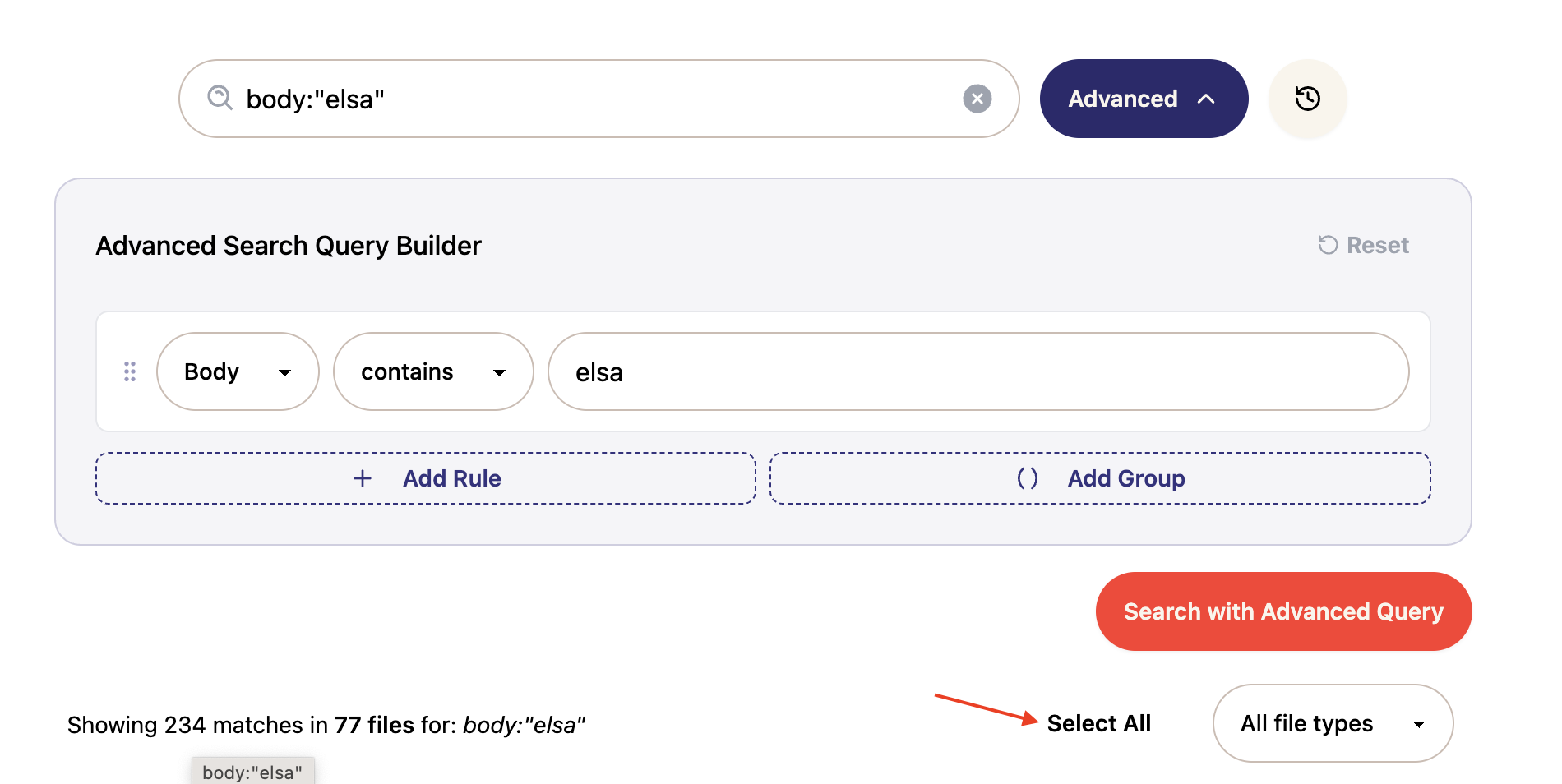
You can also use Advanced Search to find a specific set of documents and bulk finalize the results- useful if you want to finalize all documents matching a particular search criteria at once:
Select Search entire case

Enter your desired search
Click Select All or manually select the relevant documents
Select Finalize/Unfinalize
Previewing finalized documents
By default, finalized documents display in markup view - redacted text appears with a strikethrough rather than blacked out. To see the clean redacted version as it will appear in your export:
From the left sidebar, click Experiments
Toggle on Preview Finalized Files
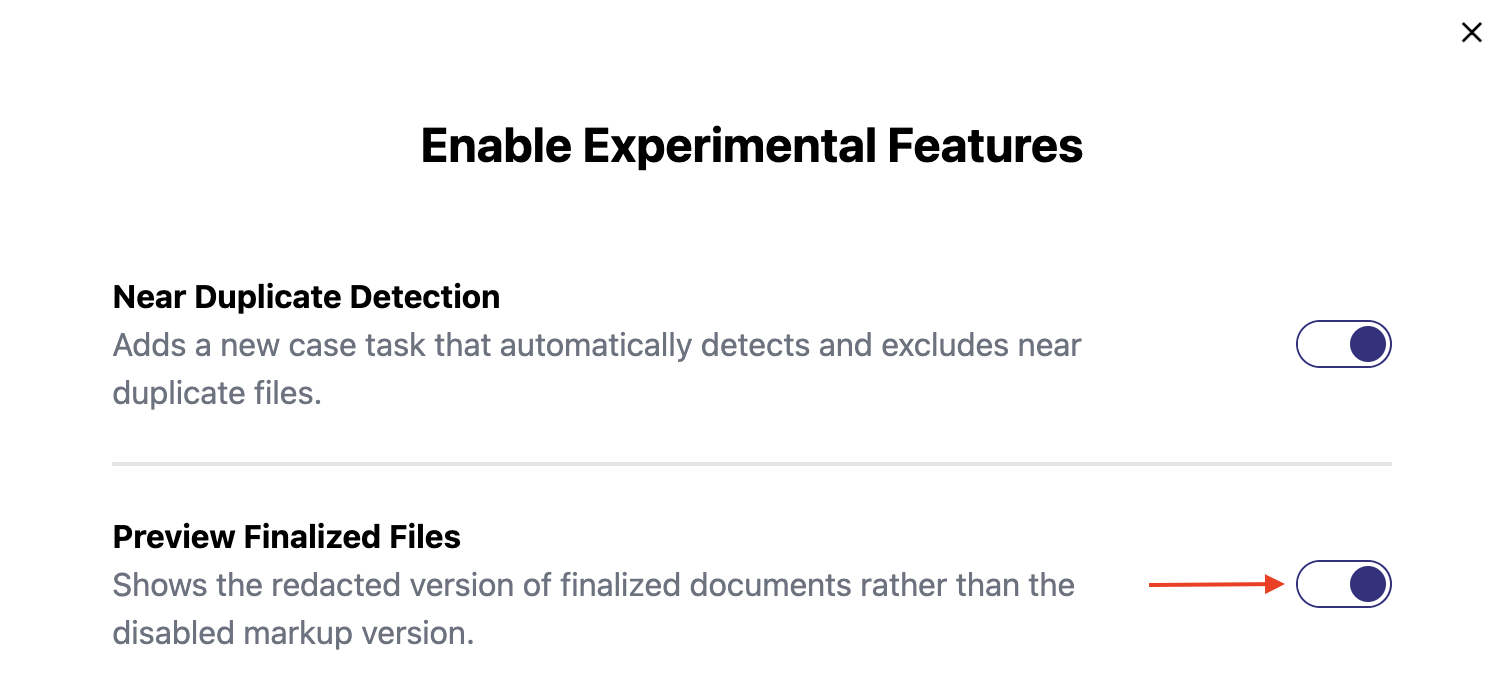
This will show the redacted version of any finalized documents across your case.
What's next?
Export your documents → Export Your Case