How to Use the Spreadsheet Scoping Tool
Last updated: June 26, 2026
In this article: How to scope Excel spreadsheets down to just the relevant rows, columns, and tabs before converting them to PDF for review.
Why does this matter?
Spreadsheets are a common pain point as they often contain large amounts of data where only a small portion is relevant to the data subject. Converting an entire spreadsheet to PDF is slow, often poorly formatted, and can result in a document hundreds of pages long where only a handful of rows are actually relevant.
The Spreadsheet Scoping Tool lets you collapse a spreadsheet down to just the relevant rows, columns, and tabs before converting — making the final PDF much easier to review and more digestible for the data subject.
Watch a quick walkthrough: Spreadsheet Scoping Tool — video guide
How it works
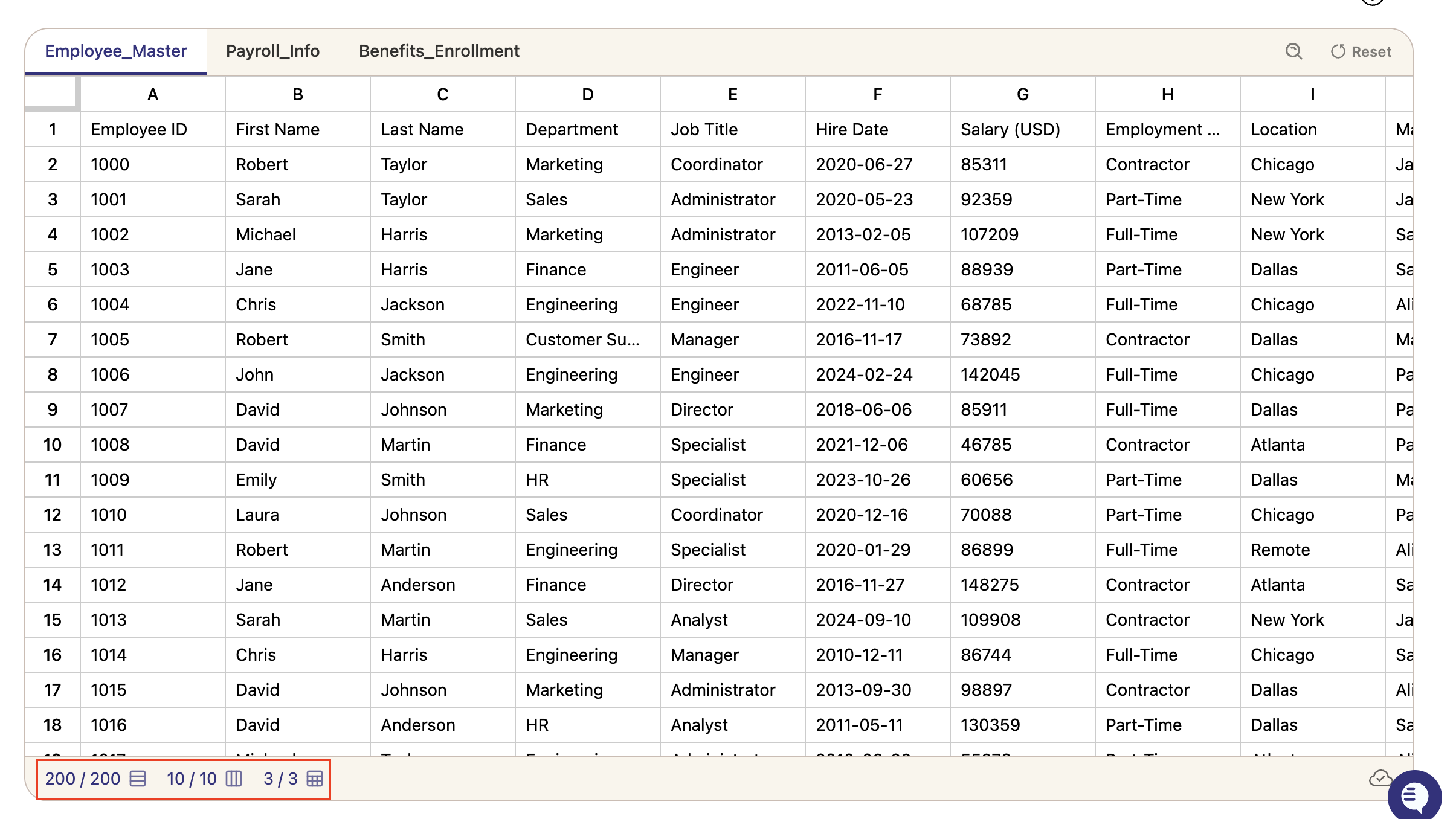
When you open a spreadsheet in Phaselaw, it loads in a native-style interface similar to Excel or Google Sheets — so you can scroll, search, and navigate it just as you would normally. From here you can include or exclude sheets, rows, and columns before converting to PDF.
At the bottom of the screen, a counter keeps a running total of what's currently in scope — showing the number of rows, columns, and sheets included:
Step 1: Scope your sheets
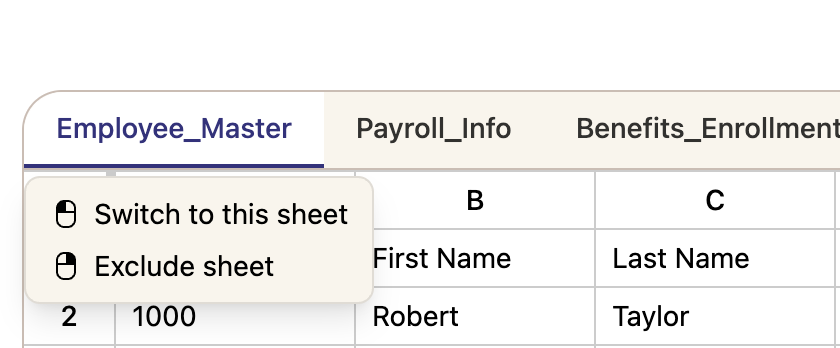
Hover over any tab at the top of the spreadsheet to see two options:
Switch to this sheet — navigate to that tab (left click)
Exclude sheet — mark entire tab out of scope (right click)
Step 2: Scope your rows and columns
Rows: Hover on any row to see two options:
Exclude row (left click) — mark this row as out of scope.
Keep only this row (right click)— mark all other rows as out of scope and keep just this one
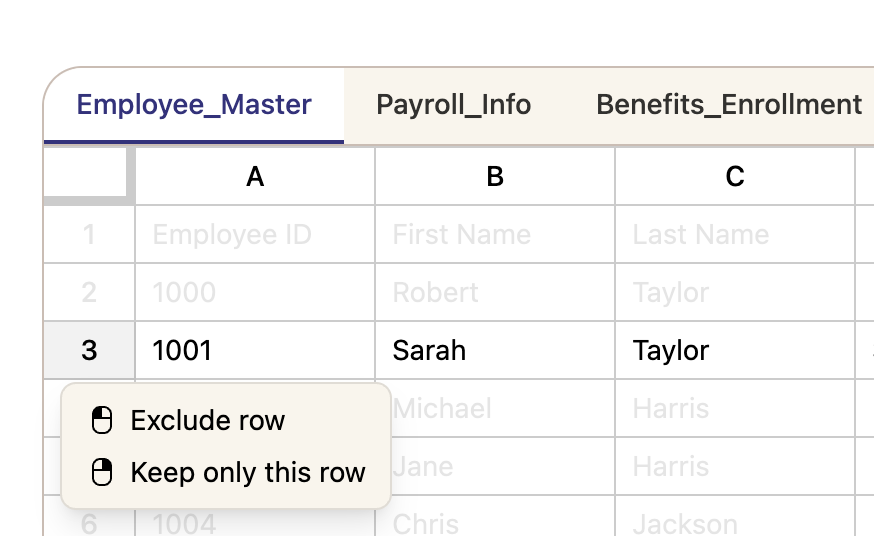
If you've excluded a row and want to mark it back in scope, hover over it and left-click again to Include row back into scope.
Columns: Right-click on any column header to see two options:
Exclude column (left click) — mark this column as out of scope
Keep only this column (right click)— mark all other columns as out of scope and keep just this one
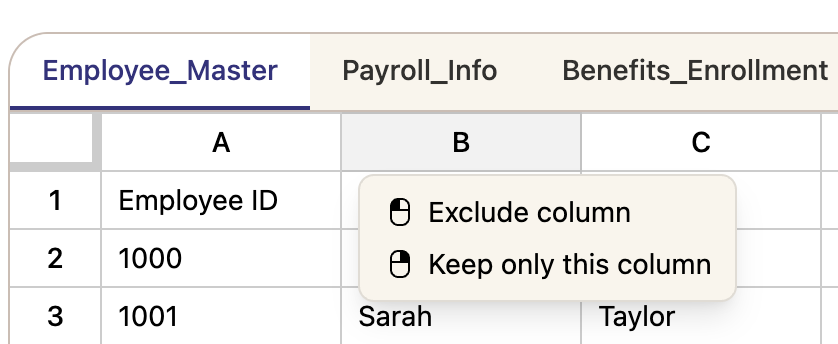
If you've selected keep only this column or row- the menu will change to show Include row or Include column — making it easy to add them back into scope one by one.
Step 3: Search to find relevant rows
Use the search bar in the top right to search for a specific name or term — for example, searching "Jane" will highlight every row containing that name and show a count of matches. Once you've searched, two buttons appear in the search toolbar:
Keep only matching rows — marks all other rows as out of scope and keeps only the matching ones
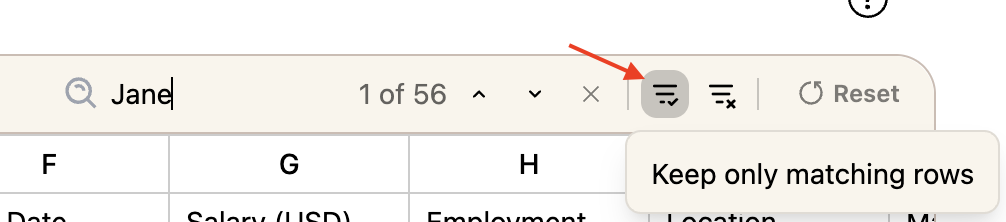
Exclude matching rows — marks all matching rows as out of scope

Step 4: Convert to PDF
Once you're happy with your scoping, click the Convert to PDF button at the top of the screen. Each tab becomes its own page in the final PDF, containing only the rows and columns you've kept in scope.
After converting, you can apply any remaining redactions to the PDF as normal: How to Redact Documents in Phaselaw

Note: Case-wide redactions only apply to spreadsheets that have been converted to PDF. If you apply a case-wide redaction before converting, it won't affect the spreadsheet view — only the PDF. For best results, complete your deduplication and search steps first, then scope and convert your spreadsheets before applying case-wide redactions.
How to revert to the spreadsheet
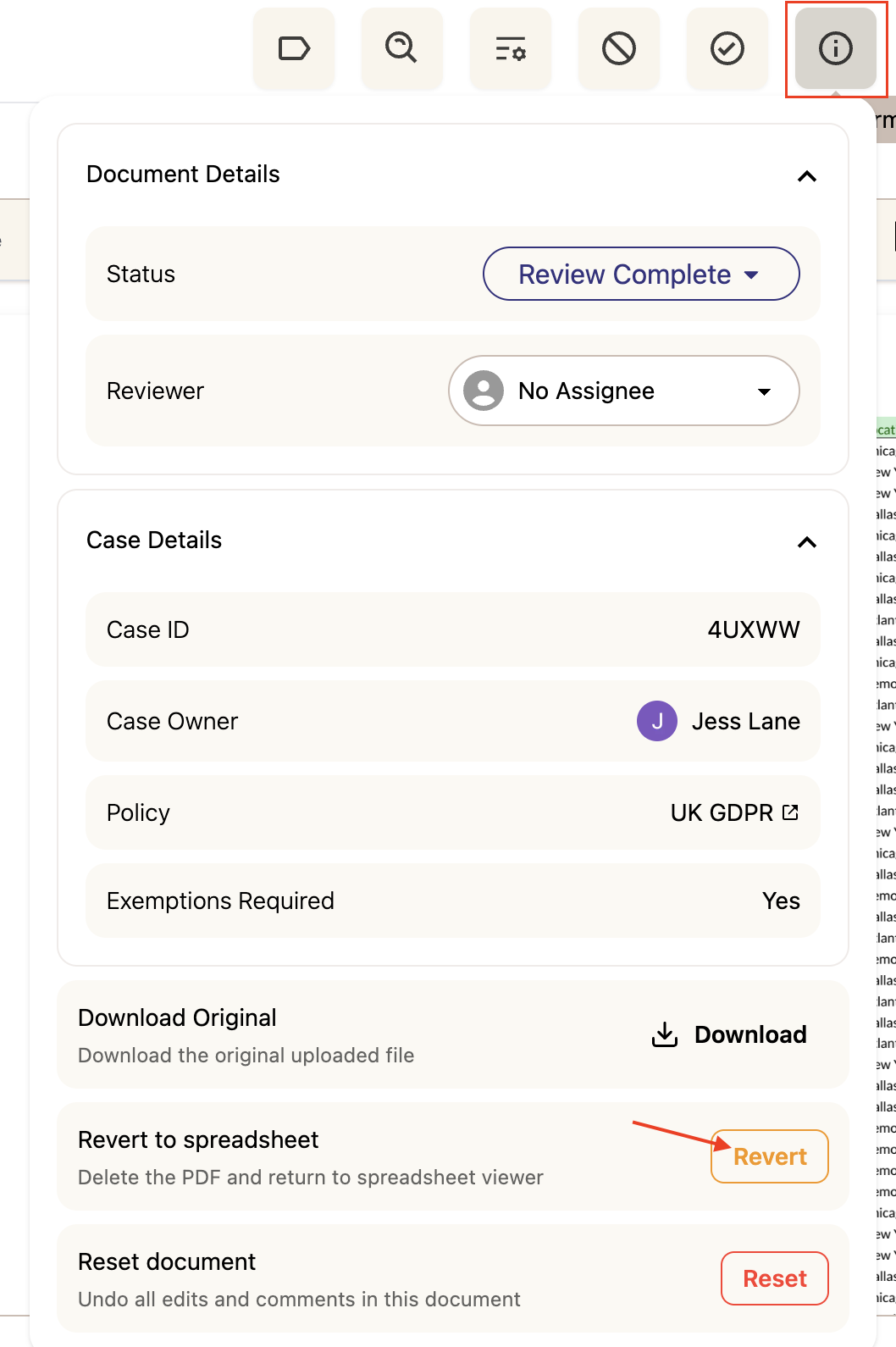
If you need to go back and make changes after converting, click the i (Info) icon in the top toolbar and select Revert to Spreadsheet. This returns the document to its original interactive state so you can adjust your scoping and convert again:
Enabling redaction suggestions for spreadsheets
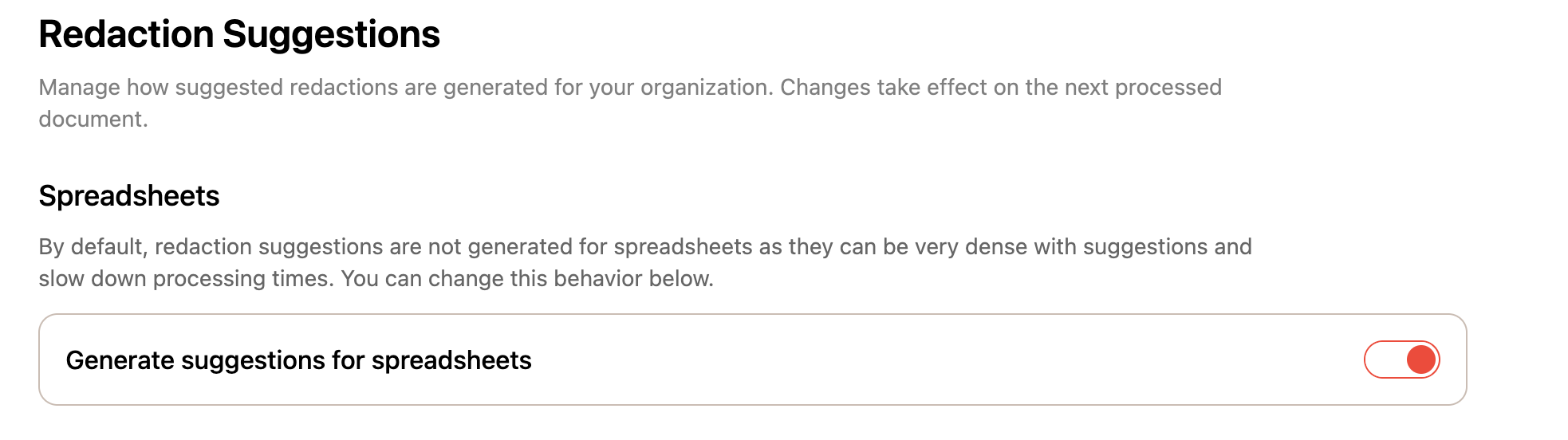
By default, Phaselaw doesn't suggest redactions for spreadsheets — they're often dense financial or employee data files where suggestions would slow down processing and hold up the rest of your review. We recommend keeping this setting off unless you have a specific need for it.
If your spreadsheet contains a lot of paragraph text — such as a log of email communications dumped into a sheet — you can enable analysis in Configuration:
From the left sidebar, click Configuration
Scroll down to Spreadsheets
Toggle on Generate suggestions for spreadsheets
Enabling this setting will slow down processing for all spreadsheets in your account. Turn it back off once you've finished with the spreadsheet that needed analysis.
Other helpful tools
Resize columns — drag column borders to make them wider if you need to see the content more clearly
Freeze cells — freeze a row or column (such as the header row) to keep it visible as you scroll
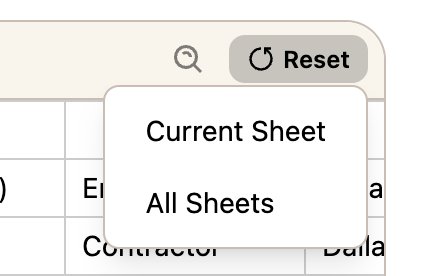
Reset — if you want to start over, use the reset button to revert either the current sheet or all sheets back to their original state: