How to Create and Manage Tags
Last updated: August 20, 2026
In this article: How to set up tags so your team can use them to organise documents during review.
Only admins can create and manage tags. Once created, tags are available to all team members across all cases.
What are tags?
Tags are colour-coded labels you can apply to documents to help organise your case. You can assign multiple tags to a single document and use them to quickly identify, filter, and search for content based on criteria like sensitivity level, workflow status, or document type.
Common examples include:
Flag — to mark a document that needs a second look
Final Review — to indicate a document is ready for sign-off
First Pass — to track documents that have been through an initial review
How to create a tag
From the left sidebar, click Configuration
Under General Settings, scroll down to the Tag Management section
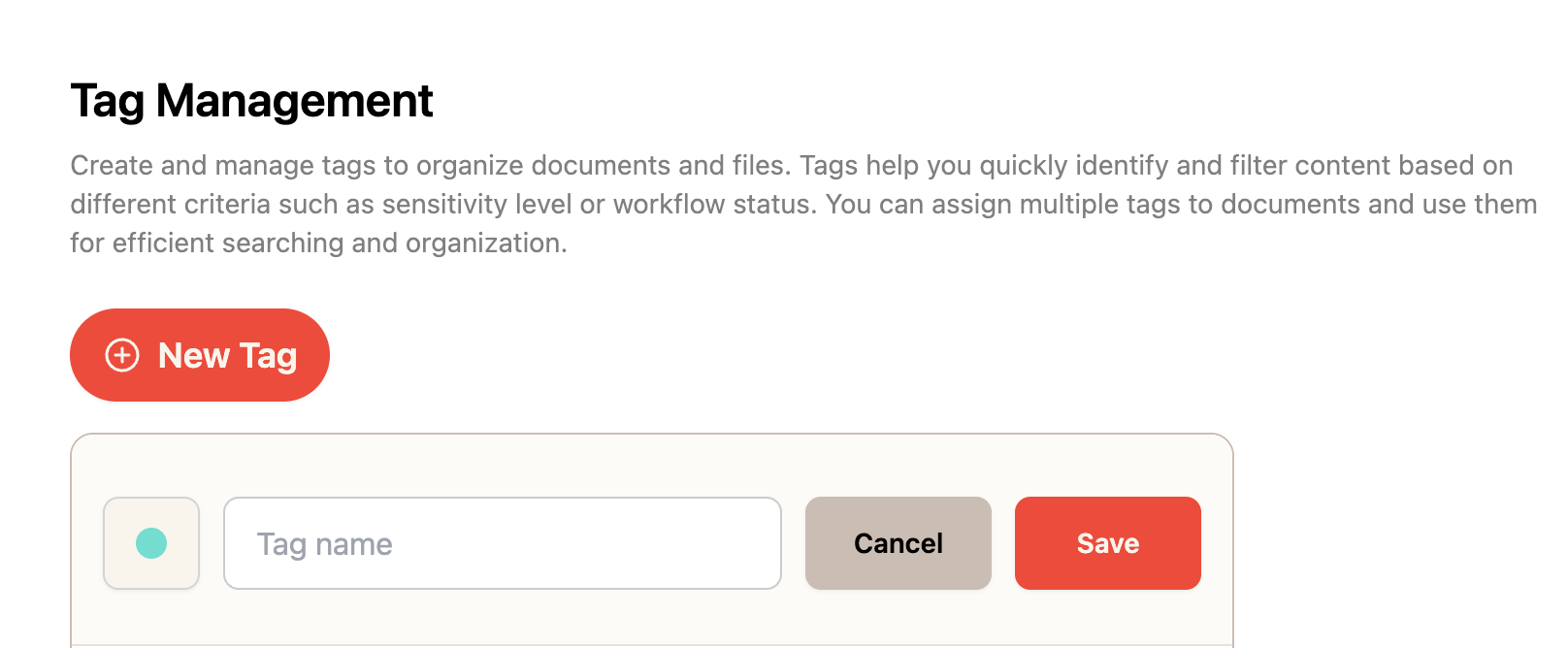
Click the red + New Tag button
Give your tag a name and choose a colour
Click Save
We recommend setting up your core tags before your team starts reviewing — think about the workflow stages and categories that will be most useful for your cases. You can always add more later.
More Information
Apply tags during review → Using Tags to Organise Your Documents